F. Renegade correctly swaps to XMS instead of DISK once again and
will use EMS if an OS supports it via driver such as straight DOS.
U. Added error detection to RGLNG.EXE. If you are missing a string
RGLNG will exit and tell you which string you are missing
A. 2 New Strings. Batch Upload and Download Empty prompts.
BATCH_UP_EMPTY, and BATCH_DL_EMPTY are the new tags. A new RGLNG
and RGLNG.TXT string file will be included in the next release.
F. Fixed colors on the front end of some prompts and in the User
Editor.
U. Updated copyright notice to reflect Renegade Home Page as well as
added some color to it.
U. Renemail has been updated to release better time slices under
Windows OS and removal of tempfile RENEMAIL.NET that was left over
after mail processing was completed.
F. Corrected Stats Menu to allow USERNAME color to now be changed
when the color is changed in RGLNG.TXT or in the ASCII/ANSI file.
F. Fixed & Updated the MultiNode Chat room. It now runs & looks
like an IRC/MRC Chat room. Not great, but atleast it works again!
A. View archives will not let you scroll via a Lightbar and view
text and ANSI files within the archive.
F. Fixed MENUCMD "VI" now will scroll by page to view ansi and scroll
line by line on text. The system will automatically select which is
which based on file extenstion. The same code is used for the File
archive viewer.
A. Message Reader/Lister Lightbar is now added. Now you can scroll
through the message list for each base via your arrow keys and
select which message you'd like with your enter key.
A. File Listing Lightbar is now added. Now you can scroll through
the file listings with your arrow keys. Tag files into a batch
queue with the spacebar, view the archive with the internal
text and ANSI scroller.
A. 5 New Language Strings have been added for the Message Lightbar and
File Lightbar Footers. You can customize these however you like,
but no longer than 79 characters wide.
A. Added new ANSI/ASCII file. BATCHEMP.ANS/.ASC This is displayed
during file tagging on the file menu when you have no files tagged
to download. Make sure the ANSI clears screen it or else the user
will still be able to use the menu behind the ANSI without it
refreshing.
----[ Changes in v1.35/DOS ]----
Miscellaneous Code clean up.
New Menu CMDKEY, HQ Hangs up User and quits the BBS to DOS.
New Menu CMDKEY, HD Displays GOODBYE.ANS/.ASC to the user
upon slow logoff as before without the YES/NO Lightbar prompt
being used.
■ New Menu CMDKEY, 1E Edit Oneliners. This will allow you to
edit or remove onleiners you do not approve of on your BBS.
■ Miscellaneous Color Fixes within some prompts.
■ Updated miscellaneous bullet character "■" infront of titles and
information after downloads finish to quit changing to a ? each
time the source was compiled. :)
■ Updated File Description Search functions to log what user was
searching for in the SYSOP.LOG file.
■ New Menu CMDKEY, DX Output ALL Door Files at the same time.
Useful when running a program that uses one and spawns into
another program that only works with different drop file in the
same batch file.
■ Found and FINALLY killed bug that causes NTVDM crashes when using
any program that used the ComPort directly.
■ New Renegade starting parameter, -K causes Renegade to drop to
DOS on all disconnects from the BBS. Useful if you are using RG
as a door server. Updated Renegade -? Help screen to
reflect this. This will act the same as -T except it will drop
to DOS and not the WFC screen.
■ _MORE_ Color Fixes within some prompts.
■ Updated Netmail area internal display prompts and procedures.
■ Updated & Bullet proofed Renemail thanks to Nick Andre.
■ Renemail new option, -X which will pull messages from
Renegade's data files and converts it back to *.MSGs for those
wanting to do %RESCAN and pickup past messages.
■ New Renegade starting parameter, -R causes Renegade to update
the MULTNODE.DAT file with any information you want from the command
prompt.
Renegade -R 5 ON D'Bridge Tossing Mail
Will update Node 5 to say D'Bridge and status of Tossing Mail
Renegade -R 5 OFF
This would clear the node status of node 5.
■ Removed some old Error Logging to the file areas.
----[ Changes in v1.33/DOS ]----
============================================================================
U - Updated A - Added F - Fixed
============================================================================
F. Fixed bug where new ONELINERS would not display if a
datafile was remade from scratch and there were not a
total of 10 ONELINERS present in the original data file.
Before you would have to save 10 entries to the ONELINER
before anything would start to display. This has now
been corrected.
F. Renegade no longer sets the USERNAME as a blank field if
you were to hit ENTER when trying to change your username
on the BBS. New RGLNG.TXT entry has been added to account
for this as well.
U. Strings added to RGLNG for the "Scanning for your new
mail." and other strings related to this.
U. User Editor now uses standard prompts for editing
instead of using any pre-defined strings made in RGLNG that
were intended for the NEWUSER INFO MENU & PERSONAL MENU.
U. SysOp Window toggle back at ALT-S since SysOp Split
Screen chat is now a toggle in the system config. ALT-A
still works as well for now.
A. Added %EP (Empty Pause) MCI Code. This is for SysOps
or users that want to make their own PAUSE prompt without
using the system deinfed one. Just write your Pause Prompt
and on the next line input the MCI Code %EP. (Work in
progress.)
F. SysOp Password prompt will no longer have an input
field as part of the string.
F. Color codes right before the @ sign was not displaying for
Logon and Password strings. This has now been corrected.
F. Renegade will no longer prompt to save a blank string.
It will now revert to the string before the change was made.
A. Scrolling Text File Viewer. Work in progress, but it's
a start and it works. Right now, ASCII text only works. Will
add more complex features as we work on this.
New MENUCMD: VI - Scrolling Text File Viewer
Works the same as -F. Whatever you put in the options field
will be displayed, only with the VI CMD Key you can scroll
UP and DOWN.
F. Bug in Renemail which would cause a large swap file
to be created if a certain type of Fido stye message was
imported. This has now been corrected and checked for.
A. More Strings external. SysOp In/Out and Multinode
chat availble/unavailable.
F. Oneliners will now show [ANONYMOUS] if the person
who wrote the oneliner is deleted from the userbase.
F. Miscellaneous Cleanup and Color fixes.
----[ Changes in v1.30/DOS ]----
============================================================================
U - Updated A - Added F - Fixed
============================================================================
A. Not really a Renegade Fix, but added Lee Woodridge to the
Renegade Development Team.
~AN (Anon - Yes/No) ~AT (Anon - True/False)
~DA (Date Added) ~OL (The Oneliner)
~RN (Record Number) ~U# (User ID with '#')
~U1 (User ID without '#') ~UN (User Name)
~UL (User Name Lowercase)
~US (First 2 Letters of Username - iNiQUiTY Style)
~UU (First 2 letters of username lowercase)
New MENUCMD Keys For OneLiners:
1L - Display Oneliner (Header/Footer & all Oneliners)
1R - Display Random line from Oneliner File
F. Local file upload bug. Before when uploading locally with
the FU command key after 1 upload it would stop and you would
have to repeat the process. It somehow become broken over
the years and no one said anything. Now it will upload all
files without stopping if a *.* is entered for the filename.
F. When a file was moved, if it was a dupe, the file wasn't moved
but the description was. This is no longer the case. If the
file is a dupe, nothing is moved. This prevents dupe file
descriptions.
F. The (~TO) MCI Code in the LASTM.ASC file would display a random
number when viewed while the user was still online. This has
now been updated to show " - " until the user logs off and
the correct time online will be shown by this MCI code.
A. New MCI Code - %XYaa;bb% (aa=01-80 Left to right) and
(bb=01-25 Top to Bottom). Allows format positioning of the
cursor without the need of having your ANSI menu file do it,
for you. Say you wanted the word "Hello!" to appear in the
middle of the screen, it would be used as such:
%XY40;12%Hello!
The above would move the cursor to space 40, line 12, and put
your text of "Hello!" starting there.
U. The Auto Message is now configurable. It is like the oneliner,
last caller, user list, etc. It has a header, main, and a
footer file in the MISC directory.
The auto message is now saved as "AUTOM.ASC" instead of
"AUTO.ASC" to make it conform to the rest of the code base.
New Files :
AUTOH.* - Auto Message Header (Optional)
AUTOM.* - (Can be made, but automagically made when a auto)
(message is created. This is your auto message.)
AUTOT.* - Auto Message Footer (Optional)
U. Disabled Forgot password response for Co-SyOp and above.
This would prevent someone from trying to logon as the SysOp
and trying the forgot password question answer and resetting
it so they can logon as the SysOp.
U. Can now scroll through the node settings without having to
load each node seperately.
A. Added System Config Menu Option (N). SysOp Macros. They were
moved from another submenu to make a more cleaner look and easier
to find.
F. Removed System Config and File Area Editors strings from
the language files to prevent unwanted access. Also removed the
MCI codes that ran these menus (which would've caused a problem
in certain instances.)
A. YES/NO LightBar Choice options added to the YES/NO Prompt MENUCMDs.
F. Split Screen Chat now auto scrolls and stays within it's
borders. Also added help commands that are listed in the center
of the chat screen.
U. When the SysOp breaks into chat via a "Chat Page" with the
SpaceBar the split screen chat will auto load. Otherwise, the
normal line chat will be used.
Chat commands are as follows:
ALT-C - Line Chat ALT-S - Split Screen Chat
U. Teleconference strings are now located within the RGLNG
text file instead of the Node setup options screen in the system
configuration section.
U. RENEGADE.EXE /? now shows what command line parameters are
available to run along with a short message of what each does.
U. All strings are now combined into RGLNG.TXT.
A. New MENUCMD *T to toggle SysOp Chat Availability without
the use of the SCROLL LOCK key. Also, new MCI Code %SA to show
if the sysop is avaliable or not.
U. Removed more strings from Renegade and added them to
RGLNG.TXT for more editing for the SysOp.
U. Redid NewUser Toggle Questions Menu to add all toggles
in one place. Remember to clear your all of your toggles after
you upgrade so the new changes will take effect. Cmd Key of *
will do this for you.
U. User #0 (Default account) can now be cleared for all user
options. Cmd Key of $ will allow you to clear out which
fields you want to be blank instead of having a "." or some
random text in the user data file. This is also a good idea to
do once you upgrade as the forgot password question more than
likely has a space in it's field and more than likely won't
work until you clear the prompt with the $ cmd key.
U. Updated OP Menu CMD options. Be sure to change these in
your NEWINFO menu and PERSONAL info menus or else what you
have listed won't match what it does. ;)
New OP Menu CMD Options:
1 Handle
2 Real Name
3 Country
4 Address
5 City, State
6 Zip Code
7 Phone Number
8 Age
9 Gender
10 SysOp Defined Question #1
11 SysOp Defined Question #2
12 SysOp Defined Question #3
13 Password
14 Forgot Password Question Answer
15 Terminal Emulation
16 ANSI Color Toggle
17 Color Scheme
18 Screen Size
19 Screen Clearing
20 Screen Pausing
21 Hotkey Input
22 Expert Mode
23 Lightbars Toggle
24 Editor Toggle
25 Mailbox Toggle
26 QWK Configuration
27 * UNUSED *
28 * UNUSED *
29 * UNUSED *
30 * UNUSED *
U. Updated SysOp LOG Output. Now shows a bit more info on
what the user was doing while online. Such as what menus
were accessed (along with menu titles & numbers) and a time
stamp on when things were accessed.
F. Finally tracked down bug that would lock up a newscan
if you had more than 255 files in a base.
U. New MCI Code %OL -- Light Bars On/Off. This replaces
the file and message light bar mci codes.
F. Fixed bug that allowed the user to Email deleted users.
Co-SysOp and higher can still email (for what reason, testing?)
deleted users. A Prompt will ask if you wish to or not.
U. Added Several Email Error strings to RGLNG
U. Top 10 Files Listing now asks if you would like to
download one of these files from the menu. If you select YES
you will be given the option to download file 1-10.
U. More strings added to RGLNG.TXT file to edit for your
pleasure. ;)
F. User Record now correctly updates stats when a user
dowloads or uploads a file.
U. Increased MAX system menus to 200 from 100.
A. Added additional Sub-Menus to System Toggles in
System Config.
----[ Changes in v1.25/DOS ]----
============================================================================
U - Updated A - Added F - Fixed
============================================================================
U. Updated Renegade Booting to now NOT show all the debug code.
U. Updated WFC Screen and removed the "total space free" option as
Pascal only reports up to 1.9 Gig. Added Errors to Today's stats
as well and moved all options down to give a beter uniform look.
U. Updated "Scan for your personal messages" colors to be easier on the
eyes than the old yellow color.
U. CTRL-HOME key combination updated to reflect options.
ALT-A is now SysOp line ON/OFF
ALT-S is the Split Screen Chat
The above CTRL-HOME options were changed in v1.22 but the Help screen
was never updated.
U. Updated some miscellaneous display files that were maybe not
listed so that they can be used. These are placed in your
RENEGADE\MISC directory.
MISC DIRECTORY FILES - These can be .ANS, .ASC, .RIP, .AVT
2MANYCAL - Prints when user logs on more than allowed.
AUTOVAL - Prints when user successfully auto validated
BATCHUL0 - Displays before a Batch Upload w/ 0 files in queue.
BATCHUL - Displays before a Batch Upload Queue.
CHATEND - Displays when SysOp Chat is started.
CHATHELP - Shows options in SysOp Chat.
CHATINIT - Displays when SysOp Chat is ended.
CHATOVR - Displays for Chat Override
DLHOURS - Prints to show Download Hours.
DLOAD - Displays before a file is downloaded.
DLMAX - Max Downloads Reached Display File
DLBTMAX - Max Downloads (Batch) Reached Display File
GOAWAY - Displayed when tried chatting too many times.
HANGUPxx - Displays on logoff. HANGUP.xxx or HANGUP1.xxx
through HANGUP99.xxx
LOGERR - Displays if user incorrectly enters name/pw.
LOGOFF - Displays on Slow Logoff.
LOGONx - Displays after user logon. LOGON, LOGON1-LOGON9
MULTILOG - Prints when user is already logged on a node.
NEWAPP - Displays before a new user sends email to sysop.
NETMHELP - Displays before a netmail is written.
NOACCESS - Prints when a user chooses a cmd they do not
have access to.
NOLEFT - Prints when user has no time left.
NONODE - Prints when user does not have access to node.
NOSYSOP - SysOp Not Here Display
ONCEONLY - Displays ONCE only to a user.
PRELOGON - Displays after copyright notice.
PROTRES - Resume Protocols Display
PROTBDL - Displays Protocols before a Batch Download
PROTBUL - Displays Protocols before a Batch Upload
PROTSDL - Displays Protocols before a Download
PROTSUL - Displays Protocols before a Upload
REQFILE - Prints when a file needs to be requested.
SPLTCHAT - Displays for Split Screen Chatting w/ SysOp.
TELECONF - Prints when user enters the BBS Teleconference
TERMINAL - Displays which terminal type to use.
TIMEOUT - Prints when user has a timeout logoff.
WELCOMEx - Displays after user logs onto system and also
allows to display WELCOME, and WELCOME1
through WELCOME9.
WRNGBDAY - Displays when user enters wrong Birthday.
UPLOAD - Prints before a user uploads a file
A. Added new MCI Codes as follows:
MCI CODES
%OF - Use File Light Bar (ON/OFF Answer)
%OM - Use Message Light Bar (ON/OFF Answer)
%ON - If Node Is Available For Chat (ON/OFF Answer)
%OZ - User's Current Archive Format (Extention - ie: ZIP, ARJ, RAR)
U. Removed/Added some line spacing after certain hard coded internal
displays and prompts. Gives things a cleaner look than being jumbled
together when they are displayed.
U. Code Cleanup on Renemail. Nothing major, tweaked the UI a little and
did a color change. Couldn't stand that Blue Background anymore.
Also updated the copyright notice.
U. New Renegade BBS WWW Home - http://www.rgbbs.info
U. Finally noticed the "New Scanning of Files" prompt was not exported
to RGLNG.TXT. Added this option, so you can now change your
"Scanning File Base Name ... " prompt to more closely match your BBS.
Will include a new RGLNG.TXT file in the update, or you can just add
the option to the end of your RGLNG.TXT file called NEW_FILE_SCANNING
$New_File_Scanning
%CLScanning ... [%FB - %HM]@
$
U. Updated RGLNG.EXE to allow for the new addition as well.
U. Tweaked Files.BBS importer in Renegade a bit for better dupe checking.
The Files.BBS importer can be run by running RENEGADE -F at the prompt.
----[ Changes in v1.22/DOS ]----
Miscellaneous internal bug fixes and full install created
Win32 Files scrapped.
----[ Changes in v1.20a/DOS ]----
DOS and Win32 files created.
----[ Changes in v1.19a/DOS ]----
=================================================================
======================== UPGRADE INFO ===========================
=================================================================
Unzip this upgrade package into your main Renegade
directory. Run RGUPDATE.EXE to update miscellaneous
data files and RENEGADE.DAT file. Once this is done,
the file can be erased.
This is a "HotFix" to solve the XMS not loaded problem
** that a new windows update caused. This should fix
all issues with Renegade not loading.
=================================================================
======================== UPGRADE INFO ===========================
=================================================================
Remember to add the following switches to your command
line to load Renegade properly.
Also, if using WinXP check your _DEFAULT.PIF file in
your main Windows directory. Make sure all memory
settings are set to AUTO instead of NONE, or else RG
may or may not load.
Loading "RENEGADE -D" will load Renegade with Overlays
writing to DISK until you fix the memory issue with
the .PIF file in WinXP. Do NOT run Renegade like this
all the time or the program will run very slow compared
to how it is supposed to run in memory. This is just
a quick "fix" to be able to load the BBS and make sure
everything is working if you are getting a "Memory
Error."
----[ Changes in v1.18a/DOS ]----
We have included TEXT.ZIP as defaults that are needed. Make sure
you append these to any "custom" strings you have so you will have
all strings to date. These should be the ONLY files in your TEXT
directory if you choose to create a seperate directory for these files.
Option 9. below should be changed in RGCFG.TXT to reflect the name
change from "RAM Drive/MulitNode Path" to "Strings/Text Directory".
You can keep the same path, but whatever the path is set in Option 9,
is where Renegade will look for ALL strings.
-=-=-=- RGCFG.TXT file -- System Config Bottom of Screen -=-=-=-
ONCE THIS IS DONE, BE SURE TO RUN -- RGLNG.EXE -- TO RECOMPILE
YOUR STRINGS OR ELSE YOU WILL HAVE ISSUES UNTIL YOU DO!!
=================================================================
======================== UPGRADE INFO ===========================
=================================================================
New MENUCMD's to turn ON/OF lightbar options. Add these
to your Personal Info Menu for user selection if you wish.
- Turn ON/OFF File Light Bars -
MENUCMD - OP
OPTION - 31
- Turn ON/OFF Message Light Bars -
MENUCMD - OP
OPTION - 32
=================================================================
======================== UPGRADE INFO ===========================
=================================================================
Remember to add the following switches to your command
line to load Renegade properly.
Also, if using WinXP check your _DEFAULT.PIF file in
your main Windows directory. Make sure all memory
settings are set to AUTO instead of NONE, or else RG
may or may not load.
Loading "RENEGADE -D" will load Renegade with Overlays
writing to DISK until you fix the memory issue with
the .PIF file in WinXP. Do NOT run Renegade like this
all the time or the program will run very slow compared
to how it is supposed to run in memory. This is just
a quick "fix" to be able to load the BBS and make sure
everything is working if you are getting a "Memory
Error."
=================================================================
======================== LOADING INFO ===========================
=================================================================
RENEGADE -T - enables Telnet connections with Net2BBS
RENEGADE -TC - enables Telnet connections when used
with NetSerial or COM/IP.
These switches also set the users baud rate in the
last callers to "TELNET".
----[ Changes in v1.10/DOS ]----
1. FIXED - Minor issue with log files. Anytime a QWK was downloaded
garbage was thrown to the log file. This has been
corrected and will now show correctly what was done.
2. FIXED - Pressing "P" for Point entry in the file validation editor
would go into a never ending loop if there were no
un-validated files in a file area.
3. FIXED - Pressing
in the file validation editor would exit
the validation process rather then skip to the next file.
4. CHANGE - The file validation editor will now show the file areas
being scanned just like other file search commands do.
5. FIXED - The file area display header was off by one character.
6. CHANGE - In the past, the maximum number of file areas allowed
was 2048 with compression turned on and 32767 with it
turned off. Renegade will now support 32767 file areas
with compression on or off.
7. CHANGE - The file area listing will now display the file areas
one page at a time vice scrolling thru the entire list.
The '?' will now re-list the areas starting from file
area 1. Pressing
will now display the next page
(it will also restart the listing from file area 1 when
the last file area is reached). Pressing 'Q' will exit
the file area display. Previously, this procedure opened
all 3 files associated to an area (*.DIR, *.EXT & *.SCN)
to read file area scan flag. This process sould now be
faster since it now only opens the *.SCN file.
8. CHANGE - The file area change listing will now display the file
areas one page at a time vice scrolling thru the entire
list. The '?' will now re-list the areas starting from
file area 1. Pressing
will now display the next
page (it will also restart the listing from file area 1
when the last file area is reached). Pressing 'Q' will
exit the file area display. Entering an invalid file
area will redisplay the current page.
9. CHANGE - The file area set scan listing will now display the file
areas one page at a time vice scrolling thru the entire
list. The '?' will now re-list the areas starting from
file area 1. Pressing
will now display the next
page (it will also restart the listing from file area 1
when the last file area is reached). Pressing 'Q' will
exit the file area display. Previously, this procedure
opened all 3 files associated to an area (*.DIR, *.EXT
and *.SCN) to set the area scan on or off. This process
should now be faster since it now only opens the *.SCN
file.
Also, this procedure will now only set the scan on file
areas the user has access to. The file area scan char
has been moved to the left of the file area number vice
between it and the file area description.
9. FIXED - The resolution of a GIF file was truncated by one
character when viewing these files using the Achive
View Command, fixed. Also spruced up the entire
display. GIF files that are missing will now be
displayed with a blinking red "< Missing GIF >".
GIF files that are bad will now be displayed with a
blinking red "< Bad GIF >". Bad or missing GIF files
are also now added to the SysOp Log. The first line
of the file description has been reduced to 31 chars
to allow for the maximum possible length of the GIF
resolution.
1. The File Area Editor has made modified with the following:
A. The file area listing will now display one page at a time
verses scrolling to the prompt.
B. The File Area Name can not be blank or the default of
<< New File Area >>.
C. The File Area File Name can not be blank or the default of
NEWAREA.
D. The File Area Download Path can not be blank.
E. The File Area Upload Path can not be blank.
F. The File Area Archive Type must be active.
G. The File Area Comment Type must be active.
H. Unused fields in the Insert/Modify command will now
display *None*.
I. The File Area Insert command will now display the file
Area information for editing verses just inserting the
new record and then requiring you to go to the modify
command to edit. You will not be able to save the
new file area until all of the above items are correct.
Upon completion of editing the inserted record, you will
be prompted to save or discard the new file area. The
download/upload directories and the data files will be
auto-created after the new file area is saved. The *.SCN
file will also be updated for all users to scan this file
area.
J. The File Area Delete command will no longer prompt to
delete the data files if the the file area name is being
utilized by another file area.
K. The File Area Modify command will auto-create the
download/upload path and data files after editing or
changing to another file area. The *.SCN file will
also be updated to ensure all users are toggled to
scan this file area. You will not be able to save the
file area you are editing until all of the above items
are correct. This command has also been modified
to scan the user file for deleted users and to set the
*.SCN file to allow new scan for the next user to utilize
this file area.
L. Other changes included added some missing help data for
certain commands and color changes.
2. I recommend that you access the File Area Modify command
once you have installed this update and toggle thru all
file areas and make corrections to your file areas as they
are presented to you.
1. The File Area Editor has made modified with the following:
A. The file area listing will now display one page at a time
verses scrolling to the prompt.
B. The File Area Name can not be blank or the default of
<< New File Area >>.
C. The File Area File Name can not be blank or the default of
NEWAREA.
D. The File Area Download Path can not be blank.
E. The File Area Upload Path can not be blank.
F. The File Area Archive Type must be active.
G. The File Area Comment Type must be active.
H. Unused fields in the Insert/Modify command will now
display *None*.
I. The File Area Insert command will now display the file
Area information for editing verses just inserting the
new record and then requiring you to go to the modify
command to edit. You will not be able to save the
new file area until all of the above items are correct.
Upon completion of editing the inserted record, you will
be prompted to save or discard the new file area. The
download/upload directories and the data files will be
auto-created after the new file area is saved. The *.SCN
file will also be updated for all users to scan this file
area.
J. The File Area Delete command will no longer prompt to
delete the data files if the the file area name is being
utilized by another file area.
K. The File Area Modify command will auto-create the
download/upload path and data files after editing or
changing to another file area. The *.SCN file will
also be updated to ensure all users are toggled to
scan this file area. You will not be able to save the
file area you are editing until all of the above items
are correct. This command has also been modified
to scan the user file for deleted users and to set the
*.SCN file to allow new scan for the next user to utilize
this file area.
L. Other changes included added some missing help data for
certain commands and color changes.
2. I recommend that you access the File Area Modify command
once you have installed this update and toggle thru all
file areas and make corrections to your file areas as they
are presented to you.
1. The message area display header was off by one character, fixed.
2. In the past, the maximum number of message areas allowed was 2048 with
compression turned on and 32767 with it turned off. Renegade will
now support 32767 message areas with compression on or off.
3. The message area listing will now display the message areas one page
at a time vice scrolling thru the entire list. The '?' will now
re-list the message areas starting from message area 1. Pressing
will now display the next page (it will also restart the listing from
message area 1 when the last message area is reached). Pressing 'Q'
will exit the message area display. Previously, this procedure opened
all 3 files associated to a message (*.HDR, *.DAT & *.SCN) to read
the message area scan flag. This process sould now be faster since it
now only opens the *.SCN file.
4. The message area change listing will now display the message areas
one page at a time vice scrolling thru the entire list. The '?' will
now re-list the message areas starting from message area 1. Pressing
will now display the next page (it will also restart the listing
from message area 1 when the last message area is reached). Pressing
'Q' will exit the message area display. Entering an invalid message
area will redisplay the current page.
5. The message area set scan listing will now display the message areas
one page at a time vice scrolling thru the entire list. The '?' will
now re-list the message areas starting from message area 1. Pressing
will now display the next page (it will also restart the listing
from message area 1 when the last message area is reached). Pressing
'Q' will exit the message area display. Previously, this procedure
opened all 3 files associated to a message area (*.HDR, *.DAT & *.SCN)
to set the message area scan flag on or off. This process sould now be
faster since it now only opens the *.SCN file. Also, this procedure
will now only set the scan on message areas the user has access to.
The message area scan char has been moved to the left of the message
area number vice between it and the message area description.
6. The file area delete command will now prompt to remove the download
and upload directory if they are not being utilized by another file
area.
1. You will now be prompted to set the upload path to the download
path when editing the download path in the File Area Editor. The
'D' option has been removed due to drive conflicts.
2. The File Area Delete option has been modified to prompt you to
delete the download/upload directory if they are not being utilized
by another file area.
3. The Message Area Editor has made modified with the following:
A. The message area listing will now display one page at a time
verses scrolling to the prompt.
B. The File Area Name can not be blank or the default of
<< New Message Area >>.
C. The File Area File Name can not be blank or the default of
NEWBOARD.
D. The Message Path for Echomail/Groupmail can not be blank.
E. The Message AKA Address for Echomail/Groupmail must be an
active address setup in the System Configuration.
F. The Message Origin for Echomail/Groupmail/QWKmail can not be
blank.
G. Unused fields in the Insert/Modify command will now
display *None*.
H. The Message Area Insert command will now display the Message
Area information for editing verses just inserting the
new record and then requiring you to go to the modify
command to edit. You will not be able to save the
new message area until all of the above items are correct.
Upon completion of editing the inserted record, you will
be prompted to save or discard the new message area. The
message directory and the data files will be auto-created
after the new message area is saved. The *.SCN file will
also be updated for all users to scan this file area.
I. The Message Area Delete command will no longer prompt to
delete the data files if the message area file name is being
utilized by another file area. This option has also been
modified to prompt you to delete the message directory if it
is not being utilized by another message area.
J. The Message Area Modify command will auto-create the
message directory and data files after editing or
changing to another file area. The *.SCN file will
also be updated to ensure all users are toggled to
scan this message area. You will not be able to save the
message area you are editing until all of the above items
are correct. This command has also been modified
to scan the user file for deleted users and to set the
*.SCN file to allow new scan for the next user to utilize
this message area.
K. Other changes included added some missing help data for
certain commands and color changes.
4. I recommend that you access the Message Area Modify command
once you have installed this update and toggle thru all
message areas and make corrections to your message areas as they
are presented to you.
1. The file/message area compression routines have been replaced
completely. In the previous version the following variables,
functions and procedures were utilized:
VAR - "FileCompArray = ARRAY[0..4095] OF SET OF 0..7"
VAR - "MsgCompArray = ARRAY[0..4095] OF SET OF 0..7"
Procedure - "NewCompTables:
Function - "CompFileArea(FArea: Integer): Integer"
Function - "CompMsgArea(MArea: Integer): Integer"
Function - "AFBase(FArea: Integer): Integer"
Function - "AMBase(MArea: Integer): Integer"
The FileCompArray/MsgCompArray were previously updated by the
NewCompTables Procedure. The NewCompTables Procedure would
simply read in all file/message areas and set a bit to on or off.
The CompFileArea/CompMsgArea Functions would then display the proper
File/Message area after counting from the first file/message area to
the file/message area that needed to be displayed based on the user
access and compression setting in System Configuration. The
AFBase/AMBase Functions were utilized to return the proper file/message
area after counting from the first file/message area to the
file/message area the user actually selected based on the user access
and compression settings in System Confguration.
As you can see from the above discription, this required alot of
memory to maintain the FileCompArray/MsgCompArray. It also required
four functions for area number display and access. Not to mention
that the real area number for both display and access had to be
counted up to every time an area was displayed or accessed.
The following varibales, functions and procedures are being
utilized in this release:
FILE - "FACT[Node].DAT" (Stored in the Node Temp Directory)
FILE - "MACT[Node].DAT" (Stored in the Node Temp Directory)
TYPE - "CompArrayType = ARRAY[0..1] OF INTEGER"
VAR - "LowFileArea: Integer"
VAR - "HighFileArea: Integer"
VAR - "LowMsgArea: Integer"
VAR - "HighMsgArea: Integer"
Procedure - "NewCompTables"
Function - "CompFileArea(FArea,ArrayNum: Integer): Integer"
Function - "CompMsgArea(MArea,ArrayNum: Integer): Integer"
Two new files (FACT[Node].DAT/MACT[Node].DAT have been created and
are temporarily stored in the Node temp directory. A record of type
ARRAY[0..1] OF Integer is the storage method utilized for the
individual file areas. ARRAY 0 is utilized for storage of the
file/message area to display and ARRAY 1 is utilized for the storage
of the file/message area being accessed. Each record takes up 2 bytes
of space on your harddrive and the above file will only contain
records for the actual number of message/file areas you actually have
available. Both of these files are created at user logon and updated
at other appropriate times as Renegade requires and then deleted when
the user logs off. The NewCompTables Procedure creates and updates
the actual file/message area for display (ARRAY 0) and the actual
file/message area to access (ARRAY 1). This saves on the need to
have the FileCompArray/MsgCompArray and the need for the
CompFileArea/CompMsgArea And AFBase/AMBAse to count everytime
from 1 to the file/message area displayed or accessed. The
CompFileArea/CompMsgArea Functions have been modified to access the
record contained in the FACT[Node].DAT/MACT[Node].DAT file for the
file/message area being display/accessed. This eliminated the need
for the AFBase/AMBase Functions. CompFileArea(FArea,0) or
CompMsgArea(FArea,0) is called to obtained the display area number
and CompFileArea(FArea,1) or CompMsgArea(FArea,1) is called for
the area number to access. NewCompTables will now also return the
LowFileArea, HighFile, LowMsgArea & HighMsgArea for trapping correct
or incorrect file/message area user input.
As you can see, this enhancement saved alot of memory. Display and
access to a file/message areas should now be faster. Adding the
low/high File/Messae variables will also help trap user input errors.
1. The Conference Editor has made modified with the following:
A. The Conference Name can not be blank or the default of
<< New Conference Record >>.
B. Unused fields in the Insert/Modify command will now
display *None*.
C. The Conference Insert option command will now display the
Conference information for editing verses just inserting the
new record and then requiring you to go to the modify
command to edit. You will not be able to save the
new conference until the item above is correct.
Upon completion of editing the inserted record, you will
be prompted to save or discard the new conference area.
D. The Conference Modify command will also require that the
above item is correct before saving the record being edited.
2. I recommend that you access the Conference Modify command
once you have installed this update and toggle thru all
conferences and make corrections to your conferences as they
are presented to you.
1. The 'Q' and 'q' are no longer available for Validation Keys.
2. The Validation Editor has made modified with the following:
A. The Validation Editor Listing will now display one page at
a time verses scrolling to the prompt.
B. The Validation Level Description can not be blank or the
default of << New Validation Record >>.
C. Unused fields in the Validation Editor Insert/Modify command
will now display *None*.
D. The Validation Editor Insert command will now display the
Validation Record information for editing verses just inserting
the new record and then requiring you to go to the modify
command to edit. You will not be able to save the
new validation record until all of the above items are correct.
Upon completion of editing the inserted record, you will
be prompted to save or discard the new validation record.
E. Other changes included added some missing help data for
certain commands and color changes.
3. I recommend that you access the Validation Modify command
once you have installed this update and toggle thru all
the validation records and make corrections as they are presented
to you.
1. All of the File Editor strings have been removed to the
file FAELNG.TXT. This can be compiled utilizing the updated
RGLNG.EXE Program.
2. Some work has been completed on the System Configuration Editor.
3. The Protocol Editor has made modified with the following:
A. The Protocol Records have been modified and will require
that you execute a conversion utility to upgrade to the
current version of Renegade.
B. The protocol listing will now display one page at a time
verses scrolling to the prompt.
C. The Protocol Editor Insert/Modify option will display only
the fields required for the type of protocol you are
setting up. This is controlled by the Single/Batch Flags and
the UL/DL Commands. Numerous notes and error messages have
also been added to ensure all required fields are filled in
prior to the protocol record being saved.
D. Unused fields in the Protocol Editor Insert/Modify option will
now display *None*.
E. The Protocol Insert option will now display the protocol
record information for editing verses just inserting the
new record and then requiring you to go to the modify
command to edit. You will not be able to save the
new protocol record until all of the above items are correct.
Upon completion of editing the inserted record, you will
be prompted to save or discard the new protocol record
F. Other changes included added some missing help data for
certain commands and color changes.
3. I recommend that you access the Protocol Editor Modify command
once you have installed this update and toggle thru all the
protocol records and make corrections as they are presented to you.
1. Fixed a bug that would not allowing the saving of an added voting
answer by the user.
2. The Voting Topic Editor has made modified with the following:
A. The Voting Topic Editor has been modified to have pretty much
the same look and feel of the Menu Editor.
B. The Voting Topic and Topic Choice Editor Listing will now
display one page at a time verses scrolling to the prompt.
C. The Voting Topic and Topic Choice Editor question and answer
can not be blank or the default of << New Voting Topic >> or
<< New Topic Choice >>.
D. Unused fields in the Voting Topic and Topic Choice Editor
Insert/Modify command will now display *None*.
E. The Voting Topic and Topic Choice Editor Insert command will
now display the Topic and Choice Record information for editing
verses just inserting the new record and then requiring you to
go to the modify command to edit. You will not be able to save
the new topic or choice record until all of the above items
are correct. Upon completion of editing the inserted record,
you will be prompted to save or discard the new Topic record.
F. The Reset Topic option has been moved to the Voting Topic Editor
Main screen and is accessed by pressing "R". You will then be
prompted to enter the record number of the topic you want to
reset.
G. A Recalculate Voting Topics command has also been added to the
Voting Topic Editor main screen and is accessed by pressing "S".
This option will clear all voting data from the voting topic
records. It will then access the vote array for all User Records
and update the voting topic records based on what question the
user voted on and the choice the user made. This option excludes
deleted users and will ensure that the values in the user.vote
array are set to zero. Depending on Sysop Input, locked out users
could also be excluded per above.
E. Other changes included adding some missing help data for
certain commands and color changes.
3. I recommend that you access the Voting Topic Modify Command
once you have installed this update and toggle thru all
of the voting topic records and make corrections as they are
presented to you.
1. The Archive Editor has made modified with the following:
A. The Archive Editor extension can not be blank or the default
of "AAA".
B. Unused fields in the Archive Editor Insert/Modify command
will now display *None*.
C. The Archive Editor Insert command will now display the
archive record information for editing verses just inserting
the new record and then requiring you to go to the modify
command to edit. You will not be able to save the new archive
record until all of the above items are correct. Upon completion
of editing the inserted record, you will be prompted to save
or discard the new archive record.
D. Other changes included adding some missing help data for
certain commands and color changes.
2. I recommend that you access the Archive Modify Command
once you have installed this update and toggle thru all
of the archive records and make corrections as they are
presented to you.
1. The Scheme Editor has made modified with the following:
A. The Scheme Editor description can not be blank or the default
of << New Color Scheme >>.
B. Unused fields in the Scheme Editor Insert/Modify command
will now display *None*.
C. The Scheme Editor Insert command will now display the
scheme record information for editing verses just inserting
the new record and then requiring you to go to the modify
command to edit. You will not be able to save the new scheme
record until all of the above items are correct. Upon completion
of editing the inserted record, you will be prompted to save
or discard the new scheme record.
D. Other changes included adding some missing help data for
certain commands and color changes.
2. I recommend that you access the Scheme Modify Command
once you have installed this update and toggle thru all
of the scheme records and make corrections as they are
presented to you.
----[ Changes in v1.00/DOS ]----
1. ADDED - Two new commands for the message read menu: (See Updated
MENUCMD.ASC File)
MR CMD now needs an option to read public messages
This was update last version but wasn't documented
properly.
MR = Read Messages [Options - R]
R - Read Public Message Areas
Leaving the options field blank will read E-Mail.
2. FIXED - When editing a message in the public areas, pressing E
for edit and then pressing D to display header only
displayed up to 5 lines. If the message was posted as
anonymous, you wouldn't see the 6th line for the real
name to whatever name.
3. CHANGE - Intergrating email read menus to work in the existing
public message read menus. And then in so doing the
"Back In Thread" and "Forward in Thread" now also work
when reading private messages. So, in the end, the
private mail read menus will use the same public read
menus, have the same look and feel.
4. FIXED - Cleaned up the Validate user from the ReadMail command,
this command allowed pressing a "Q" to quit, but in
doing so, you would validate the user at whatever
level "Q" was. This was removed and require just that
ENTER be pressed to avoid setting anything.
5. CHANGE - The move command to work to move messages from the
public message areas to the private (not sure when the
need might arise to do this, but maybe a flame in the
public area and the sysop wants to move it to private
if the receiver is a member of the bbs, rather then
just delete it).
6. CHANGE - The messages are now listed before selecting a message.
Before, all you got was a prompt that said what area
you were in and the range of the messages to select from.
Now, when reading all private mail or public mail, The
messages are listed (With header) up to 18 messages per
page. Pressing enter takes you to the next page or
listing of messages. Once you reached the end of the
messages (by pressing ENTER) and you press it again, it
will take you back to the first message and you can
continue to list messages that way until you select
one or quit.
7. FIXED - The creation of VDM*.TMP files in Windows XP caused by
Renegade are now fixed. These files should NO LONGER
be created because of file locking issues with Renegade.
It took a while to fix, but ... it's windows, yaknow. ;)
8. ADDED - Added a new MENUCMD Key :
RJ - Forward Public Message into Private Mail and
also Private E-Mail to another Private E-Mail
account.
This CMD Key is for the READP Menu ONLY to FORWARD a
public message to private e-mail.
9. CHANGE - The High Read Msg Pointers are no longer updated after
a new account is created. This was taking a very long
time if a BBS had a large amount of messgae areas. This
is now done the first time the user scans the msg areas.
10. FIXED - A bug where if the sysop shells inside a background input
prompt (Blue for example) the screen will no longer turn
the color of the input box in the shell. It will clear
the screen using a black background, lightgrey foreground.
11. FIXED - RG would attempt to create the entire directory (Example:
C:\rg\dls\test). If dls didn't exist before the "test",
it would fail. Now, it will create the entire directory
(if the path is valid). It now also reports errors to the
user on screen.
12. CHANGE - You can now use a "D" to make the ULPath the same as the
DLPath instead of typing in the entire path if they are
the same when creating a new file area.
13. CHANGE - New History Editor - You can now edit dates and information
inside the HISTORY.DAT file to correct any errors that
are noticed. You can now view logons by BAUD RATE via the
history editor.
14. FIXED - Numerous updates to all the door drop files (ongoing).
15. CHANGE - Updated "RENEGADE.LNG" file, and new converter "RGLNG.EXE"
which compiles the few remaining strings and removes all
strings that were moved to differnt files and locations
on previous versions.
16. CHANGE - FILE_ID.DIZ File Descriptions are now expanded to 99 lines.
All you ASCII Art Freaks should scream "Hor-ray!"
17. FIXED - Time Slice Routines - RG now actually detects if it is
running under DOS, OS2 or Win32 and act accordingly. Before
Renegade ALWAYS thought it was under DOS and thus caused
some slow down which was sort of addressed with the time
slice setting in system config. This will help even more
now that it is hardcoded to look for this.
18. OLD/NEW - MENUCMD *= This allows Renegade to display long or short
menu cmd listings. *= with options set at 1 will display
short menu cmds. *= with options set at 2 will display
long menu cmds to the screen.
19. FIXED - "FC" CMD KEY (Files.BBS Importer)
1. Optimized by removing a duplicate procedure.
2. Reports duplicate files in the Sysop.log.
3. Reports missing files in the Sysop.log.
4. The "Hatched" flag is now set for all imported files.
5. The user can now enter file points per file uploaded
when not in the waiting for caller screen (Parameter
switch -F).
6. All User/System upload statistics are checked for
variable overrun.
7. FILE_ID.DIZ will only be checked if allowed by
System Config setting.
20. FIXED - "*1" CMD KEY (Edit Files)
1. File name change will no longer allow renaming a
file if the new file names exists in the upload or
download path.
2. The Filesize limit as been increased to allow for
a maximum of 1.9 Gigs. You now also have the choice
of updating with the actual file size or entering
whatever you like up to the 1.9 Gig limit.
3. You may now interactively edit the file description.
4. Changing the user name or number now reports an error
if the user does not exist.
5. Changing the upload date of the file will not allow
entry of a date beyond the current date.
6. The number of downloads has been increased to allow
up to 2147483647.
7. The modify extended description option has been
revamped. If one exists, you will first be asked if
you would like to delete it, if one doesn't, you will
be asked if you would like to create one. If you
decide to keep the exisiting one or created one,
you will be taken to the standard full screen message
editor, the old line by line edit mode has been
removed. Existing extended descriptions will be
copied into the message editor for editing. All
message editing option are available for line edit
or full screen edit mode.
8. The file move cmd has been revamped provides clearer
error message.
9. The User Editor option will now display messages if
the user doesn't meet the access requirement and
also default to User #1 if the current owner of the
file has been deleted.
10. All User/System upload statistics are checked for
variable overrun.
- NOTE -
A. While editing the file owner name, the owner name
will be checked against the user name stored in
the user editor. If the names do not match, the
file owner name will be converted to the Sysop name
(User #1). The editor will assume that the orignal
uploader account has been deleted.
B. While updating the file size, if the file does not
exist, you will be asked if you would like to set
the file to offline or request status.
C. Use File_ID.DIZ must now be turn on in System
Config to be able to update or upload the Extended
Description (if it exists).
D. The internal archive viewer will now only attempt
to display files with the following extentions
(ZIP,ARC,PAK,ZOO,LZH,ARK,ARJ). IF the extention is
valid and the file doesn't exist, you will be
prompted to set the file to offline or to request
status.
21. CHANGE - FILE_ID.DIZ File Descriptions are now extended to 99 lines
of text per file.
NOTE:
The way extended description were handled has
been revamped. Prior to this release, every
extended description required 950 bytes of
hard drive space rather the description required
it or not and was limited to 19 lines. This
version now allows up to 99 lines of 50 chars
each and will only require space for the actual
characters utilized plus one byte for every line
in the description. For example: "This is a great
file" would only require 20 + 1 byte or 21 bytes
of harddrive space verses the old minimum of
950 bytes.
22. ADDED - "OB" CMD KEY (User Statistics)
1. Renegade now has built in User Top 10 Statistics.
I recommend that a new menu be created for these
cmds. Menu options are listed below along with
the title of the action performed.
2. Adding ;## will not allow that specific user to
be included in the stats file. Example: A;1
would not all User #1 to be posted in the current
stats screen.
Option Top 10 Result
A High Time Users
B File Kbyte Uploaders
C File Kbyte Downloaders
D Private Message Senders
E Public Message Posters
F SysOp Feedback Senders
G All Time Callers
H File Uploaders
I File Downloaders
J File Points
K Upload/Download Ratios
L Post/Call Ratios
M Top Download Files
Used on FILEP menu to allow file tagging when
viewing internal archives. Sames some time from
having to type out the full filename. ;)
24. CHANGE - Added 2 60 character lines to voting editor. This
replaces the 1 line of 65 characters. Now you have
2 lines to ramble on about for your voting pleasure.
25. CHANGE - Moved time bank options from the timebank menu to
System Config, Option E, Cmds X, Y, and Z. This
involved Max Time, Max Withdrawl, Max Deposit.
No longer do you have to list these options in the
options field of each command as they are now hard
coded into Renegade.
26. FIXED - The Color Codes of the SYSOP.LOG file, no longer
bleed from line to line. Now each line will have
it's own apporiate color(s), if color for logfile
is turned on in System Config.
27. ADDED - Option to Messagae Base Editor to Renumber the
QWK Index. This is inplace to ensure each base
has it's own IDX # and there are no duplicates.
This should really only be used if you are
having issues with QWK, or if you don't do a
lot of QWK, to renumber the QWK # to match the
base position number in the editor.
28. ADDED - ALT-S while a user is online will now enter into a
split screen chat mode session. ALT-C still works
the same as before in a line by line text mode
chat session.
ALT-S was previously (Turn SysOp Status Bar ON/OFF),
this cmd has moved to ALT-A.
29. CHANGE - Made RGLNG to compile all strings in one easy swoop.
RENEGADE.LNG needs renamed to RGLNG.TXT for this to
work tho.
---------------------- READ BELOW FOR CHANGES!!! -------------------------
Validation System Changes:
1. In order to save memory, the validation records were moved from
the RENEGADE.DAT file to the new VALIDATE.DAT file. These records
were previously stored as an array of 1 to 26 records taking up
about 3484 bytes of memory when loaded. This array also limited
the number of available validation records to a maximum of 26.
2. Removing the validation records from the array stored in memory
also allowed for increasing the maximum allowed validation records
from 26 to 94. Of course, this changed the range of validation keys
from A-Z to !-~.
3. Since the old new user validation key was logically the letter "A"
(Or first character in the set). The '!' is now the first character
in the set and became the new user validation key. The code has been
internally modified to accept this key as such. So, if you are using
the letter "A" in your scripts or for your auto-validation command,
please change it to the "!".
4. The VALIDATE.DAT file is checked during boot-up for existance and
to ensure that it contains at least the new user validation record.
Available validation keys are also stored in memory for later use
in the validation process.
Validation Editor:
1. The Validation Editor has been completely re-written adding a record
delete, insert and position function. The modify option has also been
extensively modified.
2. The deletion function will not allow removal of the new user
validation record. It will also not allow you to remove a validation
key that is still attached as an expire to key for any users. You
must first delete the expire to key from all users prior to deleting
the effected key from the validation editor. Deleting a key also
removes it from memory and global use.
3. The insert function will allow adding any one of the possible 94
validation keys if it does not already exist. Inserting a key adds
it to memory and is also available for global use.
4. Changes to the modify option:
A. Added a header to the records list display.
B. Added the Validation key to the record. This key can not be
modified.
C. The validation key description can not be modified for the
new user validation key.
D. Added a free form field that will be sent to the user as a
short message at logon. This field should be utilized to inform
the user of the type of validation they received.
E. The SL can no longer be lower then the SL stored in the New User
Record of the USERS.DAT file (Record 0).
F. The DSL can no longer be lower then the DSL stored in the New
User Record of the USERS.DAT file (Record 0).
G. Combined the AR modification and AR upgrade option into one cmd.
H. Combined the AC modification and AC upgrade option into one cmd.
I. Added a field for file point entry (Not implimented).
J. Increased the allowable credits from 65535 to 2147483647.
K. Added menu display for the start menu option.
L. Combined the expiration days/expire to option in one command.
Before, you could actually set one and not other. Expiration
days without an expire to key wouldn't do anything more then
having an expire to key without expiration days. Setting a null
value for one forces they other to a null value as well. You can
not modify these fields for the new user validation record. Why
would you want to expire someone below your lowest value. Also,
you will only be able to attach keys that actually exists. This
Expire To key can not be the same as the validation key
associated to the record you are currently modifying.
5. The position command works the same as it would in any other editor
within renegade.
User Editor:
1. Combined the expiration days/expire to option in one command.
Before, you could actually set one and not other. Expiration
days without an expire to key wouldn't do anything more then
having an expire to key without expiration days. Setting a null
value for one forces they other to a null value as well. Also,
you will only be able to attach keys that actually exists.
NOTE: You must set both the expiration date and expire to key to
null for every user it's attached to should you ever want to
delete a validation key.
Auto-Validation Command:
1. The menu option is checked for proper syntex
.
2. The level is checked to ensure it actually exists or logs an error.
3. The command will exit and log an error if the expiration days and
expire to fields are not both activated or nulled.
4. This command will exit and log an error if the "Expire To Level"
does not exists.
5. This command will exit and log an error if a user attempts to
validate themselves at the same access level (Checks SL/DSL/AR/AC).
6. This command will exit and log an error if a user attempts to
validate themselves at a lower access level (Checks SL/DSL).
7. The password length is now set to a maximum of 20 characters.
8. Entry of the password is now masked.
9. Incorrect password entry exits and logs and error.
10. If it exists, the file "AUTOVAL" is displayed upon sucessfull
validation. Otherwise, the user message stored in the validation
level is displayed.
11. The sysop window message and sysop log entry has been changed to
display either "himself" or "herself" (Depending on the user gender)
and the auto-validation level.
Validation (Prompted):
1. The validation level selection prompt will only except entry of an
existing level in the validation editor.
2. The command will exit and log an error if the expiration days and
expire to fields are not both activated or nulled.
3. This command will display a message if the "Expire To Level" does
not exists.
4. This command will display a message to the user if an attempt is made
to validate a user at the same access level (Checks SL/DSL/AR/AC).
5. This command will now display both the old a new settings when a
validation key is selected and offer the user an option to continue
with validation using the current level or select another level.
6. The user is now sent the short message stored in the validation level.
Validation (Internel):
1. The level is checked to ensure it actually exists or exits and logs
an error.
2. The command will exit and log an error if the expiration days and
expire to fields are not both activated or nulled.
3. The "Expire To" level is checked to ensure it actually exists or the
option exits and logs an error.
Conference System Changes:
1. In order to save memory, the conference records were converted
from loading as an array of records to load as a single record.
These records were previously stored as an array of 1 to 27
records taking up about 1674 bytes of memory when loaded.
2. The CONFRENC.DAT file is checked during boot-up for existance and
to ensure that it contains at least the general conference record.
Available conference keys are also stored in memory for later use
in the conference system process.
Conference Editor:
1. The Conference Editor has been completely re-written adding a record
position function.
2. The deletion function will not allow removal of the general
conference record. Deleting a conference will also convert the
last conference a user was in to the general conference if it was
the same conference being deleted. Deleting a key also removes it
from memory and global use.
3. The insert function will allow adding any one of the possible 27
conference records if it does not already exist. Inserting a key
adds it to memory and is also available for global use.
4. Changes to the modify option:
A. Added the conference key to the record. This key can not be
modified.
C. The conference description can not be modified for the
general conference.
5. The position command works the same as it would in any other editor
within renegade.
Change Conference Command:
1. Will now generate an error if the menu option is not an existing
conference or '?'.
The following features have been added to RG:
1. Added an option to toggle all AR flags "*".
2. Added a clear fields function. This feature can be accessed by pressing
"$" in the user editor. Any fields that are cleared will be re-asked of the
user the next time they logon. Handy for questionable entries in the user
record.
Internal Message Editor Changes:
1. The total line counter was off by one, fixed.
2. The line editor was originally split into two separate sub menus.
The first menu allowed for general adding of text and editing
along with the importing of text files, attaching files, etc.
If you wanted to edit a line, you had to exit to the second menu.
This second menu also contained some commands that were duplicative
from of first menu. Now, these two menus have been combined
into one menu. All duplicative code has been removed.
3. A number of new user error messages have been added utilizing the
color code or Red.
4. Command changes:
Abort - Will now display an error message if the message can not
be aborted.
Clear - Will now display an error message if the message is empty.
Delete - Will now display an error message if the message is empty.
This command will also display the deleted line and give
you an option to continue or not with it's deletion.
File Attach - Will now display an error message if the user does
not have file attach access. The user is also
prompted as to rather they wish to proceed with
the file attachment or not.
Insert - Will now display an error message if the message is empty
and when the user has reached the maximum lines allowed.
The user will be prompted with the line number to insert
and asked if they want to proceed with the line insertion.
List - Will now display an error message if the message is
empty. Will now ask the user if they want to list the
entire message or allow the user to enter a starting
line number. The listing "Pause" has been changed to
the "Allow Continue" pause.
Dsiable MCI - Will now display an error message if the user does
not meet the access requirements.
Replace String - Will now display an error message if the message
is empty. The user is prompted to continue or
not with the string replacemnt after editing.
Quote - Will display an error message if the user is not
replying to a message. Will also display an error
message when the maximum lines are reached. Corrected
the line number display (it would only justify up to
2 char positions, will now adjust for 3).
Delete Last Line - Will now display an error message if the
message is empty. Will prompt the user to
continue or not with the last line deletion.
Save - Will now delete any empty lines at the end of the message.
Ever notice an empty saved message. This was due to the
fact that a user could just hit the space bar to save one
line of the message. Now, this line is checked for all
spaces and not saved. An error message is sent to a user
that can not abort the message if the message contains no
text. A message can not be saved that contains no text
(Or at least I hope I thought of everything).
Title - An error message is sent to the user if they can not change
the title. This normally applies to non-abortable
messages.
Upload - An error message is sent to the user if they have reached
the maximum line limit.
Replace Line - An error message is sent to the user if the message
is empty. The user is prompted to continue with
the line replacement or not.
- Will allow you to continue adding lines to the message or
will display the PRHELP.ASC file after every 5 keypresses
when the maximum lines have been reached.
? - Displays the new PRHELP.ASC file.
5. If the maximum lines have not be reached, pressing the enter key
five times will display the following messages:
"Enter "/?" on a blank line for help."
The 5 proceeding blank lines will also be removed. This is helpful
for new users.
6. Discovered a maximum character per line difference between the
Full Screen Editor and the Line Editor. This error was actually
with the char count in the Line Editor and has been corrected.
Additional Message Editor Changes:
1. Non-abortable message changes (New User, etc):
A. File attachment not allowed - Attaching a file
would change the original subject of the message.
B. Title change not allowed - The original receiver and
subject should remain the same.
Note: The user can not abort or save a message that
contains no text.
2. File attachment changes:
A. In previous releases, a user with file attachment access
was not warned if they tried to attach a file when a file
was already attached. However, this basically allowed the
user to swap out the file should they attach an incorrect
file. In this release, if a file is already attached, the
attached file will be displayed and the user will be prompted
to replace the file. I took this a step further, a user may
also want to remove the attached file all together. Presently,
there is no option for this without aborting the message.
Therefore, an option has been added for removing the attached
file. In this case, the user is also prompted to change the
message subject. If the subject contains no text, removing
the attached file is aborted.
3. Error messages:
A. I did not feel there was adequate messages to the user as to
certain editor options. So, this area has been greatly
expanded. For example: Pressing "C" to clear a message
when the message contains no text, now informs the user of
this situation rather then nothing at all.
4. Empty messages:
A. In an effort to reduce the possibilty of an empty message being
saved, the following apply:
1. All null lines at the end of a message are deleted.
2. All lines at the end of a message containing nothing
but spaces are deleted.
NOTE: Lines are reviewed in reverse order up to the first
line containing text. The user will not be able to
save the message unless it contains some kind of
text.
5. Title change:
A. In certain cases, changing the title would actually remove
the subject of the message. I believe this error has now
been corrected.
1. File Downloads -
A. If an actual protocol (Like ZModem) was the first protocol
(or record zero), the downloaded file would not have the UL/DL
ratio checked. This was do to the ratio being set to look for
protocol records from [1..200]. Also, the maximum protocols
allowed at present is 120. The above should have been [0..120]
to be correct.
B. For the ratio check, the FindFirst procedure would look for the
file on the harddrive even if the ratio didn't need to be checked.
This procedure was moved to only get the filesize if the ratio
needs to be checked.
NOTE: The FindFirst procedure would allow searching of any type
of file on the hardrive. This has been changed to not allow
searching of Directory, VolumnID, Hidden & SysFiles.
C. In the present version, duplicate files could be added to the
batch download queue. This alpha release no longer allows
duplicate files in the queue.
D. Downloading any file locally would place an entry in
the sysop.log that the DL was successfull, fixed.
E. Adding a file to the batch DL queue will no loner indicate in the
sysop.log that the file was downloaded successfully. Now, it
will either indicate that the file was added to the batch queue or
that an unlisted file was added to the batch queue. Adding a file
to the queue doesn't complete the DL.
F. The ASCII download of a file has been modified. The allow
continue prompt and a pause after the DL has been added.
File download buf fixes/enhancements:
1. The Star procedure would carry the last color to the next
line, fixed.
2. Downloading a file locally would increment various dl statistics,
fixed.
3. Downloading an unlisted file locally will now prompt the sysop
or user for a path to copy the file to (Like a regular download
currently does).
4. The copy command for local downloads, local unlisted downloads
and copy from CDRom now gives more detail as to the status of
the copy both to the user and sysop.log.
5. Viewing a text file will now indicate that it was viewed vice
downloaded both to the user and sysop.log.
6. Attemtping to view a text file that is missing will no longer
increment the DL statistics.
7. The system should no longer allow downloading or uploading of
batch files locally. It should also no longer increment DL/UL
statistics for batch transfers.
8. The user record was saved everytime a file was selected for
download even if the download was aborted or not completed,
fixed.
9. There was an error in the checking of DL codes against the
returncode when downloading files. The DL codes in the
protocol record are currently strings. This string was being
converted to a numeric value internally even if it were empty.
The string to numeric conversion routine would interpret this
empty string as a value of zero. Since the value for success
was set to a zero also, the system would assume a successful
result. Now, if the DLCode is a null string, it is not compared
against the return code. You may now have to input a zero into
one of the DLCodes in the protocol record for a proper comparison.
This also applies to the ULCodes in the protocol record.
10. Removed an extra file area initialization procedure in the DLX
procedure.
Renegade enhancements/bug fix's:
1. Removed a duplicate procedure for crediting the uploader for a
file that was downloaded by another user.
2. During a batch download, if no DL/Temp log was specified in the
protocol editor, the uploader did not receive credit for the
download. Other system/user statistics were updated though,
fixed.
3. The above credit procedure never worked anyway due to some
calculation errors in the code, fixed.
4. A message telling the user to enjoy the file was only displayed
if the user was charged file points, fixed.
5. Messages to the user and the sysop.log provide additonal
information about the Single Download.
Renegade BBS Enhancements/Bug Fix's:
1. Before the posting of a message or uploading of a file
(Batch/Single), the available drive space was checked to
ensure adequate space exists according to the system setup.
This section of the code was duplicated in 3 places. I converted
this section to a function reducing numerous lines of code and
extra variabes whenever it was utilized in the code.
2. The copy/move procedures are now combined into one function.
Variables for failure, no space and success were required
external to the procedures everytime they were called. Various
messages to the user/sysop.log were also reported external
to these procedures. I also noticed that the move procedure
called the copy procedure if renaming a file was not successfull.
Now, no variables are required externally for the function and
messages to the user/sysop.log are handled internally within
the copy/move function.
3. I noticed that a section of the code for executing file
transfer's was duplicated in 4 places. This has been moved to
a single procedure reducing numerous lines of code and
variables.
4. I noticed that a section of the code for checking the return
code on file transfer's was duplicated in 3 places. This has
been moved to a single procedure reducing numerous lines of code
and variables.
5. The FILES.BBS selected for download during a batch transfer by
the user now contains this starting entry:
"(BBS Name) Batch Download File Listing"
Previously, unlisted files were not written to the above list.
Now, they are with "[No Description Available]" as the description.
Also, files in the batch download queue with a bad path download
path will have "[Bad Download Path]" as the description. These
additions help account for files selected for Batch DL by the
user.
6. The max dos character field in the protocol editor has now been
limited to 127 characters (Was 255). I always thought it was 128,
however I couldn't type in any more then 127 characters on the
command line in DOS. Please feel free to check this out for
yoursele and change you editor accordingly.
7. Removed spaces from the file name written to the protocol file
list for batch downloads.
8. The procedure that reads the success/failure codes and file name
from the protocol temp log has been modified. The starting
position of the code and file name is specified in the protocol
editor. Assumming you set this up correctly, the success/failure
code and the filename are copied to temporary strings. The success
code is compared against the returncode from dos for single
download/upload protocols or the DLCode specified in the protocol
editor for batch downloads and the temp log. This code is not
utilized for batch uploads, the file is simply checked for existance.
The temporary file name is compared against the batch queue for
existance. Since different protocol programs like dsz, etc utilize
different log formats, it's impossible to tell the actual length of
the success code or filename read from the temp log. RG would simply
read each string from the starting position and then chop off any
trailing spaces and compared them as per above. However, with ZM
protocol, the file name ends with ",". Therefore, I changed the
comparison to look for the success code/filename to a String POS
procedure rather then String = String. In local tests (Both Single
and Batch) it seemed to work without issue, we will see? The way it
was handled before did not work with ZM protocol. Hopefully, this
solves it for all others (assuming you set things up correctly in the
protocol editor.
Here's a few things I learned about protocols while editing the
RG code:
1. If you set the option "Codes mean" in the protocol editor
to "Transfer Successfull", you must specify a return dlcode
and or ulcode for single protocols of zero. Zero is hard
coded into the procedure that executes the protocol. A
return code of zero from DOS indicates a successfull result.
Of course, you could also reverse the above and specify
"Codes mean" as "Transfer Failed" and specify all possible
DLCodes/ULCodes as something other then zero.
2. If you do not specify a temp log for batch downloads, no
error checking occurs within RG. RG assumes the files were
downloaded and increments statistics, etc. RG does not create
the temp log, you must add it to the DL/UL command line. You
must also specify the proper file name and status starting
positions within the log for RG to locate them. Please
read the protocol document for a description of the log
entries and then count out the status & filename positions
for the protocol editor.
Here's what you need for the ZM protocol:
1. Specify a Temp Log.
2. Add -lz%L to the DL/UL Command Line to create a ZM
style log.
3. Set "Codes mean" to "Transfer Successfull".
4. Set DL/UL Code 1 as Z, Set DL/UL Code 2 as z.
5. Set "File name" to 22.
6. Set "Status" to 1.
OR
1. Specify a Temp Log.
2. Add -ld%L to the DL/UL Command Line to create a DSZ
style log.
3. Set "Codes mean" to "Transfer Successfull".
4. Set DL/UL Code 1 as Z, Set DL/UL Code 2 as z.
5. Set "File name" to 51.
6. Set "Status" to 1.
3. The temp log is deleted by RG automatically, if you need
or want a permanent log please specify a UL or DL Log.
NOTE: I realize some of you may know all there is to know
about protocols and how they are handled by RG. However,
some do not. Remember, if you do not specify all the above,
your files will be transferred without error checking and
statistics will not be updated. Of course, you could forgo
the above setup and RG will assume all files tranferred
successfully.
4. Using the above setup may or may not work with currently
released versions of RG or all external protocol programs.
Ok, one minor change, only use the lower case 'z' for the batch dlcode, not
the upper case "Z". The upper case 'Z" is for batch uploads and RG doesn't
look at the ULCode for batch transfers. Again, use the lower case 'Z" only
for the batch dlcode.
Renegade Bug Fix's/Enhancements:
1. Batch uploaded files would normally be moved to the file area
selected by the user. However, if the system was setup
to utilize *.DIZ files and the uploaded file contained a *.DIZ,
the file was moved to the current file area regardless of the
area selected by the user, fixed!
2. Added a sysop.log entry to indicate that start and end of scanning
the protocol temp log for downloaded files. These entries were
also added for the start and end scanning of the BATCHDL.DAT if the
temp log is not being utilized.
3. If the protocol temp log is being utilized, an entry was made to
the sysop.log that the batch download failed. This has been
changed to indicate that the file or return code wasn't found.
Example SysOp.Log For Batch Downloaded Files:
(If protocol temp log is utilized).
Start scan of "BATCH6.LOG" for batch downloaded files.
File not found: TEST.EXE
Return code not found: FILELIST.EXE
Batch downloaded: PKZIP.EXE
End scan of "BATCH6.LOG" for batch downloaded files.
NOTE: The above changes should assist in locating errors
related to inproper protocol file name and status position
configuration.
(If protocol temp log is not utilized).
Start scan of "BATCHDL.DAT" for batch downloaded files.
Batch Downloaded: TEST.EXE
Batch downloaded: FILELIST.EXE
Batch downloaded: PKZIP.EXE
End scan of "BATCHDL.DAT" for batch downloaded files.
4. If the user does not have enough time left online to complete
a batch download they will be taken to the Batch DL Edit
options (Clear, List & Remove).
5. If the filesize of an uploaded file were zero, the file would be
awarded a file point, fixed (Example: OffLine Files).
6. If a file does not exist in the upload path during a local upload
the user is prompted to make an offline entry. Previously a message
was displayed before this question indicating that the file did
not exist in the file directory. This has been changed to indicate
that the file does not exist in the upload path. Also, there
was no previous warning to the user that the file already exist in
the file listing. A message has now been added indicating that the
file exists in the file listing. (Note: A duplicate entry will be
added to the *.DIR file if the user selects "YES");
7. If a %F is utilized to pass the file name to DOS, it is checked to
ensure it doesn't exceed the maximum DOS char length. Only files
up to this point are passed to DOS for processing, anything past
this point in the Batch queue is not. I added a sysop log entry
for the first file in the queue that exceeds this length. I did
noticed that this process is only utilized for batch download
transfers and may be required for the other transfer options.
8. Information about the name, size and download time are now
displayed to the user about the Batch Download File Listing. The
total new download time is also displayed to the user.
9. The filesize was previously stored in the *.DIR file in 128 Byte
blocks. There was also a field used to store the remainder or
bytes left over between 0-127. This remainder was not fully
implemented throughout the code to account for the total filesize.
This impacted CPS rates and info displayed to the user about the real
filesize and estimated download time. I took a real hard look at
this storage method and remembered that at one time, WWIV used this
storage method for internal protocols. Up till now, alot of extra
code was required to convert the filesize to this dual storage
method and alot was required to convert it back. I saw no reason
to continue this method. Now, the filesize of a file contained
in the *.DIR is stored as the actual filesize (LongInt Value). All
code related to this back and forth convertion has been removed.
I provided an extra informational line for the 128/1024 block size
that will be displayed when a file is selected for download.
10. The date was stored in the *.DIR file as both a longint value in
seconds and the number of days since originally uploaded. Once
again, this required alot of extra code to convert back and forth
and was only utilized in 2 places. So, the number of days' since
uploaded has been removed and is now calculated internally as
needed.
Renegade Updates/Enhancements:
1. ZM protocol will default to "/" vice "\" as directory path
separators for *.log entries. There is an option to convert
this on the command line, however some sysops don't always read
the documentation. So, I added an internal conversion routine to
look for this separator and automatically convert it.
2. The message after adding a file to the batch download queue will now
display the cumulative total of file points along with the number of
files and download time.
3. During a file download, the ratio of Uploads to Downloads is
checked. Although the ratio check of the total K bytes included
the current file being downloaded, the ratio check of the total
files did not include the current file being downloaded, fixed.
Renegade Updates/Enhancements:
1. A file can no longer be copied onto itself or moved to the same
directory it currently resides in.
2. In local mode, you must have CoSysOp access to move or copy an
attached file or file selected for download.
3. I noticed that download and upload statistics were displayed for
batch transfers even if "Log-off after file transfer was selected",
but not for single download or upload transfers, fixed.
4. Some items selected for download went thru the DLX procedure and
some went directly to the send procedure. Alot of extra code and
variables were required for the send procedures everytime it was
called. Now, all download requests go thru the DLX procedure and
then to the send procedure. With this change, file downloading
can be tracked for all downloads thru the same statistcal process.
This includes, File attach, QWK, Unlisted and user archive.
5. All regular downloads were checked to ensure the user met all
security requirements, ratio, etc prior to the download. However,
if a user was exempt from certain ratio checks, the user was
charged anyway for the download unless the file area was marked
as No-Ratio. This applied to users flagged as No UL/DL Ratio in
the User Record, No UL/DL Ratio in the System record, etc.
6. You will now be asked if the file exists on a CDROM for unlisted
downloads. This will alow for faster file transfers since the
file is copied from the CDRom to the Temp Node Directory for
download.
7. The default file name for extracting text from a message has been
changed from "MSG.TXT" to MSG
.TXT. Of course, you still
have the option of changing this to whatever you like at the
prompt.
8. For Offline mail transfers, the bbs will no longer attempt to copy
the WELCOME, NEWS or GOODBYE file if they path to the file is
blank.
Renegade updates/enhancements:
1. Fixed a bug related to the length of the dlcode/ulcode in the
protocol editor. The maximum length of this string is 6 chars.
2. No process was in place to prevent ul/dl statistical variable
overrun, fixed.
3. The color from the auto-logoff countdown procedure carried the
last color to the next line, fixed. This would only be noticed
if the user escaped or cancelled the auto-logoff.
5. The color from the scaninput procedure carried the last color to
the next line, fixed. I noticed this with the batch download file
remove command.
6. Since files added to the batch downloaded queue are listed as such
in the sysop.log, it only made since to list files removed from
the batch download queue in the sysop.log as well. An entry to
the sysop.log is also made when the batch download queue is
cleared.
8. The uploader name/date and the message to the user to continue a
resume file did not redisplay the file name when wrapped to the
next page while utlizing the file list command, fixed.
9. I think I finally have some issues corrected with the file
listing display. Every now and then an extra file area
header would display when not needed. Also, sometimes the line
counter would be off by one or two lines and push the file area
header up one or two lines or completely off the screen. I also
noticed a line feed missing when the listing was aborted or
exited normally.
Renegade bug fix's/enhancements:
1. Due to space limitations, the file listing display will utilize
bytes or kbytes depending on the file point settings in the
system configuration. To be consistant, this process is now
also being utilized for the file size displayed when a file is
selected for download.
2. When a file is selected for viewing, the user will be cautioned
that the file is not checked to ensure it is an ascii text file
and then asked if they would like to continue.
3. The file listing download and add batch prompt has been cleaned
up. It would formally allow input of '-' by itself or the '-'
proceeding or following a file number and alpha characters. The
input of an invalid file number will now display a message to the
user.
4. Adding a file to the batch queue from the file listing display
will now display all the file information related to that file.
It will also now properly check the file to ensure it is ok to
download and send it thru the proper ratio checks. I have to
admit that this was an oversite on my part when I added the
ability to select a file by number. Basically it now goes
directly thru the DLX procedure vice being added directly to
the batch download queue.
File download bug fixes/enhancements:
1. I fixed an issue with certain commands accessed from the
file listing menu. For example, the file edit command would
allow you to edit whatever file you selected, but when you
returned to the file list, it wouldn't return you to the
proper record. This appears to have been a long standing
issue and I may have additional commands to correct that might
be added to this menu.
2. I added a new command to the file listing menu. This command
allows you to flag a file to edit like the batch flag or flag
download. The command is "L8". You can select by number or
range and go back and forth thru the range like you could if
you were using the regular file edit command. You must have
File Sysop access to utilize this command.
----[ Changes in v09-30.6/DOS ]----
1. FIXED - The Auto Time Display Flag (A) in the Menu Editor
would not toggle on or off, this has been corrected.
The Menu List Number and Menu Number was right
justified to make for a better looking display and
"(C)ommand editor" was added to the Prompt.
2. CHANGE - In preparation for converting the Email System over
to have the same look and feel of the message system,
the following commands were changed in the Out Going
Mail command:
(P)revious was changed to (-)Previous
(R)e-read was changed to (A)gain
3. FIXED - The File Editor would give the option to delete
all data files associated to an area when that
area was deleted. The problem was that it would only
delete the *.DIR file and not the *.EXT or *.SCN files.
The File Editor would also give the option of copying
the data files over to the new directory when the "I"
option was toggled in the File Area Flags. The problem
was that it would only copy the *.DIR file and not the
*.EXT or *.SCN files, these have both been fixed.
4. CHANGE - All extended file descriptions were previously saved to
one file (EXTENDED.DAT). This has been changed so that
all file areas have their own individual *.EXT file.
Should the EXTENDED.DAT file ever get corrupted, you could
have possibly lost all extended description for your entire
file area. This will also help make it easier to add
code for actually deleting the extended description for
any files that you delete from a file area. Previously
extended file descriptions were not actually deleted, only
blocked out from access taking up hard drive space. That's
969 bytes for every file!
5. FIXED - The file move command still allowed moving a file to file
area 0, which doesn't exists, fixed.
6. ADDED - Internal FILES.BBS importer. New Menu CMD Key "FC" allows
the scanning of all file areas configured inside of
Renegade to import descriptions from anything that lists
a FILES.BBS such as shareware CDs. Also, instead of
loading Renegade, load Renegade via cmd line -F to start
the FILES.BBS importer without loading Renegade itself.
7. FIXED - All Menu Editor related bugs to adding/removing menus.
8. ADDED - Option to allow the use of multiple "quote headers".
With this option, you will be able to change the
quote header on each base. This will default to what
ever is in the RENEGADE.LNG file.
9. ADDED - Option to allow the use of multiple "read prompt" menus
per message area. This will allow the SysOp to make
seperate menu cmds for each base if need be. This is
mainly used if you want seperate conferences for
certain bases or certain access and cmds for certain
message areas.
10. ADDED - Option to allow the posting of a text file PER message
area each time a user posts. Yes, we know this will
get old, but it will allow say a posting of "rules" to
be displayed to the user at each posting thus washing
your hands of a matter when the user says he has no
idea he wasn't allowed to do something in a certain
message area.
11. CHANGE - Extended the length of the message posts. (ie:
email/public/private) to 500 lines max. The current
default was set to 200, but you were getting no more
than 50-60 depending on the amount of memory that was
installed into the computer.
12. UPDATE - Removed most system menus to external string files.
Also added a compiler for these new string files.
This will allow the use of the software in any
language and allow faster access to the menus than
they were before. We will shortly be pulling all
strings and messages from within the code and
making them external.
13. ADDED - New CMD Keys QQ - Random Quote Generator Display.
Compile your quote text file with RGQUOTE and
make a menu cmd and place the QUOTE file name
in the options field to display the quotes one at
a time.
14. ADDED - Toggle under system config to turn the above
feature ON or OFF at logon. This works much like
the AutoMessage feature works. Must have LGNQUOTE
compiled and in the DATA directory for this option
to work. LGNQUOTE is compiled with RGQUOTE.EXE.
15. ADDED - Option in Message Base to turn ON or OFF tagline
addition to the message you have just posted. For
this option to work TAGLINE.TXT must reside in the
DATA directory and be compiled with TAGLINE.EXE.
16. ADDED - Auto Random quoting at the end of messages. E-Mail
Local, and Echo Message areas will automatically
have a quote added at the bottom of the message.
This can be toggled ON/OFF on each message base
and now EMAIL.
17. ADDED - The E-Mail Subsystem has been added to the Message
base editor. This will be record 0, which you can
edit certain features and strings.
18. ADDED - Option to add to quote file at logon via system
config toggle. This will create a file called
*.NEW (Taking on the firstname of whichever
quotefile a quote was added to.) and then you
can then copy new quotes over into the correct
file and recompile it. Please note, you MUST
erase this file when you are done with it or it
will continue to append to the end of the file
and take up space.
18. ADDED - Option to add a quote to E-Mail or a Message is
now asked after the message is saved. This can
be toggled ON/OFF in the message base editor.
19. FIXED - Standardize the SysOp.Log File - The log file
was cutting off a user if they logged on around
midnight of that night. They were either tossed
into the night before or the current one. This
has no been corrected to be sorted into the
correct file.
----[ Changes in v06-30.6/DOS ]----
1. FIXED - /S command in teleconference not displaying the
correct information (or any actually). This has
now been corrected. Basically fixed all commands
in the teleconference to work properly. Removed
all 0-, 5-, 1- and such debugging code as well.
2. FIXED - Total Free Space Showing on the WFC Screen is now
displaying correctly up to 999.9 megs.
3. CHANGE - The Menu system is now non-existant as text files.
They have been converted over to DATA files with
a new MENU EDITOR added into Renegade. This frees
up from internal memory and speeds things up a bit.
4. ADDED - Added option under S. System Config, A. Main BBS Config,
K. System Menus. This is where it will tell Renegade
which are the main system menus and that are not allowed
to be deleted. This also plays into the effect of
all the numbered menus now instead of names. The
included Menu Converter will take care of this and
any/all menus you have.
6. UPDATE - File/Message/Protocol/Event Editors to more closely
reflect the look and feel of the menu editor. Thus,
giving things a more universal look and feel.
7. FIXED - The option to edit the arctype in the File Menu.
8. FIXED - The Shell to DOS in the WFC was a "J" (Not listed) and
renamed it to "D" to conform with the WFC Screen.
9. FIXED - The option for using a "U" to determine if you were
doing anything with batch upload command or batch
download commands compared against a capital "U", the
problem was that the file editor allows lower case
entry of this "U", added and allcaps to the menu were
it compared the two. Didn't change the file editor
to still allow lower case for the options.
10. REMOVE - The option to PRINT SysOp Log files. This command
only printed to the LPT port. Really, who has a
LPT Printer anymore? Command removed.
11. CHANGE - Removed all extra spacing after internal prompts
left. ie: before "Menu Prompt :" now "Menu Prompt:"
12. CHANGE - 200 Menu commands are now allowed per each menu
set. This was defaulted to 100. 200 Should be more
than enough for any users. If you need more, you
need a life! ;)
13. FIXED - Batch Files: Any files left in the Batch Queue after
logoff would not be stored for download after the
next logon to the BBS.
14. CHANGE - Overlays are revamped and the param switch -D for
disabling EMX/XMS and -O for setting the OvrExtraSize
(Default 64K). The -D switch was added incase for
some odd reason an EMS/XMS driver is not detected
and Renegade will not load. By using -D you will
be able to load Renegade's Overlay to DISK and
still be able to access the BBS to correct the error.
14. CHANGE - TOGGLES.DAT file is removed and is added internal to
Renegade. This effects two options. The option of
the access for the laston.dat file needs to be rest
if you changed it. The toggles are all there and
must be reset as a few were added.
15. ADDED - User Editor Option '/' key. This is where you can set
all defaults for a newuser up to answering all the
newuser questions, the autoval is still there for after
these questions are answered. Prior to this update,
you couldn't change anything before a newuser was
validated since they were hard coded in the program.
Anything you do in Rec 0 (Zero) will carry over past
autoval if the autoval didn't change the option.
16. FIXED - Display issues with the protocols. The RENEGADE.LNG file
allowed entry of PROTLIST which displayed a list of
protocols in addition to the PROT*.ASC files or internal
protocols. Either delete the PROTLIST entry from
RENEGADE.LNG or delete PROT*.ASC from the MISC Directory.
You may also now hide protocols if you do not wish a
discription to be displayed to the user.
17. MISC - The internal variable for NODE which should have been
a byte variable was in fact either a word or integer
variable. Reduced file reads when listing protocols
from 3 reads down to 2 reads. This should make things
abit faster.
18. FIXED - When updating the node, a comparison of the Node
number to the Activity was made to set invisible
mode instead of being compared Node to Node. Removed
this since Invisible mode is set at Logon and
via a menu comand.
19. FIXED - The length of the path/filename string for unlisted
downloads was 78 and the length of the string in
the batchdl was 65. Changed both to a length of 52
(40=Path/12-Filename) to conform with other
path/filenames used throughout the file system. A
length of 78 would have been a waist of space since
most dl's are listed.
20. FIXED - The download time is now properly updated when
batchdl's were saved for the next logon.
21. CHANGE - The node activity would report that you were in a
door when uploading files.
22. FIXED - Certain protocols when selected were passed to the
seek/read procedures that were negative causing a
runtime error of 100. This has now been corrected so
that only numbers from zero and above are passed to
these procedures.
23. FIXED - Event Editor - If setting an event to SORT FILES,
this event would never run as the command to SORT
FILES (ie: S) was not a valid option. This has been
corrected.
24. UPDATE - The NEW bulletins displayed at logon would occasionaly
display 0's (Zero) instead of just the bulletins that
were actually updated since your last logon. This has
now been corrected. Leading zero's were added to those
bulletin numbers below 10 to make for a better looking
display when listed.
25. ADDED - Added Menu Option TD to erase BBS's from the BBS
Listing. This will be listed in the updated
MENUCMD.ASC file in the next release.
25. ADDED - Added Menu Command Option (N.) to each menu command.
This command will update the node activity for each
command. If someone is playing LORD, you can set N.
to "Playing LORD" in the same command as your batch
file is placed. No more need to use the NW command
before and after a cmd is run to update the
multinode information to Renegade's Who's Online.
********** NOTE ***********
Activity Field is now able to be a MAXIMUM of 50
charcters long.
26. ADDED - New Toggle Option. Users will now have the option
of answering a question to be able to logon the BBS
after forgetting their password. This can be
toggled ON/OFF via the toggles menu. Once the user
correctly answers the question, they then will be
able to set a new password before logging onto the
BBS. A Mininote to the SysOp will be sent as well
as a sysop log file line will be written.
27. ADDED - Sysop Logging for the User Lister and Sysop Logging
for Todays Callers. Just to show what the user
was doing while online. (Nice to know once in a
while that a command is being used.
)
28. FIXED - The File Sort Routine was setup to access File
Area 0 which Doesn't exist, so this was changed to
File Area 01.
29. FIXED - Logoff time was not properly being passed to the
SYSOP.LOG file. Now, the sysop.log file will show
user logon time, logon node number, what they did
while online, and logoff time of that node.
30. CHANGE - Logoff entry in Sysop.Log now indicates Node Number.
31. FIXED - The Forgot PW question will now redisplay and can
be edited without retyping the whole damn thing! ;)
32. CHANGE - The User List can now be viewed a number of different
ways. You can view the list via choosing several
different options to sort it by. Location, Sex,
State, etc. Or you still can view it as it was for
the last 1000 years. ;)
33. CHANGE - File Area Toggle Scan Flags (Command)
Removed the "Q" for quit, pressing
now quits
this command and the command no longer scrolls on the
screen like it did when the "Q" was required.
Reduced the actual toggling of the scan flags from 3
separate processes down to just one procedure.
Pressing "-" alone will now exit vice scrolling the
command.
Reduced the input string from 15 down to 9 chars
since the max range that can be entered is xxxx-xxxx.
Added an input background.
34. CHANGE - File Area New Scan Date (Command)
Removed the extra Line Feed from RENEGADE.LNG File.
Added error checking for date entered past the
current date.
Reduce the input string from 160 down to 10 chars
since the max length of the date is xx/xx/xxxx.
35. ADDED - File Tagging to the File areas. File Names can now
be downloaded or added to Batch via a simple number
instead of typing out the full filename each time.
Batch downloads can be downloaded via XX-YY cmd.
ie: 4-7, would download files numbered 4, 5, 6, 7.
36. ADDED - AR Flags - You now have the option to press ? when
editing user AR Flags. ARFLAGS.ANS/.ASC is to be put
in the MISC directory and is used by the SysOp so
they know which flag is for what and who. Just a
simple little reminder. Hope this helps some.
37. CHANGE - File Points are now ranged from 0-999 to more closely
reflect an acutal file point system. I just can't
see someone having to pay 32000 points for a file. ;)
38. CHANGE - At logon, you will be prompted to download files
in which you have left in your batch queue after
last logoff.
39. CHANGE - File Prompt Header - The File Prompt header will
redisplay at each screen. No longer will you have
to wonder which file area you are in. This gives
the file system a nice rounded out look as well.
----[ Changes in v05-19.4/DOS ]----
1. CHANGE - Updated Copyright notice to reflect the new year.
2. FIXED - Slight Memory leak in v01-10.4/DOS. This in turn would
cause Renegade to eventuatly eat up all availble memory
in a few years of use if the computer was never rebooted.
3. ADDED - /F MENUCMD to disable MCI Codes from displaying inside
of a text file. This MENUCMD compliments the -F CMD Key.
4. ADDED - Option /M when entering a message to turn on or off
using MCI Codes per message.
5. ADDED - Added option to allow the SysOp access to the amount
of time to give each timeslice. This may help some systems
in which Renegade hogs a lot of CPU (ie: Windows 2000). If
you do not have much of a problem with sluggish performance
it is suggested that you leave this option at the default
setting. (10-40 optimal setting)
[System Config -> D. System Variables -> V. Time Slices]
6. FIXED - Slight problem when displaying "NEW" bulletins to users
when they first logon. Renegade would display 22 of them
across, then start putting each new one on a new line.
7. REMOVE - Removed "Digiboard" support in the codebase. Really,
who would use one of those now-a-days anyways with a DOS
based BBS? If this is an issue for anyone, please e-mail
us and we'll take care of it for you.
8. ADDED - Added option to System Config to post the BBS's telnet
URL. This is under System Conifg, Option A Main BBS Config.
Just a cosmetic add, as before you could only type in a
telephone number for the BBS. Now you have a choice. ;)
9. ADDED - Added ~TN MCI Code to BBSME.ASC/ANS and BBSMN.ASC/ANS
to reflect the new Telnet address line to the BBS list.
10. CHANGE - Changed the follow command keys to reflect new BBS
list format change.
{ See Below for list of CMD Keys }
OB : Changed to CMD Key TV {short view of bbslist}
OA : Changed to CMD Key TA {Add to bbslist}
Added the following CMD Keys to be able to have more
control over the BBS List.
TA : BBSList Add {formally CMD Key OB}
TE : BBSList Edit
TV : BBSList Short View {formally CMD Key OV}
TX : BBSList Extended View {formally CMD Key OV}
{ Updated MENUCMD.ASC file to reflect these changes }
11. CHANGE - BBS Listing is now scriptable. This means that you
now can add just about any question for the BBS you wish.
MCI Codes reflect the different questions (1-8) to display
when a user views the BBS List.
{ Added BBSLIST.SCR file to reflect this update }
*** BBSLIST.SCR MUST BE IN THE \BBS\MISC DIRECTORY ***
12. ADDED - %xA / %xB / %xC / %xD / %xE / %xF for extra definable
sysop strings in the BBSLIST.SCR file.
x:= to the following values.
a = 8 chars / b = 30 / c = 30 / d = 40 / e = 60 / f = 60
Also added %S2 for and extra line of descrition of the
BBS. Changed the way it stores the SOFTWARE. It's all
in capital letters now. Also, added that if can't find
BBSMN.ASC it will echo back that in the sysop log and
just print out the bbslist.sysopname, etc and proceed.
14. CHANGE - -TG and -TS command line loaders for Renegade are
now simply just -T for all telnet connections. Unless
you are using COM/IP as your emulator which the command
line changed to -TC (ie: renegade.exe -n4 -tc).
16. UPDATE - The Official Renegade Home page is now located at URL:
http://www.renegadebbs.net
17. REMOVE - Removed the "Moving xx to xx" from writing to the
SYSOPx.LOG file. Saved some clutter there. ;)
18. FIXED - The Telnet URL will now save correctly in the
system config and not constantly erase itself.
Will have to set for each node.
19. CHANGE - Bulletins now compare Time and Date of Files vs Time
and Date of last logon to display as NEW.
20. CHANGE - NODE*.ASC instead of showning a '-' when a user isn't
on a node it will echo back the node number for ~NN, then
for ~AV it will display 'Y'. MCI Code ~AC is a 20 Chars
String and ~UN is a 36 character string.
21. CHANGE - The Caller ID switch is now -ID instead of just -I
Also -IP puts the IP (if present) into the Caller ID field
in the User Editor and anything to do with Caller ID.
22. ADDED - The String Editor is now removed from Renegade. All
strings within the editor are now EXTERNAL. We will
slowly be removing all strings from within Renegade's
code and making them external for easy editing! Also
created DUMP to "dump" the STRING.DAT file to the
editable language file. (data\renegade.lng)
----[ Changes in v01-10.4/DOS ]----
1. FIXED - Bulletins - Now will correctly display if a bulletin
is new or not to the user per call and are sorted
in numerical order. ie: (2, 7, 19, 22) instead of
(22, 2, 19, 7).
2. ADDED - (-T, /T) Toggle. This will inturn toggle all baud
rate speeds to show as "TELNET". This also disables
most comm routines relating to logoffs. With -T
added to loading Renegade, it will no longer pause
for a set number of seconds before the BBS will
hang the user up. DO NOT use this command on
dialup nodes! Use this on TELNET ONLY NODES!!!!
3. REVISED (-T, /T) (-TG, /TG) (-TS, /TS) Load Toggle.
This will inturn toggle the MCI Code ~SP in
the last caller ANSI/ASCII to show 'BAUD'.
(-T, /T) will do the hang-up procedure on a
regular log-off for COM/IP. (-TG, /TG) & (-TS, /TS)
will bypass the passing of the ATH0 hangup string
to the fossil/com port and will work with GameSrv
or Synchronet respectivly. This fix's issues of
slow hangups while doing a telnet session.
DO NOT use this command with dialup nodes!
3. FIXED - Fixed Toggles Menu and added warning screen about
the use of certain toggles and what else should be
changed or certain users may not be able to log
back on to the BBS. (ie: If you have the BBS
check for birthday's and have the toggle to ask
for the birthday at new logon set to NO, the user
will not be able to logon the BBS since he will not
have a birthday set in the user record.)
4. FIXED - Added Time Slice Routines to certain functions in
Renegade where it awaits for a user input. This
SHOULD fix some slow downs while running under
some version of Windows.
5. FIXED - Fixed Memory problems with downloads and swapping
Renegade out of memory which in turn caused some
doors not to function.
6. CHANGE - Changed all file sizes in Renegade to now show as
Kilobyte (KB), and Megabytes (MB) instead of just
bytes. (ie: 64,564 bytes NOW DISPLAYS AS 64.5 KB)
Also changes to the WFC Screen to reflect this.
7. FIXED - Fixed upload Limit of 8.1 MB. Now, will show
files with sizes up to 1.9 GB.
8. FIXED - Fixed the AR, AC Flags [- OF -] toggle command to
NOT be case sensitive.
9. ADDED - MCI Code telnet - This MCI Code shows the users speed,
ie: Telnet, Local, or Actual Baud Rate.
----[ Changes in v11-26.3/DOS ]----
(Nov 26, 2003)
01 - Made NEWUSER Questions Configurable. Only questions that are
required are the User Handle, and User Password. These toggles
will be kept in a file called TOGGLES.DAT in the DATA directory.
If this file is deleted, Renegade will remake the file with the
defaults. (System Config, N - New User Toggles)
02 - Extended FILE_ID.DIZ Description length from 10 lines to 20
lines. Read UPDATE.DOC (VERY, VERY IMPORTANT!!!)
03 - Fixed: When a user was downloading or uploading a file, Renegade
still showed the user was able to be paged to chat.
04 - Fixed: Bug in Renemail which wouldn't allow importing of netmail
from a FrontEnd Mailer.
---
[EOF]
Chapter Definition
----- -----------------------------
Foreword Upgrading, Version Numbers, and what is Renegade anyway?
What is Renegade?
1 Installation, Startup, and the WFC Screen
1-A System Requirements
1-B Installing Renegade v1.33/DOS
1-C System Startup and Commandline Parameters
1-D WFC Screen Information
1-E WFC Screen Commands
2 SysOp Function Keys
3 ACS System
4 Special Files
4-A The BBS List
4-B The Last Callers List
4-C The Who's On Listing
4-C-1 The One-Liner Wall
4-D The User Listing
4-E The Trashcan File
4-F The NEWLET.ASC File
4-G The Global Menu
4-H The READP, FILEP, and NEWINFO Menus
5 Changing Colors
6 System Configuration
6-A Main BBS Configuration
6-B Modem Configuration
6-C System ACS Settings
6-D System Variables
6-E System Toggles
6-F File Section Configuration
6-G Subscription/Validation Levels
6-H Network Configuration
6-H-1 Address Setup
6-I Offline Mail Configuration
6-* String Configuration
6-*-1 Page 1
6-K Color Configuration
6-K-1 System Colors
6-K-2 File Listings
6-K-3 Message Listings
6-K-4 File Area Listings
6-K-5 Message Area Listings
6-K-6 Offline Mail screen
6-K-7 Private Mail Listing
6-L Archive Configuration
6-M Credit Configuration
6-N Time Limitations
6-O Call Allowances Per Day
6-P UL/DL Number of Files Ratio
6-Q UL/DL Kilobytes Ratio
6-R Post/Call Ratio
6-S Max D/L Per Day
6-T Max D/L K Per Day
6-U Update System Averages
7 User Editor
8 File Base Editor
8-A Configuring CD-ROM File Areas
9 Message Base Editor
10 Protocol Editor
11 Menu Editor
11-A Menu Command Modification
11-B Menu Information Modification
11-C Linking Menu Commands
11-D Menu System Commands (Command Keys)
11-D-1 Offline Mail
11-D-2 Time Bank
11-D-3 SysOp Commands
11-D-4 Miscellaneous
11-D-5 Archive
11-D-6 Batch
11-D-7 Doors
11-D-8 Files
11-D-9 Hangup
11-D-10 Messages
11-D-11 Multi-Node
11-D-12 Other
11-D-13 Auto-Message
11-D-14 Voting
11-D-15 Debt/Credit
11-D-16 File Scanning (FILEP.MNU)
11-D-17 Message Scanning (READP.MNU)
12 Event Editor
13 Voting Editor
14 Conference Editor
15 Mini-DOS Environment
16 Infoform Questionnaire System
16-A How they're made
16-B New User Questionnaire
16-C Questionnaire Commands
17 Run-Time Errors
17-A Default Renegade Errorlevels
17-B DOS Errorlevels
17-C I/O Errorlevels
17-D Critical Errorlevels
17-E Fatal Errorlevels
18 Optional Files
19 Order of Logons
19-A Order of Normal Logon
19-B Order of New User Logon
20 Teleconference
20-A Teleconferencing Commands
20-B Teleconferencing Action File
20-C External Programs through Teleconference
---------------------------------------
Foreword - Upgrading, Version Numbers, and what is Renegade anyway?
---------------------------------------
---------
What is Renegade?
---------
Renegade BBS is a bulletin board software derived from the Telegard BBS
v2.5g source code. Telegard is in turn a modified version of the WWIV pascal
source code. Renegade, however has been vastly improved from the original
TG 2.5g source.
Changes can be browsed from a file known as WHATDONE which list the
hundreds of changes made to the original code. Renegade offers SysOps the
ultimate in BBS configuration, allowing your BBS to achieve a UNIQUE look and
feel.
-----------------------------------
Chapter 1 - Installation, Startup, and the WFC Screen
---------------------------------------
----------------
Chapter 1-A: System Requirements
----------------
Required: 80286 Processor, 285K Available Conventional Memory, Fossil Driver
Recommended Minimum: 80386DX/25 Processor, 570K Available Conventional
Memory, 1024K Available EMS Memory
Unzip the distribution archive into a temporary directory, and
run INSTALL.EXE. Answer the questions as you're prompted.
That's it. :)
---------------------------
Chapter 1-C: System Startup and Commandline Parameters
---------------------------
Renegade is started by changing to the main Renegade directory, and
typing 'RENEGADE'. If you do not have a fossil driver installed, you will
receive a message to that effect. If you wish to load Renegade without a
fossil driver, you must do so in Local mode, using the -L parameter,
detailed below.
Renegade accepts the following Commandline Parameters:
-? This command displays a quick help screen of all
the commands listed below.
-Bnnnnn This command tells the BBS that a user is already
connected at nnnnn baud. When loading Renegade
with this parameter, the WFC screen will be skipped
and the user will be dropped directly into the logon
sequence.
-F This command starts the FILES.BBS Importer. It will
check all file areas for a FILES.BBS file, import the
files, then exit.
File_ID.DIZ will only be checked if allowed by System
Config setting for this option.
-EEnnn If a critical error occurs during the operation of the
BBS, it aborts to DOS with an ERRORLEVEL value of nnn.
-ENnnn Whenever a user logs off, and the -Q parameter is
specified on the commandline, Renegade returns an
errorlevel of 0 if no new echomail was entered, and
an errorlevel of 2 if new echomail was entered. This
commandline changes the errorlevel Renegade will
exit with to nnn.
NOTE: When pressing Q from the WFC screen, Renegade will
exit with an errorlevel of 255, regardless of whether
or not this parameter is used.
-Ixxx If you wish to pass Called ID information to Renegade,
use this parameter. This is most likely to be used in
conjunction with a Front-End Mailer that supports Caller
ID.
-L This tells Renegade to load itself in local mode. While
in local mode, Renegade will ignore the modem entirely (it
won't send anything out to the modem, and won't respond to
incoming calls)
-Mn Will create a QWK mail packet for user n then return
to DOS.
-Nn Specifies which node to load (ie, -N1 loads Node 1, -N2
loads Node2, etc.). *Make Certain* that you've turned
multinode support on in the Main System Configuration before
you implement this parameter on your commandline.
-P Pack the message bases and return to DOS.
-S Sort the File areas and return to DOS.
-T Tells Renegade to run in "TELNET" Mode. Use this option
when running Renegade with such servers as NET2BBS.
-TC Tells Renegade to run in "COM PORT TELNET" mode. Use
this option when running with COM/IP or NetSerial.
-Q Quit to DOS instead of the WFC screen upon logoff.
-Un Will upload a REP mail packet for user n then return to
DOS.
-Xnnnn External event start time in nnnn minutes. Renegade will
treat this as a built in hard event and log the user off
in nnnn minutes.
------------------
Chapter 1-D: WFC Screen Information
------------------
Time/Date: The current time and date.
Today's Stats:
Calls - # of calls today
Posts - # of public posts today
Email - # of EMail messages sent to day
Newusers - # of new users today
Feedback - # of EMail messages sent to the Sysop today
# UL - # of Uploads today
Kb UL - How many K was uploaded today
# DL - # of Downloads today
Kb DL - How many K was downloaded today
Minutes - # of minutes the board was used today
Overlays - Where the BBS loads itself into (Disk/EMS/XMS)
System Averages:
Calls - The average # of calls per day
Posts - The average # of posts per day
# UL - The average # of U/Loads per day
# DL - The average # of D/Loads per day
Activity - The average activity (in %) per day
System Totals:
Calls - Total # of calls the BBS has had
Posts - Total # of posts the BBS has had
# UL - Total # of Uploads the BBS has had
# DL - Total # of D/Loads the BBS has had
Days - Total # of Days the BBS has been online
Other Info:
Node - Which node is currently on screen
Errors- How many fatal errors occurred today
Mail - # of EMail in the Sysop's Mailbox
Users - Total # of Users the BBS currently has
Under - Shows what program you are running the BBS from. (Windows,
OS/2, DesqView.)
A Sends the "modem answer" command to the modem. It is
normally not used, but for testing the connections and
when you have an error, this is helpful. If everything is
configured correctly, the BBS should automatically answer
the phone.
B Enters the Message Base Editor (See Chapter 9)
C Displays todays list of callers.
D Drops to the OS command shell, allowing you to
use some commands that aren't available through
Mini-DOS. Type EXIT to retrun to the WFC Screen.
E Enters the Event Editor (See Chapter 12)
F Enters the File Base Editor (See Chapter 8)
H Sends the Hangup string to the modem.
I Sends the Initialization string to the modem.
L Displays the Sysop Logs. You can display either todays
log, or the backlog for up to how ever many days you
define as the maximum in the System Configuration.
M Allows reading of All Email messages posted to the
system. It does not specify the viewing of a particular
users email.
N Displays the list of users currently online. (MultiNode
Only)
O Sends the Offhook string to the modem
P Allows the Sysop to pack the message bases.
Q Exits the BBS and returns to the OS with an ERRORLEVEL of
255.
R Prompts for a username, and then displays the contents
of that users mailbox.
S Enters the System Configuration. (See Chapter 6)
U Enters the User Editor. (See Chapter 7)
V Enters the Voting Editor (See Chapter 13)
W Allows you to send Email messages to other users,
either individually or via various mass mail criteria.
X Enters the Protocol Editor (See Chapter 10)
Z Displays the usage log information contained in the
HISTORY.DAT file, which contains a record of all general
system activity. Just to note, the percent activity is
roughly the number of minutes used that day divided by
1440 minutes (24 hours).
# Enters the Menu Editor (See Chapter 11)
! Validate Files - If you're not setup to autovalidate
uploads, this will allow you to validate them either
manually or automatically.
[SPACE] Brings up the WFC local logon prompt. Choosing Y
will proceed with a normal logon, pressing F will
do a fast logon (skips most of the welcome screens)
and pressing N returns you to the WFC. If Local Security
Protection is turned On, the Fast Logon option will
not be available.
$ Loads the Conference Editor (See Chapter 14)
[TAB] Switches you between modem and WFC mode. In modem mode,
you can send commands to the modem, but if the phone
rings, Renegade will still answer the call.
If Local Security Protection is turned On (See Chapter 6-E),
then only two commands are available from the WFC Screen; [SPACE]
and Q. Pressing Q will exit to DOS, just like the normal WFC
command. [SPACE] will bring up a prompt for the sysop password.
If the password is entered correctly, then the WFC can be used
normally. If someone logs on, when they logoff the WFC screen
will blank and then ask for the Password again. If the password
is entered, and the WFC screen remains idle, after a time it'll
prompt for the password again before functioning normally.
-----------------------------------
Chapter 2 - Sysop Function Keys
---------------------------------------
The following function keys are available only when a user is online:
(Alt-x, where x is the letter you're pressing; Alt key+x key together)
Alt-A Toggles SysOp Window ON or OFF.
Alt-B Toggles "beep-after-end" on and off. This feature
will take the phone offhook and sound an alarm when
the user logs off, letting you know that the system
is available for use.
Alt-C Toggles chat mode on and off.
Alt-E Allows modification of the user's security
information (SL, DSL, AR & AC flags, file points).
Prints the "SysOp working" string to the user while
this window is displayed.
Alt-F Prints fake line noise to the user.
Alt-G Allows enabling and disabling of activity trapping
and chat capturing for a user.
Alt-H Hang up on a user and return to the WFC menu.
Alt-I Toggles the User's input On and Off. For the
obvious reasons, user input is toggled On. If
toggled Off, then the users keystrokes won't do
anything.
Alt-K Allows you to select a Hangup message to display
(HANGUPnn.*) before hanging up on the user and
returning to the WFC menu.
This option has caused an undue amount of confusion
in it's time. When you press Alt-K, the following
prompt appears in the Sysop Window.
Display what hangup file (HANGUPxx) :
>
The prompt is misleading; it can be interpreted
as telling a sysop to input the entire filename
of the hangup file they want to display.
Uh uh. Let's say you've got hangup files HANGUP1.ASC
and HANGUP11.ANS. In order for the file to display,
you must type the number of the HANGUP file and
nothing more. Ie; When you want to display
HANGUP1.ASC, you would type 1 when prompted. If you
wanted to display HANGUP11.ANS, you'd type 11.
The prompt is also misleading in that it shows it'll
accept two characters. It is okay to use 1 character,
as in HANGUP1.ASC above. Renegade won't complain.
However, if you named the file HANGUP01.ASC and then
pressed 1 at the prompt, HANGUP01.ASC would not
display; Renegade would be looking for 01, not 1.
Basically, whatever you input is what Renegade is
going to be looking for after the HANGUP portion of
the filename.
Alt-L Toggles the local screen on and off.
Alt-M Toggles temporary SysOp access for a user. If the
user still has Temp SysOp access when they logoff,
they will be returned to their original status
when next they call.
Alt-N Switches you to the next SysOp window in order.
Sysop Window must be turned on; see Alt-S
Alt-O Conference System toggle. If toggled to off, any
access levels requiring the user to be in a certain
conference are ignored.
Alt-P Displays a file from the local harddisk to the
remote user.
Alt-Q Turns off the "user attempted to chat" alarm.
If a user pages the sysop when he's available and
the sysop doesn't answer, this annoying little
pager sound will continue. The only way to stop
it is to break into chat with the user, wait until
they logoff, or use Alt-Q. :)
Alt-R Displays the chat reason in the SysOp window.
Sysop Window must be turned on; see Alt-S
Alt-S Enters SysOp/User Split Screen Chat Mode.
Alt-T Toggles the SysOp window display between the top
and bottom of the local screen.
Alt-U Toggles the user's input and output on and off.
Users input and output is toggled on at the
beginning of each call by default. If toggled
off, then the users keystrokes will not do anything.
In addition, the remote display will no longer
be updated; the remote user's screen is in essence
frozen until the sysop presses Alt-U again, or the
caller hangs up.
Alt-V Prompts the sysop for a validation level (as
defined in Subscription/Validation levels; See
Chapter 6-G) and then validates the online user
at the chosen level.
Alt-W Same as Alt-E except that the "SysOp working"
string is not displayed.
Alt-Z Sends a continuous stream of beeps until the user
presses a key or hangs up.
Alt-+ Adds five minutes to a user's total time left.
Alt- Subtracts five minutes from a user's total time
left.
Alt-(F1-F5) Changes to SysOp Window 1-5 depending on which
Function key you hit (F1-F5). Sysop Window must
be turned on; see Alt-S
F1-F10 Hitting one of these keys will activate the SysOp
Defined Macro that was defined in System Variables.
(See Chapter 6-D)
Ctrl-Home Shows a help screen with all of the SysOp function
keys and a brief description.
The following function keys are available anywhere in the system,
whether or not a user is online:
Alt-n Executes a batch file called "GLOBATn.BAT", where
"n" is a number from 1 to 9. (ie, if you have a batch
file named GLOBAT1.BAT, and press Alt-1, Renegade
will immediately run that batch file, Alt-2 runs
GLOBAT2.BAT, and so on)
The GLOBATn.BAT files must be present in your main
BBS directory.
Alt-D Prompts for a filename and then captures the contents
of the screen to that filename.
Alt-J Performs a local shell to DOS. Sends the "SysOp
has shelled to DOS" string before entering DOS,
and the "thank you for waiting" string after
returning.
Scroll Lock Toggles Sysop Availability for chat. If On, Sysop
is *not* available for chat at all. If Off, then
the regularly defined chat hours are used (if none
are defined, then the sysop pager will always be
active, unless Scroll Lock is turned On)
Ctrl-SysRq Allows the SysOp to choose to generate a run
time error. (Cute, huh? :))
-----------------------------------
Chapter 3 - ACS System
---------------------------------------
Most of the ACS functions have the same basic syntax: A letter followed
by the parameter of the function (not case sensitive).
Function : "Annn"
Description: Age of user
To be True : Must be at least "nnn" years old.
Function : "Bnnn"
Description: Baud rate
To be True : Must be connected at "nnn"00 baud.
Function : "Cx"
Description: Conference
To be True : Must be in Conference x (@-Z).
Function : "Dnnn"
Description: DSL
To be True : Must have DSL of "nnn" or higher.
Function : "Ex"
Description: Emulation
To be True : Must be in Emulation x.
(A=ANSI,V=AVATAR,R=RIP,N=NONE)
Function : "Fx"
Description: AR flag
To be True : Must have AR flag "x" (A-Z).
Function : "Gx"
Description: Gender
To be True : Must have gender "x" (M/F).
Function : "II"
Description: Invisible Mode
To be True : Must be in Invisible Mode.
Function : "JJ"
Description: Novice Mode
To be True : Must not be in Expert Mode.
Function : "Knn"
Description: Message Base
To be True : Must be in Message Base #nn.
Function : "Lnn"
Description: File Base
To be True : Must be in File Base #nn.
Function : "MM"
Description: Voting
To be True : Must have voted on all of the voting topics.
Function : "Nnn"
Description: Node Number
To be True : Must be on node #nn.
Function : "OO"
Description: SysOp Status
To be True : SysOp is available.
Function : "Pnnn"
Description: Credits
To be True : Must have at least "nnn" credits in account.
Function : "Rx"
Description: AC flag
To be True : Must have AC flag "x" (LCVBA*PEKM1234).
Function : "Snnn"
Description: SL level
To be True : Must have an SL level of at least "nnn".
Function : "Tnnn"
Description: Time left
To be True : Must have at least "nnn" minutes of time left online.
Function : "Unnn"
Description: User number
To be True : Must be user number "nnn".
Function : "VV"
Description: Validation
To be True : Must be a validated user.
Function : "Wn"
Description: Day of the Week
To be True : n must equal current day (0=Sunday .. 6 = Saturday)
Function : "Xnn"
Description: Subscription expiration
To be True : "nn" must be greater than or equal
to the number of days remaining before
the user's subscription expires.
Function : "Ynnn"
Description: Time of day
To be True : Must be at least "nnn" minutes after midnight.
Function : "ZZ"
Description: Post/Call Ratio
To be True : Must have enough posts per call for their SL.
Some examples:
"A21" - Must be 21 years old.
"B96" - Must be connected at 9600 baud or higher.
"FS" - Must have AR flag "S".
"T20" - Must have at least 20 minutes time left.
"Y360" - Must be later than 6:00 am.
"N1ER" - Must be logged onto node 1 with RIP active.
For added ACS control, there are five logical operators that can be
used.
For access to happen:
~~~~~~~~~~~~~~~~~~~~
"&" - Logical AND - both must be true
"|" - Logical OR - either can be true
"!" - Logical NOT - first is true second isn't
These are the all on/off settings:
~~~~~~~~~~~~~~~~~~~~~~~~~~~~~~~~~
"^" - Logical TRUE - everything is true
"%" - Logical FALSE - everything is false
Examples:
~~~~~~~~
AND - "S20D50" requires the user has an SL of 20 *AND* a DSL of 50.
OR - "S20|FA" requires that the user have either SL 20 *OR* AR flag "A".
NOT - "!FA" requires that the user *NOT* have AR flag "A".
The TRUE and FALSE operators are used to give everyone access, or to
give nobody access. "^" means ALL users have access, and "%"
means NO users at all have access.
For even more complex ACS's, parentheses are allowed to group ACS settings
together to be compared to another set:
"S20FA|D255" means that the user must have at least SL 20 *AND* AR flag
"A" *OR* DSL 255.
A few more examples:
S50 User must have SL 50 or higher (50-255).
!S50 User must *NOT* have SL 50 (0-49).
VV|U1 User must be validated *OR* be user #1.
A21FAS50 User must be 21 years old *AND* have AR flag "A"
*AND* have SL 50.
!(A21FAS50) User must *NOT* be 21 years old, have AR flag "A",
or have SL 50.
!N234 User must *NOT* be logged onto node 234.
-----------------------------------
Chapter 4 - Special Files
---------------------------------------
Unless otherwise noted, all files mentioned in this section must be present
in your MISC directory off the Renegade main path.
-------------
Chapter 4-A: The BBS List
-------------
Renegade's BBS List is now in binary format. It stores more information,
and allows the person entering the BBS into the list to edit the
information later. It displays in two formats, regular (the short,
traditional format) and an extended version that includes much more
thorough information.
The BBS List will now sort itself automatically, so no third party
utils will be required.
Regular List:
You can configure the format of the regular list with
the following three files.
BBSNH.xxx <- The Header
BBSNT.xxx <- The Trailer
BBSMN.xxx <- The information displayed in between
Extended Format:
You can configure the format of the extended list with
the following three files.
BBSEH.xxx <- The Header
BBSET.xxx <- The Trailer
BBSME.xxx <- The information displayed in between
In BBSMx.xxx, you can use the following local MCI codes:
~BN BBS Name ~DA Date Added ~DE Date Edited
~DS Description ~PN Phone Number ~SN SysOp Name
~SP Speed ~SW Software ~UN User Added
You are limited to 1024 bytes in BBSMx.xxx and all other configurable
listings. Since this is for each entry, and *before* MCI interpretation,
if you use that much, people are going to fall asleep waiting for the
listing to end.
-----------------
Chapter 4-B: The Last Callers List
-----------------
You can customize LASTM.xxx with the following local MCI codes:
~CA Caller number ~DK Download Kbytes ~DL Downloads
~ES Email sent ~FS Feedback sent ~LC Location
~LO Logon time ~LT Logoff time ~MP Messages Posted
~MR Messages Read ~ND Node Number ~NU * if new, else space
~SP Speed ~TO Time On (minutes) ~UK Upload Kbytes
~UL Uploads ~UN User Name
-----------------
Chapter 4-C: The Who's On Listing
-----------------
You can customize USERM.xxx with the following local MCI codes:
~DL Downloads ~DK Download kbytes ~LC Location
~LO Last on date ~NO Note ~RN Real Name
~SX User Sex ~UK Upload kbytes ~UL Uploads
~UN User Name ~U1 User Definable 1 ~U2 User Definable 2
~U3 User Definable 3 ~AG AGE ~MP Message Posts
---------------
Chapter 4-E: The Trashcan File
---------------
This file has gone undocumented for a very long time. :) What it is, simply,
is a plaintext file called TRASHCAN.TXT in your MISC directory containing the
names of people, or words, that you do not want to be able to apply to your
system. The format is one name per line, one after the other.
Example:
--BEGIN FILE--
Ken Reaverson
Adrian Blood
Pretty Hate Machine
--END FILE--
If I were to apply to your board, and this is what your TRASHCAN.TXT looked
like, I would receive the message 'Sorry, can't use that name' and prompted
to enter my name/handle again. It is not case sensitive, but it is spelling
sensitive. Also, there are no wildcards allowed (Adrian* will not prevent
Adrian Paul, Adrian Blood, or Adrian Blackburn from applying to your system
;))
----------------
Chapter 4-F: The NEWLET.ASC File
----------------
This file, if it exists, will be sent to a new user when his account
is saved to the user record. The file should be left in the MISC
directory. It has the following format:
Each is on a separate line, and FROM is on the first line. Any
replies to this message are sent to the same user number as the
new user application.
--------------
Chapter 4-G: The Global Menu
--------------
The Global Menu is an optional menu that can do some pretty cool
stuff. Any command inserted into the global menu can be run from
anywhere on the BBS. All regular Menu CmdKeys will work, with one
exception. The GOSUB (-/) command will not work from the Global Menu.
If the Global Menu is not already present, you'll have to create
it yourself. Be very careful how you assign commands on the Global
Menu. Make sure that the letters you assign aren't used anywhere
else on the BBS, or they'll be run in sequence, and the results
will probably be something different than what you had hoped for.
Example:
Let's say I want to insert a command that will check and see
what users are online. I create a menu named GLOBAL.MNU in my
MENU directory. I load up the Menu Editor and insert a new command
that looks something like this:
Menu filename: GLOBAL
Command #1 of 2
1. Long descript :(/W)ho's Online
2. Short descript:(/W)ho's Online
3. Menu keys :/W
4. ACS required :""
5. Cmdkeys :NO
;(This is the CmdKey for the Who's On List)
6. Options :
N. Node Activity :Who's Online?
;(This is diplayed in Node Activity)
T. Flags :-
Q. Quit
From now on, no matter where I am, if I press /W, the Who's On List
will display. Now, imagine if I had assigned the Menu Key as L
instead of /W. If that had been the case, anywhere there was an L
command already present, it would have run the present command first,
and then the global one. So at the Main Menu, the Callers Today list
would have displayed, followed immediately by the Whos On list.
If you had to create the GLOBAL.MNU yourself, delete the Quit to
Main Menu command already present in the menu; it's redundant.
If there's a menu you *don't* want using the global commands, you can
turn them off. Most of the default menus allow the use of the Global
commands, and all new menus you create default to being able to use
the menu commands. See Chapter 11-B for information on changing
whether or not a menu uses the global commands.
------------------------
Chapter 4-H: The READP, FILEP, and NEWINFO Menus
------------------------
All three of the menus in this section must exist in the MENUS.DAT
file in the DATA directory off the main Renegade Path.
READP
This is the menu that's used while reading any message on the BBS.
Do *not* delete this file under any circumstance, and do not
rename it. Renegade looks for the filename READP MENU, bad things
happen when it doesn't exist. ;)
You can change the menu prompt, add in extra commands, and modify
it just like any other menu, just be careful to keep the message
reading and replying commands there. ;)
FILEP
The FILEP MENU serves the same function as the READP MENU, except
it's used when listing files. The cautions with the READP MENU
apply here as well, do *not* delete or rename this file.
NEWINFO
As above, do not delete or rename this file, Renegade expects it,
and new users won't be able to complete the application process if
it doesn't exist.
This is the final step before the user is actually saved to the
user record. At this menu, they can change the information they've
been asked during the application process. It is important to note;
while at this menu, the user does not have a user number. Do not
use any commands which will check for a user number, because it'll
bomb out.
-----------------------------------
Chapter 5 - Changing Colors
---------------------------------------
There are 2 easy ways of changing colors in Renegade. The first
method is usable almost everywhere in Renegade. When you're where you
want to change to another color, press [Ctrl-P] and then enter a number
from 0-9. Control-P is actually a macro type of key, because when you
do hit Control P, a ^ appears. The ^ is the actual, better way to change
the colors. From then on, the color will be the one you set with the last
command. It will stay the same color until the color is changed again by
either the system or by another color code sequence.
NOTE: Just because the [Ctrl-P] key sequence does not produce
~~~~ the "^", doesn't mean you cannot change the color. Simply
enter the "^" yourself.
NOTE: As of 4-05 Exp, pressing Ctrl-P then the # will produce
the string. ie, [ctrl-p] 1 will produce "^1". In
previous versions, the color change was instant and
the user never saw the ^# part of the string.
Another way which can be used is called the Pipe System. Where you
want to change the color, enter a "|nn" (w/out quotes). The nn is a
number between 00 and 23. (2 digits MUST be used.). The first 16 colors
(00-15) affect the foreground color, and the last 8 (16-23) affect the
background color. The colors are as follows: (B. = Bright, D. = Dark)
00: Black 08: D. Grey 16: Black
01: Blue 09: B. Blue 17: Blue
02: Green 10: B. Green 18: Green
03: Cyan 11: B. Cyan 19: Cyan
04: Red 12: B. Red 20: Red
05: Purple 13: B. Purple 21: Purple
06: Brown 14: Yellow 22: Brown
07: Grey 15: B. White 23: White
NOTE: On some cases, if you have used the ^# method of changing colors
~~~~ and the color you changed to with the ^ was flashing, you might
have to enter another NON-FLASHING ^ code before you enter
a pipe code.
-----------------------------------
Chapter 6 - System Configuration
---------------------------------------
The main part of keeping Renegade set and going is the way you set up the
system configuration. This section is normally selected by the "S" command
at the WFC screen.
Once there, the following menu is displayed:
-----------------------------------
System configuration:
A. Main BBS Configuration B. Modem/Node Configuration
C. System ACS Settings D. System Variables
E. System Toggles F. File System Configuration
G. Subscription/Validation System H. Network Configuration
I. Offline Mail Configuration J. String Configuration
K. Color Configuration L. Archive Configuration
M. Credit System Configuration
1. Time allowed per day 2. Max calls per day
3. UL/DL # files ratio 4. UL/DL K-bytes ratio
5. Post/Call ratio 6. Max downloads per day
7. Max download kbytes per day 8. Update System Averages
Enter selection (A-L,1-8) [Q]uit :
-----------------------------------
Selecting one of the keys will take you to the corresponding section of
the system configuration. Pressing "Q" will take you back to the WFC
screen (or the SysOp Menu).
------------------
Chapter 6-A: Main BBS Configuration
------------------
This area is where many of the different BBS options are configured.
After you select this option, the following menu is displayed:
-------------------------------------
Main BBS Configuration:
A. BBS name/number : Renegade BBS (000-111-22222)
B. Telnet Url : telnet.address.here
C. SysOp's name : SysOp Name D. Renegade Version : v1.30/DOS
E. SysOp chat hours : Allways Allowed F. Minimum baud hours : Always Allowed
G. Regular DL hours : Allways Allowed H. Minimum baud DL hrs: Always Allowed
I. BBS Passwords : J. Pre-event warning : 60 seconds
K. System Menus : L. Bulletin Prefix : BULLET
M. MultiNode support: On N. Network mode : Off
A This option allows you to enter the name and the phone
number of your BBS. The Name defined here is what will be
displayed by the %BN MCI Code, and the Phone number is what
will be displayed by the %BP MCI Code.
B This allows you to enter a telnet address for the BBS.
C This option allows you to enter the username of the SysOp.
This is mostly cosmetic; the only thing this option determines
is what the %SN MCI Code will display.
D Displays Renegade's version. This cannot be changed and is
here only for show. This is what is shown with the %VR MCI
Code.
E This option allows you to declare your chat hours. When
someone pages you during these hours, a bell will sound to
inform you that a user wishes to chat.
NOTE: If you do not declare chat hours, your users will
be able to page you at all hours.
F This option defines the hours that the minimum baud rate
callers may log on. Some SysOps prefer to restrict the hours
available to users of lower baud modems for various reasons.
G This option defines the hours that file downloading is
allowed.
H This option defines the hours that low baud callers may
download files.
I This option brings up something like the following display:
System Passwords:
A. SysOp password :
B. New user password :
C. Baud override password:
A. Defines the SysOp Password. This is the only
one of the three passwords that must be
defined. In general, this is the password
that will be prompted for when using all
Sysop specific commands.
B. If this is defined, then any newuser applying
to the system will need to input this password
when prompted before continuing with the
application process. If this password is
not defined, then nothing will be asked for,
and a user may apply to the system unhindered.
C. If this password is defined and a user
connects at a baud rate lower than the
minimum logon baud rate defined in the
System Variables (See Chapter 6-D), then
the user will be prompted for this password.
If they get it right, they'll be allowed
to logon. If they get it wrong, Renegade
will hang up on them. If the password
is not defined and a user connects at a
lower baud rate than allowed, they'll simply
be hung up on.
J This options sets the number of seconds before a scheduled
event is run in which the user is warned. In other words,
if you've got an event running in two minutes, and this option
is set to 60 seconds, Renegade would warn the user one minute
before the event logged them off. If you an event was about
to run in 5 minutes, and this option was set to 300 seconds,
then the user would be warned five minutes in advance.
K System Menus:
1. Global : 1
2. All Start : 6
3. Shutle logon : 3
4. New user info: 2
5. Message Read : 4
6. File List : 5
Enter selection [1-6,
=Quit]:
(View The Menu Editor to view Menu numbers)
These are the default menu numbers for the required menu
board sets for the BBS to function.
L Prefix of the Bulletin Files. (Normally left Blank or set to
BULLET) Refer to Chapter 11-D-12, Sub-Bulletins under the
OS CmdKey for an explanation.
M This option allows you to tell Renegade if it has 1 or more
nodes. (If multi-node, you must use the -Nx command to load
node x.)
N This option will allow you to turn the Network mode on. It
activates the following:
a) Forces local security on.
b) Disables all function keys unless a SysOp is logged on.
c) Disables the SysOp window system.
d) All WFC commands are disabled except [SPACE] and Q.
0 This option defines the directory in which your main data
files are stored. (.DAT, .DIR, etc.)
1 This option defines the directory in which your text files
are stored. (.ANS, .ASC, .INF, .ASW, etc.)
2 This option defines the directory in which your messages
are stored. (.BRD, .MIX, etc.)
3 This option defines the directory in which the menu files
are stored. (.MNU)
4 This option defines the directory in which the Version 7
Nodelist files will be stored. A Version 7 Nodelist is
something compiled by a third party program. It is *not*
the text file containing names, locations and phone numbers,
and so on; that's the raw nodelist. The author of this
documentation recommends QNode, written by James West, which
should be available on any decent support BBS.
What a Version 7 Nodelist does is aid in sending Netmail.
If a Version 7 Nodelist exists, Renegade is able to fill
in most of the blanks for you. When sending netmail without
a Version 7 Nodelist defined, Renegade will ask for the
following: Name of recipient, their address, and then the
subject. It is quite possible for a message to be addressed
incorrectly in this manner. If a Version 7 nodelist is
defined, Renegade is a little more helpful; When sending
Netmail, Renegade will ask for either a name or address:
Enter a name, a Fidonet address, or an Internet address.
:
The Name it's looking for in this case is the name of the
sysop, which is not necessarily the person you want to
address the netmail to. If you don't know the name of the
sysop, but you do know the address, use it. If you enter
an invalid address, Renegade will form you of as much and
ask you to try again. If you enter a valid address, a screen
something like the following pops up:
Enter a name, a Fidonet address, or an Internet address.
:1:1/105
System: The Titantic BBS (1:1/105)
SysOp : T.J. McMillen
Phone : -UnPublished-
Where : Pennsylvania
Cost : 0 credits
Is this correct? No
If you confirm this is the correct information, Renegade will
next ask who you want this addressed this netmail (it'll fill
in the sysops name by default).
By using a Version 7 nodelist, the mail isn't going to be
addressed to a non-existent node. It also makes a user confirm
their choice, thereby lessening the chances of accidentally
addressing the netmail somewhere else.
5 This option defines the directory in which the trap files,
system log files and capture chat files are stored. (.LOG)
6 This option defines the directory in which temporary files
are stored. This directory is used for various things to
hold files while using them, but when they aren't permanent.
7 This option defines the directory in which the protocol drivers
will be held. These include DSZ.EXE, HSLINK.EXE, etc. These
files are used in the Protocol Editor as your file transfer
programs.
8 This option defines the directory in which the archive drivers
will be held. These include PKUNZIP.EXE, ARJ.EXE, PKZIP.EXE,
RAR.EXE, etc.
9 This is the directory in which your external string text files
are stored. Both compiled and raw.
Modem Configuration allows you to set up how the modem and Renegade will
work together.
Upon selecting this option, the following menu is displayed:
-----------------------------------
Modem/Node Configuration
1. Maximum baud rate: 57600 2. Port number : 2
3. Modem init : ATZ| 4. Modem answer : ATA|
5. Modem hangup : ^ 6. Modem offhook : ATH1M0|
7. COM port locking : On 8. XON/XOFF flow : Off
9. CTS/RTS flow : On A. ACS for this node:
B. Drop file path : D:\RENEGADE\TEMP1\ C. Answer on ring : 0
D. TeleConf Normal : [%UN]: E. MultiRing only : Off
F. TeleConf Anon : [??]:
G. TeleConf Global : [%UN GLOBAL]:
H. TeleConf Private : [%UN PRIVATE]:
I. IRQ string : 4
J. Address string : 02F8
R. Modem result codes
Enter selection (1-9, A-J, R) [Q]uit :
------------------------------------------------------------------------------------------------------------
Note that the command strings can contain the following special
characters:
"|" Sends a carriage return (^M) to the modem.
"^x" Sends a control character to the modem. (^M can be typed
as a | here.)
"~" Performs a half-second delay before sending the next
character to the modem.
"^" Toggles DTR for .25 seconds.
Each menu option is described in detail below.
1 This is where you can set the maximum baud rate of your
modem. If you're locking the COM port, this is the speed
at which the port will be locked.
2 This is the COM port that this nodes modem is connected to,
which can be COM1 through COM64.
3 This is the command that initializes the modem. This is
VERY important, as it tells the modem how to operate under
the BBS environment.
Words of Advice: If your modem has the ability to store user
profiles in its volatile memory, use it.
Renegade likes a short init string.
4 This is the command that Renegade sends to the modem in order
to answer an incoming call.
5 This is the command that hangs up the modem.
6 This is the command that places the modem (and, consequently,
the phone line) offhook.
7 This option toggles whether or not the COM port is locked. If
your modem supports rates above 2400 baud, make sure this
is set to On.
8 This option toggles XON/XOFF flow control on and off. (See
information above about CTS/RTS flow control. XON/XOFF is
also known as Software Flow Control.) Pick one or the other,
but don't use both. The CTS/RTS is the preferable Flow Control.
9 This option toggles CTS/RTS flow control on or off. Flow
control tells the computer or modem when to start and stop
sending or receiving information to/from the other device.
(CTS/RTS is also known as Hardware Flow Control.)
A A User must meet the ACS that is set here in order to login
to this node. If they do not, when they login, the BBS will
hang up on them.
B The complete path to where the door files (CALLINFO.BBS,
DORINFOx.DEF, DOOR.SYS, etc.) will be written for this node.
(If blank, files are written to main BBS directory)
If you define this directory, you must create it. Renegade will
not do it for you.
C If you want the BBS to answer on a ring other then the first
ring, enter the number here.
D The string defined here is what will be displayed in front
of normal text sent from this node while in Teleconference.
E This will toggle the option to use the MultiRing (also called
RingMate, and Distinctive Ringing) option. (Pick up after the
set number of secondary rings.)
F The string defined here is what will be displayed in front
of an anonymous message sent from this node while in
Teleconference.
G The string defined here is what will be displayed in front
of a message sent from this node to the users current
Global Channel while in Teleconference. (see Chapter 20
for more information on Teleconference and Global Channels)
H The string defined here is what will be displayed in front
of a Private message sent from this node while in
Teleconference.
I Important Note: This option does *not* tell Renegade which
IRQ to use for this node. This option is cosmetic only; the
value here is what will be shown by the %E MCI Code.
J Important Note: This option does *not* tell Renegade what
port address to use for this node. This option is cosmetic
only; the value defined here is what will be shown by the %C
MCI Code.
If you need to set the comport to use a different IRQ and
port address, you must do this through your fossil driver,
not Renegade.
R These are the result codes returned by the modem when the NO
CARRIER and other various baud rate conditions are encountered.
The menu that appears looks like this:
-------------------------------------
Modem configuration - Result Codes
A. NO CARRIER : NO CARRIER B. RELIABLE : /ARQ
C. OK : OK D. RING : RING
E. CALLER ID : IP = F. ID in user note: Off
G. CONNECT 300 : CONNECT H. CONNECT 600 : CONNECT 600
I. CONNECT 1200 : CONNECT 1200 J. CONNECT 2400 : CONNECT 2400
K. CONNECT 4800 : CONNECT 4800 L. CONNECT 7200 : CONNECT 7200
M. CONNECT 9600 : CONNECT 9600 N. CONNECT 12000 : CONNECT 12000
O. CONNECT 14400 : CONNECT 14400 P. CONNECT 16800 : CONNECT 16800
Q. CONNECT 19200 : CONNECT 19200 R. CONNECT 21600 : CONNECT 21600
S. CONNECT 24000 : CONNECT 24000 T. CONNECT 26600 : CONNECT 26600
U. CONNECT 28800 : CONNECT 28800 V. CONNECT 31200 : CONNECT 31200
W. CONNECT 33600 : CONNECT 33600 X. CONNECT 38400 : CONNECT 38400
Y. CONNECT 57600 : CONNECT 57600 Z. CONNECT 115200 : CONNECT 115200
-------------------------------------
A-D, and G through X are default result codes, and for all Hayes
Compatible modems, these shouldn't be changed.
E is the string that is received when you get CID information. Different
modems use different strings; some use NMBR =, some use CALR =. Check
your modems manual to find out which one you support.
F is a toggle for CID. If you want the information (Phone Number,
Name, etc.) to be inserted in the User's User Note, toggle this on.
If you don't have CID, or don't want it inserted in the Note, leave
this off.
----------------
Chapter 6-C: System ACS Settings
----------------
Upon selecting this option, the following menu is displayed:
--------------------------------
System ACS settings
A. Full SysOp :s255 B. Full Co-SysOp :s250
C. Msg Base SysOp :s200 D. File Area SysOp :s200
E. Change a Vote :s255 F. Add voting choice:s125
G. Post public :s50 H. Send e-mail :s25
I. See anon pub post:s100 J. See anon E-mail :s255
K. Global Anon post :s100 L. E-mail anon :s255
M. See unval. files :s250 N. DL unval. files :s200
O. No UL/DL ratio :s50 P. No PostCall ratio:s200
R. No file point chk:s250 S. ULs auto-credited:s250
T. MCI in TeleConf :s250 U. Chat at any hour :s250
V. Send Netmail :s250 W. "Invisible" Mode :s250
X. Mail file attach :s50 Y. SysOp PW at Logon:s255
Z. Last On Add :!B0
Enter selection (A-P, R-Z, [Q]uit) :
--------------------------------
A This setting defines the security level for a full SysOp.
NOTE: This also defines the level for which the //\\XX global
command keys can be set. I highly recommend this be
set to u1 instead of s255.
B This is the ACS Level that a user must have in order to
be qualified as a Full Co-Sysop.
C This setting defines the security level for a message base
SysOp.
D This setting defines the security level for a file base
SysOp.
NOTE: C and D are more or less obsolete these days. With
the addition of the FILEP and READP menus, a sysop can
change who has access to what commands. In addition, each
message base has it's own setting for Sysop ACS. You can
change the strings as they're defined here, but they don't
really do anything. :)
E This setting defines the security level in which the SysOp
password must be specified during the logon process.
F This is the access needed to add a voting choice when the
topic is added with "add choices off".
G This setting defines the security level required to post
normal public mail.
H This setting is similar to option G, except that it pertains
to normal Email.
NOTE: If you set this to a higher ACS than a New User who
has just applied to the system has, they *will not* be able
to send a newuser letter to the sysop.
I If a user qualifies for this ACS level, they will be able to
see the real name or handle on any anonymous public messages.
The message header would look something like this:
Date: 8:49 pm Fri Apr 10, 1998 Number : 1 of 1
From: <<<
>>> Base : General Stuff
To : All Refer #: None
Subj: Boo! Replies: None
Stat: Normal Origin : Local
Real: Adrian Blood to All
Only those meeting this ACS see the Real: portion of the
header. Everyone else would see this:
Date: 8:49 pm Fri Apr 10, 1998 Number : 1 of 1
From: <<<
>>> Base : General Stuff
To : All Refer #: None
Subj: Boo! Replies: None
Stat: Normal Origin : Local
J This setting is similar to option I above, except that it
pertains to normal Email instead of public messages.
K This setting defines the security level that allows a user
to post anonymously on ANY message base. If a user meets this
ACS, it will override the individual anonymous settings for
each individual message base (the one exception to this is if
it's set to %; if % is used, then the individual base settings
will still be honored.) If you use ^ here, then users will be
able to post anonymously on any public message base, regardless
of the individual settins.
L This setting is similar to option K, except that it deals with
Email.
M This setting defines the security level that allows a user
to see unvalidated files when looking through the file lists.
N This setting defines the security level that allows a user
to download unvalidated files.
O This setting defines the security level at which upload/
download ratio checking is turned off.
P This setting defines the security level at which the post/
call ratio check is turned off.
R This setting defines the security level at which file point
checking is turned off.
S This setting defines the security level at which uploaded
files are automatically credited to the uploader. (This is
useful to prevent uploading of "garbage" files to balance an
UL/DL ratio for further downloading.)
T This setting defines the ACS needed to use MCI codes in the
teleconference area.
U This setting defines the security level at which a user can
force a chat page with the SysOp when he is not available.
V This setting defines the security level at which a user can
send Netmail to another BBS on a network.
W This setting defines the security level at which a user can
logon to the BBS (in multi-node mode only) and be "Invisible"
to the other nodes when they log on, and in the node listing
X This setting defines the security level at which a user can
"attach" a file to mail that they send on the board.
Y This setting defines the security level at which a user can
change his vote in the voting section.
---------------
Chapter 6-D: System Variables
---------------
Upon selecting this option, the following menu is displayed:
-------------------------------------
System variables
A. Max private sent per call:255 B. Max feedback sent per call:5
C. Max public posts per call:255 D. Max chat attempts per call:3
E. Normal max mail waiting :25 F. CoSysOp max mail waiting :50
G. Logins before bday check :0 H. Swap shell should use :EMS
I. Number of logon attempts :3 J. Password change every :0 days
K. SysOp chat color :9 L. User chat color :3
M. Min. space for posts :100 N. Min. space for uploads :500
O. Back SysOp Log keep days :7 P. Blank WFC menu minutes :2
R. Alert beep delay :5 S. Number of system callers :0
T. Minimum logon baud rate :9600 U. Minimum download baud rate:9600
Enter selection (A-U,1-9) [Q]uit :
-------------------------------------
A This option sets the limit for the amount of Email that
any single caller can leave during a call.
B This option sets the limit for the number of feedback
messages that any single caller can send during a call.
C This option sets the limit for the number of public messages
that any single caller can send during a call.
D This option sets the limit for the number of chat attempts
that any single caller can make during a call.
E This option sets the limit for the amount of Email that can
be kept waiting for a certain user.
F This option sets the limit for the amount of Email that can
be kept waiting for a Co-SysOp.
G This option sets the number of logons a user can have before
the BBS checks to see (as a security feature) if the user
knows what the birthdate they entered into the BBS at the first
logon.
H This option tells the BBS where to swap memory to when the
BBS "swaps" out of Renegade. The locations are either (D)isk,
(E)MS Memory, (X)MS Memory, (N)on XMS Extended Memory or
(A)nywhere.
I This option sets the number of attempts a user can make to
log on to the BBS, before the BBS hangs up on them.
J This option sets the amount of days before a user has to
change their password as a security precaution.
K This option sets the SysOp chat color. This only matters
to the users that can view ANSI colors, as this color is the
one that is used while the SysOp is typing.
L This goes along with option K, except that it's the user chat
color. (In case you're wondering.. the reason there are 2
different colors for chat is basically so that the SysOp and
user knows who said what.)
M This option sets the minimum amount of hard drive space (in K)
that must be available on the hard drive in order to post a
message.
N Pretty much the same as option M, except that it deals with the
minimum amount of free space in order to upload. If less than
this space is available, uploads will not be permitted.
O This option sets the number of days that the SysOp back logs
are kept. (Maximum is 15 days.)
P This option sets the time of inactivity before the WFC screen
is blanked. (Screen Saver)
R When a user pages the Sysop, and he doesn't answer, the PC
speaker on his end will continue to emit a very irritating
sound to let him know someone tried to page him. This option
defines the number of seconds between the irritating noises.
S This option defines the number of calls the BBS has received.
This number is automatically incremented each time a user
remotely logs into the BBS.
T This option defines the minimum baud rate that can call into
the BBS. (This is normally used to "lock-out" 300 baud users
who are too slow to do much.)
U This option defines the minimum baud rate that can download
files from the BBS. (See note on option T)
0-9 These are the F1-F10 SysOp Definable Macros that only the SysOp
can use on the BBS. If the sysop presses F1 on the local
keyboard, then what is defined as the F1 macro is what will
be displayed.
--------------
Chapter 6-E: System Toggles
--------------
Upon selection this option, the following menu is displayed:
-------------------------------------
System flagged functions
A. Handles allowed on system:On B. Phone number in logon :On
C. Local security protection:Off D. Use EMS for overlay file :On
E. Global activity trapping :Off F. Auto chat buffer open :Off
G. AutoMessage in logon :Off H. Bulletins in logon :Off
I. User Info in logon :Off J. Strip color off Sysop Log :Off
K. Offhook in local logon :Off L. Trap Teleconferencing :On
M. Compress file/msg numbers:On N. Use BIOS for video output :On
O. Use IEMSI handshakes :Off P. Refuse New users :Off
R. Swap Shell Function :On S. Use Shuttle Logon :Off
T. Chat Call Paging :Off U. Time limits are per call :On
V. SysOp Password checking :On W. Random quote in logon :On
X. User add quote in logon :Off Y. Use message area ligthbar :On
Z. Use file area lightbar :On
1. New user message sent to :5
2. Mins before timeout bell :2
3. Mins before timeout :5
Enter selection (A-Z,1-3) [Q]uit :
-------------------------------------
A This option specifies whether or not handles are allowed on
the system. (A handle is an alias. Like CB Radio.) Some
users like the anonymous aspect of BBSing, but it IS your
choice.
B This option specifies whether or not the user's phone number
is asked for during the logon process.
C This option controls local security protection. When Local
Security Protection is turned on, the sysop password must be
entered from the WFC screen in order to do anything (though
the Q command still works from the WFC screen, regardless
of whether or not Local Security Protection is on). Also,
all passwords will be masked on the local display, as if it
were remote. This is useful if the local computer is located in
a place where many people might be passing near it. This not
only protects your user data, but prevents others from possibly
causing harm to your BBS. All told, if you're the only one
that ever sits down in front of your computer, it's safe to
leave this Off.
D This option specifies whether or not the RENEGADE.OVR file
is to be accessed from EMS (expanded) memory. If the overlay
can't be stored in EMS, Renegade will access the overlay from
disk as usual. (Accessing the overlay via EMS is *much* faster
than accessing it from disk.)
NOTE: As of Renegade vXX-XXX, the overlay will load into
XMS if it is available. This can speed things up
and free up RAM if you unload your EMS driver.
E This option controls global activity trapping. If set to
On, it will log everything every user does to disk.
(Trust me, turn this off. The trap file will eat your hard
drive space very quickly.)
F This option specifies whether or not to automatically open
the chat buffer during a chat session. If On, the entire
conversation will be recorded in the CHAT.LOG in your
LOGS directory.
G This option specifies whether or not the auto-message is
displayed during the logon process.
H If this is On, and any Bulletins have been updated since
the users last call, this will tell them which bulletins
have been updated and ask if they'd like to see them. If
it is turned off, nothing about bulletins will be said
during login.
I This option specifies whether or not the user's status is
shown during the logon process. If so, then it will read
the YOURINFO.ASC present in your MISC directory. If the file
does not exist, nothing will be displayed.
J This option specifies whether or not Renegade's color
codes will be stripped from the SysOp log.
K This option specifies whether or not the phone should be
taken off-hook during local logons.
L This option will toggle whether or not the messages going
through teleconferencing should be logged or not.
M This option controls the "compression" of file and message
base numbers. This option takes a little explaining...
Say you have ten message bases (1-10), and bases 2, 6 and 9
are restricted from certain users. Normally when the list of
message areas is displayed, those areas are not shown, leaving
a gap in the listings (1, 3, 4, 5, 7, 8, 10). If this option
is set to on, all the message base numbers are made contiguous
(1, 2, 3, 4, 5, 6, 7) to the user. They user won't realize that
they're restricted from seeing something.
N This option specifies whether or not ROM BIOS routines are
to be used for all local screen output.
O This option specifies whether or not IEMSI handshaking
will take place or not. IEMSI is simply when the user
defines certain pieces of information in his terminal
program such as Real Name, Address and such... it
basically speeds up the logon.
P If this is on, then the BBS will not accept any new users.
If it is off, they will be able to apply as normal.
R This option defines if Renegade will Swap memory if it shells
out of the BBS. Renegade tends to default this to Off when
installed. Trust me, turn it on. :)
S This option defines if the BBS will use the Shuttle Logon.
T This option toggles Chat call paging. (After a user pages you,
the board buzzes you to remind you that the user wants to chat.)
U This option defines if the time limits are per call or per
day.
V This option defines if most options (some are logon, most
functions in SysOp menu, etc.) ask for the SysOp password
before letting you execute the command.
W Toggles a random quote in the logon.
X Allows the user to add to the random quotes that are displayed
at logon.
Y Toggles (default) to use lightbars for the message area listings.
Z Toggles (default) to use lightbars for the file area listings.
1 This option defines the number of the user that will receive
"new user" messages.
NOTE: If you do not wish to have a new user message sent to
anyone, select [D]isable.
2 This option specifies the number of minutes before the bell
is sounded to alert the user that the system is about to
"time out".
NOTE: If you do not wish this to go into effect, select
[D]isable
3 This option specifies the number of minutes that are allowed
to pass with no activity before the system "times out".
NOTE: If you do not wish this to go into effect, select
[D]isable
Upon selecting this option, the following menu is displayed:
---------------------
File section configuration
A. Upload/download ratio system :On
B. File point system :Off
C. Daily download limits :Off
D. Test and convert uploads :On
E. Point rewarding system :Off
F. Search for/User FILE-ID.DIZ :On
G. Recompress like archives :Off
H. Point reward compensation ratio:50%
I. File point compensation ratio :4 to 1
J. Base file size per 1 file point:10k
K. Upload time refund percent :150%
L. "To-SysOp" file base :1
M. Auto-validate ALL files ULed? :No
N. Max k-bytes allowed in temp dir:500
O. Min k-bytes to save for resume :100
P. Max batch download files :10
R. Max batch upload files :10
S. UL Duplocation File Search :On
T. Force batch download at logon :On
U. Force batch upload at logon :Off
Enter selection (A-O) [Q]uit :
---------------------
A This option specifies whether or not upload/download ratio
checking is active.
B This option specifies whether or not a file point file system
is active.
C This option turns the daily download limits on or off.
D This option toggles if the uploads will be recommented and
converted to the current file base's archive setting.
E This command works with option H. If this is turned on, the user
will receive the percentage defined in H of the files file point
worth everytime the file is downloaded.
F This option will toggle whether or not Renegade will search an
uploaded file for FILE-ID.DIZ. (It is a file that describes
what the file is, no matter what the user enters for
information. It is a standard also used by PC Board.)
G This option will toggle whether or not Renegade will
recompress archives when the file is uploaded. (Helpful to
force Maximum Compression, add a AV stamp, etc.)
H This option defines the % of the file's points that is
rewarded to the uploader whenever the file is downloaded.
I This option defines how many points the user gets per file
credits they've earned. ie, with the setting above, if a user
uploaded a file worth 1 file point, they would receive 4.
J This option defines what 1 file point is equal to in K.
(ie: if set to 10k, every 10k of a file will charge the user
1 file point.)
K This option defines the percentage of time that a user is
refunded after uploading a file.
L This option defines the file base that is set to "SysOp only".
This is for SysOp-only uploads which are sent by putting a "\"
as the first character in the file description.
M This option specifies whether or not all uploaded files are
to be auto-validated.
N This option defines the maximum number of kilobytes allowed
in the temporary archive working directory.
O This option defines the minimum number of kilobytes that
must have been sent during an upload before it can be saved
for a resume-later upload operation.
P Total number of files allowed in a download batch.
R Total number of files allows in a upload batch.
S Search for duplications when files are uploaded.
T Force download of files in batch queue at logon.
Level (A) is always used for New Users, and option (B) is for Validated
users. The other 24 levels are open for what you need.
---------------------
Subscription level A
A. Description: New User Settings
B. New SL : 10
C. New DSL : 10
D. AR flags : -------------
E. AC flags : -----/--
G. New credit : 0
H. Expiration : No expiration
I. Expire to : No change
K. AR upgrade : Hard
L. AC upgrade : Hard
M. Start menu :
Enter selection (A-M) [Q]uit :
---------------------
A This option defines the Description of the Subscription Level.
B This option defines the security level (SL) of the user.
C This option defines the Download Security Level (DSL) of the
user
D This option defines the AR flags available for the subscription
level.
E This option defines the AC flags available for the subscription
level.
NOTE: A full list of the AC flags and their functions can
be found in the Appendix.
G When upgraded to this level, this is the amount of credit that
will be added to the user current total.
H This option defines the number of days until this subscription
level expires.
I This option defines what subscription level the user will be
set to when the current one expires.
K This option defines whether or not the AR Flag upgrade is hard
or soft. If it is a Hard upgrade, then the user will be forced
into this set of AR flags, and any others they may posses will
be toggled off. If it is a Soft upgrade, then the any new
AR flags made available by the subscription level will be
toggled on.
L This option defines whether or not the AC flag upgrade is hard
or soft. See option K for an explanation on the difference
between Hard and Soft upgrades.
M This option defines the default start menu number for the subscription
level.
Upon selecting this option, the following menu is displayed:
---------------------------------
Network configuration
A. Net addresses
B. Origin line : The Holy Church of Tremere
C. Strip IFNA kludge lines : Yes 1. Color of standard text : 0
D. Strip SEEN-BY lines : Yes 2. Color of quoted text : 9
E. Strip origin lines : No 3. Color of tear line : 4
F. Add tear/origin line : Yes 4. Color of origin line : 3
G. Default Echomail path : D:\RG\ECHO\
H. Netmail path : D:\FD\MAIL\
I. Netmail attributes : Private Crash Kill-Sent
J. UUCP gate address : 0:0/0.0
Enter selection (A-J,1-4) [Q]uit :
---------------------------------
A This option goes to the Net Addresses Menu (explained below).
B Defines the default Origin line added to the bottom of
new echomail bases.
C Toggles stripping of IFNA kludge lines from incoming
messages.
D Toggles stripping of SEEN-BY lines from incoming messages.
E Toggles stripping of origin lines from incoming messages.
F Toggles the automatic addition of tear and origin lines to
messages posted in FidoNet bases.
G This is the default prefix for the Echomail directories.
H Same as G above, but for Netmail bases.
I This option toggles the Netmail attributes.
J This option defines the UUCP gate address for Internet email.
1 Defines the color used to display normal text. (Default=0)
2 Defines the color used to display quoted text. (Default=9)
3 Defines the color used to display the tear line. (Default=4)
4 Defines the color used to display the origin line.(Default=3)
A. Address #0 : 1:1/105.0 B. Address #1 : 25:25/0.0
C. Address #2 : 0:0/0.0 D. Address #3 : 0:0/0.0
E. Address #4 : 0:0/0.0 F. Address #5 : 0:0/0.0
G. Address #6 : 0:0/0.0 H. Address #7 : 0:0/0.0
I. Address #8 : 0:0/0.0 J. Address #9 : 0:0/0.0
K. Address #10 : 0:0/0.0 L. Address #11 : 0:0/0.0
M. Address #12 : 0:0/0.0 N. Address #13 : 0:0/0.0
O. Address #14 : 0:0/0.0 P. Address #15 : 0:0/0.0
Q. Address #16 : 0:0/0.0 R. Address #17 : 0:0/0.0
S. Address #18 : 0:0/0.0 T. Address #19 : 0:0/0.0
Enter selection (A-T) :
A-T Defines your given Fido-style address. You will be prompted
for each individual component of the address (zone, net,
node and point numbers); pressing [ENTER] at any prompt will
leave that component unchanged.
--------------------
Chapter 6-I: Offline Mail Configuration
--------------------
Offline Mail is a system where one computer takes messages, compresses
it to a file, then you transfer it to the other computer, and it is
processed. This saves time online for other people to call, and to
cut down on any phone charges.
------------------------
Offline Mail Configuration
A. QWK/REP Packet name :RGBBSQWK
B. Welcome screen name :D:\RG\MISC\QWK
C. News file name :D:\RG\MISC\QWKNEWS
D. Goodbye file name :D:\RG\MISC\QWKOUT
E. Local QWK/REP path :D:\RG\TEMP\
F. Ignore time for DL :On
G. Max total messages :2000
H. Max msgs per base :250
I. ACS for Network .REP:s250
Enter selection (A-I) [Q]uit :
-------------------------
A This option is what the name of the QWK packet which is
created will be called (and what the reply is called.) without
the QWK or REP extension.
B This option is the complete path and filename (without
extension) of the welcome screen in the QWK file.
C This option is the complete path and filename (without
extension) of the news file in the QWK file.
(Note: Renegade does *not* generate a news file; you
must either create it yourself, or via third party
utility)
D This option is the complete path and filename (without
extension) of the goodbye file in the QWK file.
E This option is the complete path to where you normally
have your QWK files and REP files for when you want to read
the BBS's messages offline with the other mail packets.
If the file *.QWK already exists, the new packet will be
renamed to *.QWA, then *.QWB, then *.QWC up to *.QWZ.
F This option can be set if you want people to have unlimited
time for downloading their mail (no matter what the time they
have left, let them d/l their mail packet).
G This option will set the Maximum Total number of downloadable
messages.
H This option will set the Maximum Total number of downloadable
messages per message base.
I This option will set the ACS needed to upload Network Reply
packets.
String config is where the customizable prompts, quotes, questions and
text are located.
-----------
Chapter 6-*-1:
-----------
--------------------------------------
Logon Quote Strings: These are located in your \RENEGADE\TEXT directory
in the LGNQUOTE.TXT file. Each quote is seperated via a $. The logon
quotes must be compiled after any changes for it to take efferct.
LGNQUOTE example:
$
It takes a big man to cry, but it takes a bigger man to
laugh at that man.
$
$
If you ever fall off the Sears Tower, just go real limp,
because maybe you'll look like a dummy and people will try
to catch you, because, hey, free dummy.
$
Run LGNQUOTE.EXE to compile these strings.
Renegade now gives you the option to add a tagline to your email
and messages. The format is as follows. One message per line
in the file TAGLINE.TXT.
All's well that ends well - E. A. Poe
All's well that ends well. -Poe. Bother. -Pooh.
Always avoid the inevitable
Always be sincere, even if you don't mean it.
Always be smarter than the people who hire you.
Always remember where you came from so you can return.
Run TAGLINE.EXE to compile any new taglines so they can be used.
A bunch of strings that were previously uneditable in Renegade has
been slowly removed to RGLNG.TXT.
RGLNG.TXT is your main file for most strings.
example:
$End_Chat
%LF^0Welcome back to ^9%BN.
$
$SysOp_Working
^4[^0þ Please Wait þ^4]@
$
$Pause
^4[^0þ Press any key þ^4]@
$
Each string is seperated with a $ and a name. Do NOT change
these names, only the info on the line(s) between the $'s.
$FILE_AREA_HEADER_TOGGLE_ONE
^0#####^4:^3File area name ^4:^3Flags ^4:^3ACS ^4:^3UL ACS ^4:^3DL ACS ^4:^3MaxF
^4=====:=========================:========:==========:==========:==========:=====
$
$FILE_AREA_HEADER_TOGGLE_TWO
^0#####^4:^3File area name ^4:^3FileName^4:^3Download path ^4:^3Upload path
^4=====:================:========:=======================:=======================
$
$FILE_AREA_HEADER_NO_FILE_AREAS
^7*** No file areas defined ***^1
$
Color Scheme editor (?=Help) :
-------------------------------
D This will delete one of the color schemes that are available.
I This will insert a color scheme into your current list.
M This will modify a current color scheme, and bring you to the
next menu (below).
P This will set the position of a scheme in the list.
Q This will quit you from the color configuration menu, and bring
you back to the System Config Menu.
After pressing M and choosing the scheme you wish to modify,
the following menu is displayed:
-------------------------------
Color Scheme 1 of 1
1. Description : Renegade Default
2. System colors : 0 1 2 3 4 5 6 7 8 9
3. File Listings
4. Message Listings
5. File Area Listings
6. Message Area Listings
A. Offline Mail screen
B. Private Mail Listing
Edit menu (?=Help) :
-------------------------------
1 Changes the description of this scheme
2 Changes the different colors of the ^P color system.
3 Changes the colors in the file listing.
4 Changes the colors in the message listing.
5 Changes the colors in the file area listing.
6 Changes the colors in the message base listing.
A Changes the colors in the Offline mail listing.
B Changes the colors in the private mail listing.
--------------
Chapter 6-J-1: System Colors
--------------
After pressing 2, the following is shown:
------------------------
0. System color 0: Bright White on Black
1. System color 1: White on Black
2. System color 2: Blue on Black
3. System color 3: Bright Cyan on Black
4. System color 4: Bright Blue on Black
5. System color 5: Bright Magenta on Black
6. System color 6: Bright White on Blue
7. System color 7: Magenta on Black
8. System color 8: Blinking Bright Yellow on Black
9. System color 9: Bright Black on Black
System color to change :
------------------------
[1-9] Pressing any of these keys will change the system color that
corresponds to the number you pressed.
The available colors are displayed, then you are asked which
color will be your foreground, and which will be your background.
You are then asked if you want the foreground to be blinking.
After you have entered your answers, you are displayed with what
your selection looks like, and you're asked if it is what you
wanted.
After Pressing 3 on the color scheme menu, the following menu is shown:
---------------------------------------
Ú------Â---Â----------------------------¿
³ File Name ³ Size ³ Description MS-DOS Games #8 ³
À------Á---Á----------------------------Ù
*RENEGADE.ZIP 351300 Latest version of Renegade!
*RG .ZIP 276420 Latest RENEGADE upgrade.
This is the latest upgrade available
Uploaded by: John Smith
(A) Border (B) File Name field (C) Pts Field
(D) Size field (E) Desc Field (F) Area field
(G) File name (H) File Points (I) File size
(J) File desc (K) Extended (L) Status flags
(M) Uploader (N) Search Match
Color to change :
---------------------------------------
[A] This key will change the color for the border.
[B-F] These keys will change the color for the given letter in the
listing header.
[G-N] These keys will change the color for the given letter in the
actual listing. (Status Flag is the *, Unvalid, etc..)
After choosing what you wish to modify, the available colors are
displayed, then you are asked which color will be your foreground, and
which will be your background. You are then asked if you want the
foreground to be blinking. After you have entered your answers, you
are displayed with what your selection looks like, and you're asked if
it is what you wanted.
After Pressing 4 on the color scheme menu, the following menu is shown:
---------------------------------------
Ú---Â----------Â----------Â----------Â----¿
³ Msg# ³ Sender ³ Receiver ³ Subject ³ Posted ³
À---Á----------Á----------Á----------Á----Ù
* 1 Herb Avore Peter Abbot Help! 01/01/93
* 2 Robin Banks Helen Beck Re: Renegade 01/01/93
> 3 Noah Zark Lou Zerr Modems 01/01/93
(A) Border (B) Msg Num field (C) Sender Field
(D) Receiver field (E) Subject Field (F) Date field
(G) Msg Num (H) Msg Sender (I) Msg Receiver
(J) Subject (K) Msg Date (L) Status flags
Color to change :
---------------------------------------
[A] This key will change the color for the border.
[B-F] These keys will change the color for the given letter in the
listing header.
[G-L] These keys will change the color for the given letter in the
actual listing. (Status Flag is the *, Unvalid, etc..)
After choosing what you wish to modify, the available colors are
displayed, then you are asked which color will be your foreground, and
which will be your background. You are then asked if you want the
foreground to be blinking. After you have entered your answers, you
are displayed with what your selection looks like, and you're asked if
it is what you wanted.
-----------------
Chapter 6-J-4: File Area Listings
-----------------
After Pressing 5 on the color scheme menu, the following menu is shown:
---------------------------------------
Color to change :
---------------------------------------
[A] This key will change the color for the border.
[B-C] These keys will change the color for the given letter in the
listing header.
[D-F] These keys will change the color for the given letter in the
actual listing. (Scan Indicator is the þ to show if you are
scanning that base)
After choosing what you wish to modify, the available colors are
displayed, then you are asked which color will be your foreground, and
which will be your background. You are then asked if you want the
foreground to be blinking. After you have entered your answers, you
are displayed with what your selection looks like, and you're asked if
it is what you wanted.
------------------
Chapter 6-J-5: Message Area Listings
------------------
After Pressing 6 on the color scheme menu, the following menu is shown:
---------------------------------------
Ú---Â----------------Â---Â----------------¿
³ Num ³ Name ³ Num ³ Name ³
À---Á----------------Á---Á----------------Ù
1 þ ®®®US-NET¯¯¯ 2 þ MS-DOS
3 þ Apple 4 Macintosh
5 Commodore 6 þ Ops-Only
7 þ Humor 8 þ BBS Plugs
9 þ Ham Radio 10 þ Debate
11 þ Story Time 12 þ Suggestions
13 þ Games Galore 14 þ Buy-Sell
15 þ Twilight 2000 16 þ Tradewars 2002
17 þ Upgrades 18 þ Reviews
19 þ Slam 20 þ Environmental Issues
21 þ Programming 22 þ Tagline Conference
23 þ Science Fiction 24 þ Renegade
25 þ System Announcements 26 þ Portland Computer
27 þ Netbase 28 þ Buy / Sell (UNI)
29 þ Ham Radio (UNI) 30 þ Hardware (UNI)
31 þ SysOps and Moderators Conference 32 þ User Comments Conference (UNI)
33 þ Chit Chat (UNI) 34 þ Local Net
(A) Border (B) Base Num field (C) Base Name Field
(D) Scan Indicator (E) Base Number (F) Base Name
Color to change :
---------------------------------------
[A] This key will change the color for the border.
[B-C] These keys will change the color for the given letter in the
listing header.
[D-F] These keys will change the color for the given letter in the
actual listing. (Scan Indicator is the þ to show if you are
scanning that base)
After choosing what you wish to modify, the available colors are
displayed, then you are asked which color will be your foreground, and
which will be your background. You are then asked if you want the
foreground to be blinking. After you have entered your answers, you
are displayed with what your selection looks like, and you're asked if
it is what you wanted.
-----------------
Chapter 6-J-6: Offline Mail Screen
-----------------
After Pressing A on the color scheme menu, the following menu is shown:
---------------------------------------
The QWKSystem is now gathering mail.
Ú---Â------------Â-----Â---Â-----Â---Â---Â---¿
³ Num ³ Message base name ³ Short ³ Echo ³ Total ³ New ³ Your ³ Size ³
À---Á------------Á-----Á---Á-----Á---Á---Á---Ù
1 General GENERAL No 530 328 13 103k
2 Not so General NSGEN No 854 86 15 43k
3 Vague VAGUE No 985 148 8 74k
(A) Border (B) Base num field (C) Base name field
(D) Short field (E) Echo field (F) Total field
(G) New field (H) Your field (I) Size field
(J) Title (K) Base Number (L) Base name
(M) Short (N) Echo flag (O) Total Msgs
(P) New Msgs (R) Your Msgs (S) Msgs size
Color to change :
---------------------------------------
[A] This key will change the color for the border.
[B-I] These keys will change the color for the given letter in the
listing header.
[J-S] These keys will change the color for the given letter in the
actual listing. (Title is the "QWK System is now ..")
After choosing what you wish to modify, the available colors are
displayed, then you are asked which color will be your foreground, and
which will be your background. You are then asked if you want the
foreground to be blinking. After you have entered your answers, you
are displayed with what your selection looks like, and you're asked if
it is what you wanted.
------------------
Chapter 6-J-7: Private Mail Listing
------------------
After Pressing B on the color scheme menu, the following menu is shown:
---------------------------------------
Ú---Â----------Â------------Â-------------¿
³ Num ³ Date/Time ³ Sender ³ Subject ³
À---Á----------Á------------Á-------------Ù
1 01 Jan 1993 01:00a Izzy Backyet Renegade
1 01 Jan 1993 01:00a Rhoda Bote Upgrades
(A) Border (B) Number field (C) Date/Time field
(D) Sender field (E) ject field
(F) Number (G) Date/Time (H) Sender
(I) Subject
Color to change :
---------------------------------------
[A] This key will change the color for the border.
[B-E] These keys will change the color for the given letter in the
listing header.
[F-I] These keys will change the color for the given letter in the
actual listing.
After choosing what you wish to modify, the available colors are
displayed, then you are asked which color will be your foreground, and
which will be your background. You are then asked if you want the
foreground to be blinking. After you have entered your answers, you
are displayed with what your selection looks like, and you're asked if
it is what you wanted.
1-3:Archive comments - Allows the definition of up to three
different archive comments, which can be added to archive
files automatically after they have been uploaded.
(I)nsert archive - Creates a new entry in the archive format
table.
(D)elete archive - Remove an entry from the archive format
table.
(M)odify archives - Allows modification of the archive format
table entries.
(Q)uit and save - Saves the table and returns to the System
Configuration menu.
The following screen is displayed after you choose an archive to work on.
----------------------------
Archive #1 of 3
1. Active : Yes
2. Extension name : ZIP
3. Interior list method : "/1" - *Internal* ZIP viewer
4. Compression cmdline : pkzip %F %I
5. Decompression cmdline : PKUNZIP -o %F %I
6. File testing cmdline : pkunzip -t %F
7. Add comment cmdline : rezip.bat %F %C
8. Errorlevel for success : 0
Q. Quit
The "[" and "]" keys will allow you to move back and forth between
each entry in the list.
1 This option specifies whether or not the archive format is
active.
2 This option specifies the extension used for files saved in
the particular archive format.
3 This option defines the way the board is to view the contents
of archive files in the current format.
/1 - Uses the internal ZIP file viewer
/2 - Uses the internal ARC file viewer
/3 - Uses the internal ZOO file viewer
/4 - Uses the internal LZH file viewer
/5 - Uses the internal ARJ file viewer
If you have defined an archive format that is not supported
internally, use this option to define the Commandline required
to view the archive's contents.
4 This option defines the command line used to create or
update an archive file using this format.
If this line is blank, Renegade assumes the file is compressed.
This is for people who want to test things such as GIF files,
while leaving the Recompress Archive flag on. Before, files
would be deleted because they could not be compressed.
5 This option is similar to option 4, except that it defines
the Commandline used to extract files from an archive file.
All rules and restrictions mentioned above also apply.
6 This option is similar to option 4, except that it defines the
Commandline needed to check the integrity of an archive file.
7 This option is similar to option 4, except that it defines the
Commandline used to add a comment to an archive file.
8 This option defines the ERRORLEVEL value that the archiving
program returns when an operation has been successfully
completed. Most programs return a level of 0.
This section defines the number of credits for use on the BBS.
Upon selecting this option, the following screen is displayed:
-----------------------------------
Credit System Config
A. Charge/minute :10
B. Message post :10
C. Email sent :10
D. Free time at logon :50
E. Internet Email Cost :500
Enter selection (A-D) [Q]uit :
-----------------------------------
Option A will change the amount charged per minute.
Option B changes the amount charged per message posted.
Option C changes the amount charged per E-Mail sent.
Option D is the amount of credits given to the user if they don't have
enough to logon at the time.
Option E is the cost to sent Email over the Internet
------------------
Chapter 6-M: New User Login Toggles
------------------
New User Question Toggles Configuration:
A. Ask what the REAL NAME is : Yes
B. Ask which COUNTRY from : No
C. Ask what the ADDRESS is : No
D. Ask what the CITY, STATE is : No
E. Ask what the ZIP CODE is : No
F. Ask what the PHONE NUMBER is : No
G. Ask which Gender (Male/Female) : Yes
H. Ask what the BIRTHDAY is : Yes
I. Ask SysOp Question #1 : No
J. Ask SysOp Question #2 : No
K. Ask SysOp Question #3 : No
L. Ask EMULATION that is required : No
M. Ask SCREEN SIZE that is required : No
N. Ask if Msg SCREEN CLEARING is needed: No
O. Ask if SCREEN PAUSES are needed : No
P. Ask if HOTKEYS are needed : No
R. Ask if EXPERT MODE is needed : No
S. Ask FORGOT PW question : Yes
(What is the name of your favorite pet?)
Enter selection [A-P,R-S,Q=Quit]:
Select which questions you will wished to be asked for New Users as they
log in.
Option S. is set, when the user forgets their password after the system
defined amount of times it will prompt for this answer. If it matches
the user will then be asked to changed their password and allowed to
logon the BBS.
---------------
Chapter 6-N: Time Limitations
---------------
This section defines the maximum amount of time (in minutes) that a user
can remain online for their particular security level (SL).
Upon selecting this option, the following screen is displayed:
-----------------------------------
Range settings (S)et (T)oggle (Q)uit :
-----------------------------------
(S)et - Sets the SL values for a range of SL areas. You are
asked to enter the starting and ending SL areas, and the
new value to be placed in those spots.
(T)oggle - Switches the display between showing SL areas 0-159
and 160-255.
(Q)uit - Returns you to the System Configuration menu.
(Just for definition, the SL is on the left, then a colon, then the
time limit on the right.)
------------------
Chapter 6-O: Call Allowances Per Day
------------------
This section works like the Time Limitations section except this section
sets the number of calls allowed per day.
------------------
Chapter 6-P: UL/DL # of Files Ratio
------------------
This section works like the Time Limitations section except this section
sets the number of files that a user can download for every file that they
upload. If set to 0, this function becomes disabled for that SL.
-----------------
Chapter 6-Q: UL/DL KiloBytes Ratio
-----------------
This section works like the Time Limitations section except this section
sets the number of K that a user can download for every K that they
upload. If set to 0, this function becomes disabled for that SL.
--------------
Chapter 6-R: Post/Call Ratio
--------------
This section works like the Time Limitations section except this section
sets the number of posts per call ratio that must be kept in order to have
a correct PCR. (Helpful if you want to keep people out of the File transfer
section until they get productive in posting, etc..)
Some people have gotten confused about this section. You want to enter the
number of posts that a user of that Security Level (SL) would need for the ACS
"ZZ", per 100 calls. (ie: if this was set to 25, the user would have to post
25 messages for every 100 calls they make. if they don't, they won't have ACS
"ZZ", and therefore can't do anything that you have "ZZ" in.)
--------------
Chapter 6-S: Max D/L Per Day
--------------
This section works like the Time Limitations section except this section
sets the # of downloadable files per day.
---------------
Chapter 6-T: Max D/L K Per Day
---------------
Same as above but Downloadable K per day.
------------------
Chapter 6-U: Update System Averages
------------------
This command will update the current System Averages. This command
should only be used when the stats get messed up.
-----------------------------------
Chapter 7 - User Editor
---------------------------------------
Upon entry to the user editor, you will see the following screen:
----------------------------------------
Renegade User Editor [3 of 12]
A. User name : SUPPORT ACCOUNT L. Security : 100
B. Real name : Support Account M. D Security: 0
C. Address : Support Account N. AR:-------------
D. City/State: Thompson, MB O. AC:-----/1234
E. Zip code : X0X0X0 P. Sex/Age : M94 (00/00/00)
F. SysOp note: Support Account R. Phone num : 000-000-0000
G. Backup PW : Support T. Last/1st : 11/25/94 (08/30/94)
H. Ship Name : Gettin' Help V. Locked out: Inactive
I. Rank : Support W. Password : [Not Shown]
J. Status : [DEL] [TRP OFF] [LOCK] [ALRT] X. Caller ID :
K. QWK setup : ZIP Y. Start Menu:
A Alters the user's name. If the BBS allows handles, this
name can be set differently from the user's real name.
B Alters the user's real name.
C Alters the user's address.
D Alters the user's city and state/province.
E Alters the user's postal zip code.
F Alters the comment field if you want to be reminded of something
about the user.
G Alters the user's answer to the 1st SysOp Definable Question.
H Alters the user's answer to the 2nd SysOp Definable Question.
I Alters the user's answer to the 3rd SysOp Definable Question.
J This command toggles the Status of the user:
1) This command can be set to record every action of a
user from logon to logoff.
2) This command is used to turn auto-chat buffering on.
3) This command will output the users actions to a separate
SysOp log specific to the user.
4) This command will alert the SysOp when the user logs on
the next time.
The Display next to Status doesn't display the status of
Chat buffer or SysOp Log, but notifies you if the user is
Deleted or if they are locked out.
K Alters the configuration of the user's QWK packets.
L Alters the user's security level (SL).
M Alters the user's download security level (DSL).
N Allows toggling of the user's AR flags.
NOTE: AR Flags can get complicated. Unlike AC Flags,
AR Flags are *not* predefined, you as the sysop
can use them for whatever you please. This is
done by ACS checking (see the Fx ACS level in
Chapter 3). For example, if I want to set access
to my file menu to users only with AR Flag F, I
change the access on the file menu via the menu
editor to read "FF" (without the quotation marks).
After doing this, if a user tries access the file
menu, and they do not have AR flag F toggled on, then
they will be denied access to the menu. If they do
have AR Flag F toggled on, they'll be allowed to access
the menu. In this manner, a sysop could pick and choose
who has access to the file menu simply by toggling that
users flags.
O Allows toggling of the user's AC flags.
AC Flag Definitions:
Penalty Flags -
L Can logon ONLY once/day - Does not allow a given
caller to have more than one BBS logon in a given
day.
C Can't page SysOp - Does not allow the caller to use
the chat command throughout the BBS.
V Posts marked unvalidated - Marks all public messages
as "unvalidated" until the SysOp decides to
either validate or delete them.
U Can't list users
A Can't write a AutoMessage. This command will not allow
the user to replace the current AutoMessage with one of
their own.
* Can't post/send anon. - This flag prevents the caller
from being able to post public or Email messages
anonymously.
P Can't post at all - This flag prevents a user from
posting any messages in any message base.
E Can't send Email - This flag prevents the caller from
sending any Email to another user.
K Can't vote - Does not allow the caller to have access
to the voting booth.
M Mandatory Reply or Deletion of E-Mail. User must either
read and reply to his/her mail, or delete it.
Reward Flags -
1 No UL/DL ratio check - This flag will suppress the
upload/download ratio check.
2 No post/call ratio check - This flag will suppress the
post/call ratio check.
3 No file points check - This flag will suppress the
checking of a user's file points when requesting a
download of a file. This flag also prevents file points
from being deducted from a users balance.
4 Protection from deletion - This flag will prevent a
user's account from being deleted.
P Alters the user's date of birth and gender.
Q Exits the user editor.
R Alters the user's telephone number.
T Alters the date that the user last called the BBS.
V This option allows a user to be "locked out" from the BBS;
the user will not be allowed to log back on under that name
or handle. You will be prompted for a lockout filename,
which will be displayed to the user if they try to log on again.
W Alters the user's password.
NOTE: As of 4-05 Exp, all user passwords are encrypted and
cannot be viewed from the user editor. They can, however,
still be changed with this option.
X This is where the Caller ID information is stored if Renegade
is receiving it.
Y Alters the starting menu for the user. (If not specified,
default from System Config is used.)
1 Allows alteration of the user's calling records:
Total calls
Total time on
Calls today
Time left today
Illegal logon attempts
Amount of time in Time Bank
2 Allows alteration of the user's mail records:
Total public posts
Total private posts (Email)
Total feedbacks sent
Mail waiting
3 Allows alteration of the user's File records:
Number of downloaded files
Number of downloaded kilobytes
Number of uploaded files
Number of uploaded kilobytes
Number of downloads today
Number of downloaded kilobytes today
4 Allows alteration of the user's Preferences:
Emulation Type
Clear Screen
Screen Pause
Color Monitor
Editor Type
5 Allows alteration of the user's Subscription records:
Credits
Debit
Date of Expiration
Expiration Level
; Toggles between "long" and "short" display modes.
: Used to turn off the re-display of the user account records
in-between commands.
\ Views the contents of Slog#.Log where # is the user number.
[ Allows editing of the record previous to the current one.
If you are at the first record, this command will move to
the last record.
] Allows editing of the record after the current one. If you
are at the last record, this command will move to the first
record.
= This command restores the original information for the
current record, if you didn't move to another record or
if you didn't leave the user editor.
{ Searches backwards in the user file for all users matching
the criteria defined in search options.
} Searches forward in the user file for all users matching the
criteria defined in search options.
* This option will validate a user to a new security level
(A-Z, set in Subscription Access).
+ Alters the status of the user's mailbox. If the mailbox is
closed, no Email can be sent to that particular user.
The question is also asked of if the mail is to be forwarded
to another user.
U Moves directly to another user's record. You may enter the
user number, the user name, or a partial search string (the
user file will be searched for every user name that contains
the search string, and you will be prompted one by one).
S Specifies certain criteria for searching for users. The
following criteria are defined:
General text
ACS
SL
DSL
AR flags
AC flags
Status
Days since last on
Days since first on
Number of calls
User age
User gender
# 1/10's call/post
#k DL/1k UL
# DLs/1 UL
In addition, there are several commands that can be used
while in this sub-menu:
(L)ist options - List the current definitions for
each option.
(T)oggle options on/off - Toggle an option on/off.
(C)lear options - Make all options inactive.
(U)sers who match - List all users who match the
defined criteria.
(Q)uit - Return to the user editor.
- This command will display the user's answers to the
"Newuser" questionnaire.
^ Toggles deletion of a user's record.
-----------------------------------
Chapter 8 - File Base Editor
---------------------------------------
Upon entering the file base editor, a the following screen will be shown.
-------------------------------------
Redisplay screen - Redisplays the listing of file bases.
(D)elete - Used to remove a file base.
(I)nsert - Used to insert another file board in your system.
(M)odify - Allows changes to be made to the file base.
(P)osition - Moves the file boards around in position.
(T)oggle - Toggles the file board editor between display modes.
(Q)uit - Exits the file base editor.
When you select the (M)odify command, you will be asked which base you
want to modify. After you choose the base, a screen like the following
is displayed:
-------------------
Enter selection (1-8) [Q]uit :
-------------------
1 Allows you to rename the current file base. It stores the
name as ASCII text, with a maximum of 40 characters.
2 Allows you to alter the directory filename, which stores the
information on each file in the file base.
3 Allows you to reconfigure the path to which your files are
uploaded and downloaded to/from.
4 This command sets the ACS settings that the user must have
to access to enter the file base.
5 This command sets the ACS settings that the user must have
in order to download and upload to the file base.
6 This is the maximum number of files allowed in a file base.
If a user tries to upload a file when the maximum number of
files is reached, the BBS will not allow the transfer.
7 This options sets a password that a user must enter correctly
password to enter the base.
8 This enables file bases to be set up with different
compression types and comments as defined in the archive
configuration.
[ Goes to the previous file base.
] Goes to the next file base.
C CD-ROM Flag: This feature toggles whether of not the file base
is kept on a CD-ROM or not. If toggled on, it will disallow
the file base to be newscanned. Files on the CD-ROM (either
Batch or Single Download) will be copied to the BBS Temporary
Directory under the CD directory. They are automatically
purged as they are downloaded, or when the next user logs in.
D Date Uploaded Flag: This flag will show the date that the file
was uploaded.
F Displays the first file base.
G GIFSpecs Flag: This flag is used for directories containing GIF
pictures. If active, the BBS will insert in the description the
size and color information about the files in the current base
when the *8 CmdKey is used.
It is written in the following format:
(Width,Height,# of colors)
Width and Height are in pixels.
I In Path Flag: If toggled on, the *.DIR file for the particular
file base will be stored in the download path instead of the
DATA directory.
J Displays the specified file base.
L Displays the last file base.
N No-Ratio Flag: Sets the file base to not have UL/DL ratio or
file points checks.
P Toggles whether or not this file base will be scanned
for duplicate files.
Q Exits the file base editor.
S Show Uploader Flag: This flag will show the name of the user
that uploaded the file.
U Unhidden Flag: If active, it will display a file base in an
area listing regardless of whether or not the user has access
to that base. If the user lacks access, it will show in the
directory list, but no base number will be shown.
---------------------
Chapter 8-A: Configuring CD-ROM File Areas
---------------------
CD-ROM areas are pretty easy to configure under RG. CD's are a
nice addition to any BBS. They hold over half a gig of files, and
unless you play frisbee with them, leave them under heat lamps, or
practice other destructive little habits, the media will probably
outlive you. :)
NOTE: This section will assume that any CD you're adding will have
all the files in one directory. If the CD you wish to add has more
than one directory of files on it, repeat these steps for each directory
on on the CD.
Adding a CD to your BBS begins by creating a filebase for it. Make sure
the Download Path is pointing to the CD drive and the directory the
files are in (ie, if your CD-ROM is drive F: and the files are in BURN,
set the path to F:\BURN)
As for the upload path, you have a choice to make. Obviously, you can't
upload files to the CD. You can still upload files to that filebase,
they'll be stored in the UL path that you define. If you don't intend
on storing any files beyond what's already on the CD, then set the UL
path to the same as the DL path.
Press C to turn the CD-ROM flag on for the area. This is important;
by turning the C flag on you're telling Renegade to copy the files off
the CD and onto the local harddisk before transferring them to a
remote system. I recommend this; downloading from a CD is *slow*, and
if you're using a disc changer, you really do not want to the discs
to change in the middle of someones download. :)
Next, put the CD into the drive, login, head to your file menu, change
to the new filebase, and locally upload the files.
Yes, this is slow. Yes, this is a pain in the ass. Yes, this can consume
most of your afternoon before you realize it. Pray and hope that the files
on the CD have FILE_ID.DIZ's or DESC.SDI's, otherwise you have to enter
the descriptions by hand.
There is an alternative. If there is a file named FILES.BBS anywhere on
the CD, you can save yourself alot of pain and trouble. The FILES.BBS
*should* contain the file descriptions for the files on the CD.
-----------------------------------
Chapter 9 - Message Base Editor
---------------------------------------
Upon entering to the message base editor, a screen like the following
will be displayed.
----------------------------------------
NNN:Base name :Flag :ACS :Post ACS :MCI ACS :MaxM:A
===:=============================:=====:==========:==========:==========:====:=
1 General Messages L-- s20 250 N
2 MS-DOS L-- s20 100 N
3 Apple L-- s20 100 N
4 Macintosh L-- s20 100 N
5 Commodore L-- s20 100 N
6 Ops-Only L-- s20fb|s250 s20 100 N
7 Humor L-- s20 100 N
8 BBS Plugs L-- s20 100 N
9 Ham Radio L-- s20 100 N
10 Debate L-- s20 100 N
----------------------------------------
Redisplay screen - Redisplays the listing of message bases.
(D)elete - Used to remove a message base.
(I)nsert - Used to insert another message base in your BBS. If
you don't have Compress Base Numbers toggled on, you
can have over 1,024 bases.
(M)odify - Allows changes to be made to the message base.
(P)osition - Moves the message bases around in position.
(T)oggle - Toggles the message base editor between display modes.
(Q)uit - Exits the message base editor.
When you select the (M)odify command, you are asked which base you want to
modify. After entering your choice, a screen like the following is shown.
-------------------------
Message base #1 of 27
1. Name : General Messages
2. Filename : GENERAL
3. Base type : Local
Message path: Unused
4. ACS req. :
5. Post/MCI ACS: s20 /
6. Sysop ACS : s255
7. Max Mess : 250
8. Anonymous : No
9. Password :
N. Net Address : Unused
C. Colors : Text=0, Quote=9, Tear=4, Origin=3
M. Mail flags : Unused
O. Origin line : Unused
T. Toggles : ---
P. Perm. Index : 28
Q. Quit
-------------------------
1 The name of the message base.
2 The name of the message files.
3 Designates the message base type. Three types are currently
available:
Local - Allows the exchange of messages only between
the users of the BBS.
Echomail - Allows the exchange of messages, via a FidoNet
type message network system.
QWKMail - Adds origin lines and tear lines to messages,
but does not export or add addresses. This is for
use with the QWK Networking feature.
When a base is defined as Echomail, you will be prompted for a
disk drive message path.
4 The ACS requirements that the user must meet in order to
access the message base.
5 The user must have this ACS setting in order to post messages on
this base.
6 This is the ACS setting for users to have "SysOp Commands"
available to them. This is helpful for BBS moderators.
7 This is the maximum number of messages that can be posted on
the base. (Default is 100.) When the number of messages exceeds
this limit old posts start getting removed when the base gets
packed.
8 This determines the anonymity level of the message base.
Available anonymity levels are:
(Y)es, anonymous allowed.
(N)o, anonymous not allowed.
(F)orced Anonymous - This automatically makes every
post on the base anonymous.
(D)ear Abby - This is for a "Dear Abby" problem
solving message base. A user may post a message
under ANY one of these three possibilities:
"Problemed User" - Posted by a user who
wants help, but wishes to remain anonymous.
"Abby" - Allows another user to respond to a
problem post, with anonymity.
User name and number - Allows a caller to
post a problem/suggestion under their
handle and user number.
(A)ny Name - Allows users to post messages using any name
they like.
9 When active, this will prompt a user for the password which
must be entered correctly in order to access that message base.
N Let's you select another node number to use if you are involved
with 2 of more mail networks.
C Defines the colors used for standard text, quoted text,
tear, and origin lines for Echomail and Groupmail messages.
M Defines the various flag settings used when tossing,
scanning, and posting Echomail and Groupmail messages. The
currently available flags are:
K - Strip IFNA kludge lines.
S - Strip SEEN-BY lines (Echomail only).
O - Strip origin lines.
T - Add tear and origin lines to posted messages.
I - Sets the message base to Internet Status
O Defines the origin line placed at the bottom of Echomail and
Groupmail messages.
Q Exits the message base editor.
T Allows you to edit the base's flag set.
Flag Definitions:
R Real Names Flag: If active, real names are stored in the
"From:" and "To:" fields of each message.
U Unhidden Flag: If active, it will display a message base
in an area listing regardless if the user has access to
that base. If the user does not have access to the base,
the name of the base will be shown without a base number.
A Strip 8-bit ASCII/ANSI Flag: If active, ANSI codes and
8-bit ASCII characters (127-255) are removed from messages
before they are posted.
P Private Messages Flag: If active, this allows private
posts to be allowed in the message base.
NOTE: If a Private message is posted within an echomail
base, it will still be sent out with the rest of
the mail. The Private flag affects local status
only.
F Forced Flag: If active, this will disable the Q command,
making the base a "Mandatory Reading" base to read every
message.
Q Add a tagline to end of message in this base.
P Defines the QWK packet conference that this base is permanently
assigned. Normally when created, this will be equal to the
base number. If a base below this one is deleted however, the
QWK replies will always be brought into this conference because
of the permanent number.
-----------------------------------
Chapter 10 - Protocol Editor
---------------------------------------
The main screen of the protocol editor looks the following screen:
--------------------------------------
NNN:ACS :Description
===:==========:=============================================================
+0 (Q) Quit - abort transfer
+1 (Q) Quit - abort batch transfer
+2 (Q) Quit - abort resume transfer
(D)elete protocol - Removes an entry from the protocol list.
(I)nsert protocol - Inserts a new entry in the protocol list.
(M)odify protocol - Allows you to change an entry in the
protocol list.
(P)osition protocol - Moves an entry from one position to
another.
(Q)uit - Exits the protocol editor.
When you select the (M)odify command, you will be prompted for the
entry number to modify. After you choose the protocol, a menu similar
to the following will be displayed:
------------------------------------
Protocol #0 of 46
!. Type/protocl:Active - Single
1. Keys/descrip:"Q" / "(Q) Quit - abort transfer"
2. ACS required: ""
3. Temp. log : *None*
4.
L log : *None*
L log : *None*
5.
L command: "QUIT"
L command: "QUIT"
6. Codes mean :Transfer OK
7.
L codes :(1)"" (2)"" (3)"" (4)"" (5)"" (6)""
L codes :(1)"" (2)"" (3)"" (4)"" (5)"" (6)""
E. Environ. cmd: *None*
I. DL File list: *None*
C. Max DOS chrs:128 P. Log position: Filename: 0 - Status: 0
Edit menu (?=Help):
------------------------------------
Redisplay screen - Redisplays the menu.
([)Back entry - Moves the pointer to the previous entry in the
protocol list.
(])Forward entry - Moves the pointer to the next entry in the
protocol list.
(J)ump to entry - This command moves the pointer to the user
specified entry in the protocol list.
(F)irst entry in list - Moves the pointer to the first entry in
the protocol list.
(L)ast entry in list - Moves the pointer to the last entry in
the protocol list.
(Q)uit and save - Saves the current protocol list and returns to
the main protocol editor menu.
In addition, you can modify any of the entries shown on the screen.
They are defined as:
! This option allows you to define the type and availability
of the current protocol. The available types are:
Active - The protocol is active
Batch - The protocol will transfer multiple files with
one command.
Resume - The protocol will transfer one file, and
resume the transfer where it left off (if the
previous transfer was aborted).
Bi-Directional - The protocol will transfer files in
both directions at the same time.
Reliable - The protocol should only be available to
those callers who connect with a reliable connection.
(Error Correction Connect...)
1 This option defines the command keys required to select the
protocol and a description that will be displayed when
requested.
2 This option defines the ACS requirements that the user must have
to use the protocol.
3 This option defines the name of the file that holds the
result log of a file transfer operation.
4 This option defines the names of the permanent result log
files for upload and download transfers.
5 This option defines the commands required to perform file
uploading and downloading.
When pressed, you will be asked which command (upload or
download) to define. You are then asked which type of command
it will be. The four different command types are as follows:
(C)ommand - The entry is assigned to a special
function.
Ascii - The selected file will be transferred to
the remote user via ASCII transfer.
Batch - The entry will not actually transfer a
file, but instead will add the file to the
batch transfer queue.
Edit - The selected file's directory entry is edited
and the information can be changed.
Next - The selected file is skipped and the next
file is selected.
Quit - The selection is cancelled.
(E)xternal - Allows you to define the actual DOS
Commandline used with the protocol driver. Refer to
the above list to determine the correct Commandline.
(O)ff - Disables that particular function for the
protocol.
6 This option toggles if the error result codes defined in option
7 mean a good or bad transfer.
7 This option defines the result codes (for both uploading and
downloading) returned by the protocol driver after completing
transmission of a file.
E This option defines the command that sets up an environment
string for those programs that require environment variables to
be set up in certain ways for a transfer log. For example:
"SET DSZLOG=%T" would set the DSZ.COM temporary result log
filename to the name defined in option 3. If no environment
setup is necessary, this string should be set to NULL ("").
*IMPORTANT*: If you define a command with this option, make
sure to define it in your AUTOEXEC.BAT FILE!
I This option defines the name of the file in which Renegade
will store the filenames to be transferred in a batch
transfer.
C This option defines the maximum number of characters allowed
on the DOS Commandline. (Default is 128, which is the normal
allowable DOS size.)
P This option defines the positions, on a single line of the
temporary result log, of the filename and return status of the
transfer.
-----------------------------------
Chapter 11 - Menu Editor
---------------------------------------
Upon entering the Menu Editor, you are presented with a screen that looks
like the following screen:
---------------------------------------
Renegade Menu Editor
###:Menu #:Menu name
===:======:====================================================================
1 1 Global Menu
2 2 Startup Menu
3 3 New Users Information Menu
4 4 READP (Read Prompt) Menu
5 5 FILEP (File Prompt) Menu
6 6 Main Menu
7 7 Batch File Menu
8 9 Bulletin Menu
9 11 E-Mail Menu
10 12 File Menu
11 14 Message Menu
12 17 Offline Mail Menu
13 24 Personal Menu
14 26 Scan New Files Y/N
15 27 Choose Message Area Menu
16 28 Scan New Messages Y/N
17 29 File Name/Description Search Menu
18 30 SysOp Menu
[Users start at menu number: 2]
Selection:
Choose which menu you want to edit via the menu # on the left hand side.
The number in the second column is the menus default number. This is the
index number of the menu and it will not change. So if you have Renegade
jump to menu #6, it will always be menu #6 no matter if you put any menus
before #6 or not.
Options:
(D)elete menu file - This command allows you to erase a menu.
(I)nsert menu file - This command will generate a new *.MNU file.
(M)odify menu file - This command is where you load in one of the
menu files and modify the commands and information of the menu.
(Q)uit - Exits the menu editor.
When you execute the (M)odify command, you will be asked for the menu
name to modify. When you enter the name of the menu, a menu like the
following is displayed:
---------------------------------------
Menu #2 of 42
1. Menu number : 2
2. Menu titles : Startup Menu
3. Help files : *Generic*/*Generic*
4. Menu prompt :
5. ACS required : ""
6. Password : *None*
7. Fallback menu : 6
8. Forced ?-level: *None*
9. Generic info : 4 cols - 2/5/0
N. Node activity : Logging On
T. Flags : -T-----
[Commands on this menu: 9]
Modify menu [C=Command Editor,?=Help]: ?
Redisplay screen
1-9,C,N,T:Modify item
([)Back entry (])Forward entry
(C)ommand Editor (F)irst entry in list
(J)ump to entry (L)ast entry in list
(Q)uit and save
Modify menu [C=Command Editor,?=Help]:
1. This is the menu number that Renegade will use to find the menu.
2. Menu Title - This is what will be displayed if no ANSI file is
displayed.
3. Help Files. This are your "ANSI/ASCII" file names. Such as
MAIN/MAIN (would display MAIN.ANS or MAIN.ASC depending on user
settings.)
4. Menu Prompt - This is the Prompt for the menu.
5. ASC for this node.
6. Password for this menu, if any.
7. Fallback Menu - this is where the user will be dumped incase a
menu is corrupt. Best option is to set this to whatever number
the main menu is.
8. Forced Help Level. Displays Full Menu, Short Menu, or just prompt.
9. Generic info - Menu Colors and total columns if not using ANSI menus.
N. Node Activity - Replaces the NW CMD Key. This is displayed to the
users on other nodes what the user is doing.
T. Flags:
(C)lear screen before menu - This tells Renegade to
clear the screen every time the normal menu is
displayed.
(D)on't center the menu titles - This tells Renegade to
leave the menu titles uncentered.
This only affects the titles at the top.
(N)o menu prompt toggle - This can be used if you want
to put the menu prompt for the menu in the .ASC or
.ANS file.
(P)Force pause before menu display - The screen will be
paused before the menu is displayed.
(T)Auto-time display toggle - If this is set to on, a
"time-left" string will be inserted right before the
menu prompt.
(Most people use the @V MCI command to insert a
HH:MM:SS type format time left string in their
menu-prompt.)
------------------
Chapter 11-B: Linking Menu Commands
------------------
When a user activates a menu command, Renegade executes all of the
commands which have the command letters which were entered by the user.
If two different commands both have the same command letters in them,
both commands are executed in the order they are in the menu.
When linking commands together, remember to put a description only on
the first command in the link, and set the rest to null. This stops
Renegade from displaying the command several times on the generic menu.
-------------------------
Chapter 11-C: Menu System Commands (Command Keys)
-------------------------
The Command Key (CmdKey)'s are 2 letter codes which make Renegade do a
certain function. (<> means Optional, [] means required, {} means pick
one. None means there is no Option available for that command.)
---------------------
Chapter 11-D-1 Offline Mail Menu Commands
---------------------
NOTE: Each of the commands in this section are recommended for
Sysop use only. If Sysop Password Checking is turned on,
all of these commands will prompt for the sysop password
prior to execution. Some of these can do damage to your
system if used improperly.
Cmdkeys : "*B"
Function: Enter the message base editor
Option : None
Cmdkeys : "*C"
Function: Change to a different user's account
Option : None
Cmdkeys : "*D"
Function: Enter the Mini-DOS environment
Option : None
Cmdkeys : "*E"
Function: Enter the event editor
Option : None
Cmdkeys : "*F"
Function: Enter the file base editor
Option : None
Cmdkeys : "*L"
Function: Show SysOp Log for certain day
Option : None
Cmdkeys : "*N"
Function: Edit a text file
Option : None
Cmdkeys : "*P"
Function: Enter the system configuration editor
Option : None
Cmdkeys : "*R"
Function: Enter Conference Editor
Option : None
Cmdkeys : "*U"
Function: Enter user editor
Option : None
Cmdkeys : "*V"
Function: Enter the voting editor
Option : None
Cmdkeys : "*X"
Function: Enter the protocol editor
Option : None
Cmdkeys : "*1"
Function: Edit file(s) in current file base
Option : None
Cmdkeys : "*2"
Function: Sort files in all file bases by name
Option : None
Cmdkeys : "*3"
Function: Read all users' private mail
Option : None
Cmdkeys : "*4"
Function: Download a file from anywhere on your computer
Option :
If [filespec] does not exist, the user is prompted for a
file to download.
Cmdkeys : "*5"
Function: Recheck files in current or all directories for size and online
status
Option : None
NOTE: As of 4-05 Exp, this CmdKey also asks if you'd like to
reimport the file descriptions.
Cmdkeys : "*6"
Function: Upload file(s) not in file lists
Option : None
This command allows you to upload every file that is not
currently in the Renegade file lists, but is in the directory.
It will display filename, file size, and then prompt for a
description. If it is an archived file, and you have
description importing turned on, it will search for FILE-ID.DIZ
or DESC.SDI. If neither is found, then it will ask for a
description.
Manual : Manual Validation brings up the file editing
Menu for each unvalidated file. You can alter
any of it's information, move it to another
filebase, validate it, or delete it.
Automatic : Automatic Validation will search all of
your filebases for unvalidated files and
validate them where they are found without
any prompting.
Point Entry : This validation type will search your
files bases for all unvalidated files,
prompt you for the amount of credits
you want to charge users for downloading
the file, and then prompts you for how
many credits to award the uploader. This is
useful only to systems running on a file
point system.
Cmdkeys : "*8"
Function: Add specs to all *.GIF files in current file base
Option : None
The specs are a description in the format "(XXXxYYY,CCC)",
where "XXX" is the X-resolution, "YYY" is the Y-resolution,
and "CCC" is the number of colors in the palette.
NOTE: If the Sysop Window is not active, then this option
does nothing.
Cmdkeys : "-F"
Function: Display a text file
Option : [filename] <.ext>
[filename] Full path and 8-character DOS filename.
<.ext> Optional DOS extension.
If no
is given, the file is assumed to be located in the
DATA directory. If no <.ext> is given, Renegade will look for
the standard extensions. MCI Codes are allowed here, so, for
example, you can display different ANSI files for different
message bases.
Cmdkeys : "/F"
Function: Display a text file
Option : [filename] <.ext>
[filename] Full path and 8-character DOS filename.
<.ext> Optional DOS extension.
Same as above, but does not allow MCI codes to be "used".
Will only show the command and not the value it is.
Cmdkeys : "-L"
Function: Display a line of text
Option : [string]
NOTE: As of Renegade v98-101b, Renegade no longer appends or
prepends a carriage return or line feed.
Cmdkeys : "-N"
Function: Shows question, displays quote if Y is pressed, and continues
execution of Menu Keys if N is pressed. (Yes/No Question)
Option : [question;quote]
Cmdkeys : "-Q"
Function: Read an Infoform questionnaire file (answers in .ASW)
Option :
If the Option is "", the filename is prompted for.
If the Option is "", the filename is prompted for.
Cmdkeys : "-S"
Function: Append line to SysOp log file
Option : [string]
Cmdkeys : "-Y"
Function: Shows question, displays quote if N is pressed, and continues
execution of Menu Keys if Y is pressed. (Yes/No Question)
Option : [question;quote]
This command first displays [prompt] if it exists. If it
doesn't, ":" will be displayed. If the password is entered
incorrectly, [bad-message] will be displayed if it
exists. (If entered incorrectly, any further linking is
terminated.) [password] *must* be uppercase.
Cmdkeys : "-^"
Function: Goto menu
Option : [menu file]
Cmdkeys : "-/"
Function: Gosub menu
Option : [menu file]
Cmdkeys : "-\"
Function: Return from menu
Option : None
Cmdkeys : "DC"
Function: Create CHAIN.TXT (WWIV door) and execute Option
Option : [command to execute]
Cmdkeys : "DD"
Function: Create DORINFO1.DEF (RBBS door) and execute Option
Option : [command to execute]
Cmdkeys : "DG"
Function: Create DOOR.SYS (GAP door) and execute Option
Option : [command to execute]
Cmdkeys : "DP"
Function: Create PCBOARD.SYS (PCBoard door) and execute Option
Option : [command to execute]
Cmdkeys : "DS"
Function: Create SFDOORS.DAT (Spitfire door) and execute Option
Option : [command to execute]
Cmdkeys : "DW"
Function: Create CALLINFO.BBS (Wildcat! door) and execute Option
Option : [command to execute]
Cmdkeys : "D-"
Function: Execute Option without creating a door information file
Option : [command to execute]
NOTE: It is possible to make the dropfile output the users
real name instead of their handle. This is done by
adding R; before the command to execute on the option
line.
--------------------
Chapter 11-D-8 File System Command Keys
--------------------
Cmdkeys : "FA"
Function: Change file bases
Option :
or {+/-} or
If Option = "base#" Change to specified base.
If Option = "+" Change to next base
If Option = "-" Change to previous base
If Option = "L" Lists available bases only
If Option = "" Prompts for desired base
Cmdkeys : "FB"
Function: Add file to Batch Download List
Option : < Filename >
Filename must already exist in the file areas. The option
simply bypasses the question for a filename.
Cmdkeys : "FD"
Function: Download file on BBS to user
Option : < Filename >
Filename must already exist in the file areas. The option
simply bypasses the question for a filename.
If the Sysop is logged in locally, Renegade will prompt
for a path to copy the file to.
Cmdkeys : "FF"
Function: Search all file bases for description
Option : None
Cmdkeys : "FL"
Function: List filespec in current file base only
Option : Filespec (Overrides user input)
Cmdkeys : "FN"
Function: Scan file sections for new files
Option :
"G" : Global - NewScan all file bases
"C" : Current - NewScan current file base
# : Any - NewScan file base #
"" : Ask - NewScan current file base
(default)
Cmdkeys : "FP"
Function: Change pointer date for new files
Option : None
Cmdkeys : "FS"
Function: Search all file bases for filespec
Option : None
Cmdkeys : "FU"
Function: Upload file from user to BBS
Option : None
Cmdkeys : "FV"
Function: List contents of an archived file
Option : None
Cmdkeys : "FZ"
Function: Set file bases to be scanned for new files
Option : None
If there is enough file base space left, this command prompts
for a directory and creates a new, temporary, file base. After
changing to a new area, it disappears, and will not show up on
any list.
Cmdkeys : "HC"
Function: Careful logoff of user
Option : [string]
[string] is printed, and the user must enter either Yes or
No. If Yes is entered, LOGOFF.* is displayed and the user
is logged off.
Cmdkeys : "HI"
Function: Immediate logoff of user
Option : None
Cmdkeys : "HM"
Function: Display string and logoff user
Option : [string]
----------------------
Chapter 11-D-10 Message System Command Keys
----------------------
Cmdkeys : "MA"
Function: Message base change
Option :
or {+/-} or
If Option = "base#" Change to specified base. If a
menu is specified, that menu is
loaded if it exists.
If Option = "+" Change to next base
If Option = "-" Change to previous base
If Option = "L" Lists available bases only
If Option = "" Prompts for desired base
Cmdkeys : "ME"
Function: Send private mail to user
Option :
<;Reason>
If Option is blank, this command will prompt for a user
name or number to send private mail to.
Mail is sent to
if it specifies a valid user
number. If
is specified, it is used as a "RE:"
reason in the letter sent. If
is not specified,
the default reason is "Feedback".
Cmdkeys : "ML"
Function: Send "mass mail" - private mail sent to multiple users
Option : None
Cmdkeys : "MM"
Function: Read private mail
Option : None
Cmdkeys : "MN"
Function: Display new messages
Option :
"G" : Global - NewScan all message bases
"C" : Current - NewScan current message base
"#" : Any - NewScan message base #
"" : Ask - NewScan current message base
(default)
Cmdkeys : "MP"
Function: Post message in the current message base.
Option : None
Cmdkeys : "MR"
Function: Read messages in current base
Option : None
Allows users to read messages in current base in forward or
reverse order.
Cmdkeys : "MS"
Function: Scan messages in current base
Option :
"G" : Global - NewScan all message bases
"Y" : Current - NewScan current message base
"N" : NewScan - NewScan all bases for in new
messages
"" : Ask - NewScan current message base
(default)
Cmdkeys : "MU"
Function: Lists users with access to the current message base
Option : None
Cmdkeys : "MY"
Function: Scan message bases for personal messages
Option : None
Cmdkeys : "MZ"
Function: Set message bases to be scanned for new messages
Option : None
This command is used when the shuttle login is in
effect. It will allow any validated user past, but deny
access to any Unvalidated users. It is only valid when
the Shuttle Menu is turned on.
Cmdkeys : "O2"
Function: Apply to BBS as a new user (Shuttle)
Option : None
This command allows the user to apply to the BBS as a new
user. This CmdKey is only valid when the Shuttle Menu is turned
on.
New users must enter the
in order to validate
themselves. If correct, the command sets the user to Security
Level
. If
isn't specified, the user is
upgraded to Level B.
Cmdkeys : "OB"
Function: User Statistics
Option :
Renegade now has built in User Top 10 Statistics. I recommend that
a new menu be created for these cmds. Menu options are listed below
along with the title of the action performed.
Option Top 10 Result
A High Time Users
B File Kbyte Uploaders
C File Kbyte Downloaders
D Private Message Senders
E Public Message Posters
F SysOp Feedback Senders
G All Time Callers
H File Uploaders
I File Downloaders
J File Points
K Upload/Download Ratios
L Post/Call Ratios
Cmdkeys : "OC"
Function: Page the SysOp
Option :
<;string>
user # If the SysOp is not available, this is the
user number the message is left to.
string String to print, other than the why do you want
to chat string.
Cmdkeys : "OF"
Function: AR flag set/reset/toggle
Option : [{function}{flag}]
{flag} is a any AR flag (ABCDEFGHIJKLMNOPQRSTUVWXYZ)
{function} may be one of the following:
+ Set flag
- Reset flag
! Toggle flag
More than one combination may be specified. Case is
ignored.
Cmdkeys : "OG"
Function: AC flag set/reset/toggle
Option : [{function}{flag}]
{flag} is a AC flag (LCVUA*PEKM1234)
{function} may be one of the following:
+ Set flag
- Reset flag
! Toggle flag
More than one function/flag combination may be specified.
Case is ignored.
Cmdkeys : "OL"
Function: List today's callers
Option : filename
filename - the base filename to use for the configurable
header, middle, and trailer display files. i.e.
if the option is KEWL, then the callers listing
will use KEWLH, KEWLM, and KEWLT instead of the
default LASTH, LASTM, and LASTT
$ - Not recommended for use at all. Use types 16 and 17 for
ANSI type modification - this command is the one used
during a new user logon.
# - Recommended for the NEWINFO.MNU menu only.
Cmdkeys : "OR"
Function: Change to another conference
Option :
or
The
can be any character from A to Z, or
@ to switch to the main conference.
If Option is "?", all conferences available to the user
are displayed.
If Option is blank (""), the user is prompted as to which
conference is desired.
Cmdkeys : "OS"
Function: Go to bulletins menu
Option :
is the bulletin displayed first, and after a "?"
is pressed.
is the file prefix used for bulletin
selections. Example: If
is MAIN, and the user
enters "5", MAIN5.* is displayed.
If Option="",
is set to "BULLETIN" and
is set to "BULLET". This is the default when
bulletins are included at logon.
ACS - If this is defined, the user list will only show
users of this access level
filename - this is the name of the configurable header,
middle and trailer files to use. i.e. if filename=KEWL,
KEWLH, KEWLM, and KEWLT will be used instead of the
defaults.
Cmdkeys : "OV"
Function: BBS Listing
Option :
filename - the name of the file or BBSlist to display.
Defaults to BBSLIST.BBS if .
If Option is set to null, user is prompted for user to track,
otherwise user tracks User #.
Cmdkeys : "VU"
Function: View users who voted on Question
Option :
If Option is set to null, user is prompted for Question to view,
otherwise user views Question #. This doesn't list users who have
voted on the question, rather it lists the choices in the question
and the users who voted that way.
Cmdkeys : "VV"
Function: Vote on all un-voted topics
Option : None
Cmdkeys : "V#"
Function: Vote on Question #
Option :
If Option is set to null, user is prompted for Question to vote on,
otherwise user votes on Question #.
---------------------
Chapter 11-D-15 Credit System Command Keys
---------------------
Cmdkeys : "R#"
Function: Allows User to Jump to message inputed.
Option : None
NOTE: Do *not* define a menukey for this command. The number of the
message is considered the menu key, so make sure the Menu Key
option in the Menu Editor when using this command is blank.
Redisplay menu - Redisplays the listing of events.
(D)elete - This will allow you to delete an unwanted event.
(I)nsert - This will insert another event into the list.
(M)odify - This will allow you to modify an existing event.
(P)osition - This will move an event from one position to another.
(Q)uit - Exits the Event Editor.
When you select the (M)odify command, you are asked to select the
event that you would like to modify. After choosing, the event data
is displayed:
----------------
Event #1 of 8
!. Active : Yes
1. Description : Pack Messages
2. Sched. type : Pack msgs
3. Event data : pack
4. Off hook time: None.
5. Exec. time : 00:00
6. Busy during : Yes
7. Soft event : Yes
8. Run if missed: Yes
9. Last day exec: Today
A. Days active : SMTWTFS
B. Node number : 0
Edit menu (?=help) :
----------------
! This determines whether or not the event is active.
1 This describes the event. (Up to 80 characters)
2 This is the type of event that will be executed. There are
six choices:
ACS - Enables only certain callers who have the correct
security settings to access the BBS at a certain time
of the day.
Chat - Not implemented yet.
DOS - Shells to the DOS level and executes files defined
in the Event Data.
External - This requires a batch file for execution, which
is used to detect an ERRORLEVEL value.
Pack - This event packs the message bases by removing
all deleted messages and adjusting the number of
messages in each base to conform to the maximum
limit set in the message base editor.
Sort - This event sorts the file bases by scanning the
directories and sorting by name.
3 This field will vary with the type of event being executed.
DOS - The name of the program to be run.
External - The ERRORLEVEL value to be used when the BBS
quits to DOS.
ACS - The ACS setting that users must have.
All others - Not used; the event data field will be
ignored.
4 This is the time before an event that the BBS will become busy.
If a user is online, their online time is adjusted for the
event.
5 This is the time of day that the particular scheduled event
will occur. It is defined in the 24-hour format.
6 This field determines whether or not the modem will be made
busy during the scheduled event.
7 This tells if the event is "Hard" or "Soft". Hard events
will make Renegade shorten a user's time online if it will
keep them on longer then when the event will run. Soft events
wait for the user to logoff before the event is run.
8 This field determines if the BBS should run the event if it
missed it the last time it was supposed to be run.
9 This field sets the number of days since the event was last
run.
A These are the days of either the regular week, or the month,
that the scheduled event will occur.
Weekly - Event will occur at least once every week. A
bar with the current days active will be displayed as
follows:
Current: SMTWTFS
[ ]
Modify by entering "X"'s under the days the event is to be
active.
Monthly - This will occur only one day in the month, and
is modified by entering the day it is to be run.
B This field determines which node will run the event. 0 means
the first free node will run it.
[ This will jump back one entry in the list of events.
] This will move forward one entry in the list of events.
F This will move to the first entry in the list of events.
L This will move to the last entry in the list of events.
J This will jump to a specified entry in the list of events.
Q Saves all entries in the list of events and returns to the
main editor screen.
-----------------------------------
Chapter 13 - Voting Editor
---------------------------------------
The Voting Editor allows you to edit, insert, or delete the BBS's voting
topics.
---------------------------------------
| Num | Votes| Choice |
---------------------------------------
1 0 Do you zip then fasten, or fasten then zip?
D Prompts for a voting topic number, and then deletes that
topic.
A Adds a Voting Topic, as per the VA CmdKey (See Chapter 11-D-14)
Q Quits Back to the WFC Screen, or Sysop Menu
E Prompts for a topic to edit, then brings up the following
display:
Voting topic #1 of 1
1. Topic : Do you zip then fasten, or fasten then zip?
2. Creator : Adrian Blood
3. ACS to vote : "VV"
4. ACS to add : "VV"
5. # of votes : 0
# of choices : 2
6. Reset voting
7. Edit choices
8. Add a choice
Q. Quit
1 This will alter the voting topic
2 This will alter the username of who created the topic
3 A user must meet the ACS defined here in order to
vote on the topic.
4 A user must meet the ACS defined here in order to
add a choice to the topic.
5 This option will change the # of Votes being reported
for this topic.
6 This will clear all voting results for this topic
7 This option allows the editing of the individual
voting choices
8 This adds a voting choice
Q Rather obvious, don't you think? :)
-----------------------------------
Chapter 14 - Conference Editor
---------------------------------------
The Conference Editor allows you to add, edit, or delete conferences from
the BBS.
N:Title :ACS
=:========================================:====================
@ General ^
I Adds a conference to the system. Valid choices are
A-Z and @. You will be asked for the name of the conference,
and an ACS level for the conference.
M Allows you to edit the values of any of the defined
conferences.
---------------------------------------
Chapter 15 - Mini-DOS Environment
---------------------------------------
Mini-DOS is a small, compact version of the DOS Commandline. When
you enter this area, you will see something like:
E:\RENEGADE>
where E:\RENEGADE is your BBS Home directory. The commands available
here are:
CD Normal DOS Change Directory Command
CLS Normal DOS Clear Screen Command
CONVERT This command will convert an archived file to another
archive format. The proper format for the command is:
CONVERT FILENAME.EXT XTN
where FILENAME.EXT is the full drive:\path\filename
with the correct archive extension of the archive you
want to convert (ie: RENEGADE.ZIP). XTN is the archive
extension that you want to convert the original file to
(ie: ARJ). The archive type you want to convert to
must be defined in the Archive Configuration.
COPY Normal DOS Copy Command.
DEL Normal DOS Delete Command.
DIR This command will provide a short DOS directory. The
use is the same as the normal DOS Directory Command.
DIRSIZE This command will provide the amount of space that a
given filetype takes up. The usage is:
DIRSIZE FILETYPE[.EXT]
FILETYPE is a valid DOS filename, EXT is an optional
extension. Wildcards are allowed.
"DIRSIZE *.ZIP" shows the total size of all the ZIP
files, while "DIRSIZE *" will show the total size of
all the files that don't have an extension.
DISKFREE This command will show the amount of space free on the
current drive.
EDIT This command will pop up the old Renegade Editor, which
is not unlike the DOS command EDLIN. If no file is
specified, the file is then asked for.
EXT This command will allow the command after it (ie:
EXT DIR) to pass to DOS directly, not relying on
MiniDOS. Be very careful of who has access to MiniDOS.
Anyone can use this command to format your harddrive,
deltree your root directory, or run a virus they've
just uploaded.
EXIT Normal DOS EXIT Command which will return you to
Renegade.
HELP or ? This command will up the DOSHELP.* file as a Help
me file.
MD Normal DOS Make Directory Command.
MOVE This command will copy a file or a group of files
and then will delete the original files. The proper
format for this command is:
MOVE FILESPEC.EXT DESTINATION
RD Normal DOS Remove Directory Command.
RECEIVE This command will tell Renegade to receive a file from
the remote computer. The full command is just
"RECEIVE". After pressing enter, Renegade will prompt
for a protocol, and if the protocol is a non-batch
protocol, Renegade will prompt for a filename.
REN Normal DOS Rename File Command.
SEND This command is the opposite of receive, as it will
allow the remote computer to receive a file that is
sent from Renegade. No filespecs are required for the
command. The filename is asked for and then the
protocol.
TYPE Normal DOS Type Command. (If in Renegade, you have a
page pause, the file you are typing will be paused.)
UNZIP This command will extract the files from an archive
file (Not just ZIP files, any archive type defined in
the Archive Configuration can be extracted with this
command). The proper format for this command is:
UNZIP FILENAME.EXT [OPTIONAL]
FILENAME.EXE is the FULL path and filename with
extension of the archive. [OPTIONAL] is any optional
information that should be passed to the Un-Archiver,
such as destination, file to extract, etc.
VER This command will just notify you that you are in the
Renegade DOS Emulator.
VIEW This command will use the Renegade Internal File lister
and will list the files inside an archive. The proper
use for this command is:
INF FILENAME
VIEW will search for wildcards for the extension. In
order to see an archives interior with VIEW, that
archive type must have been defined in the Archive
Configuration.
NOTE: The default DOSHELP.ASC
ZIP This command is the opposite of the UNZIP command. It
has the same format however:
ZIP FILENAME.EXT FILE1.EXT [FILE2.EXT ...]
FILENAME.EXT is the full path and filename with
extension, FILE1.EXT is the full path and filename
for the first file to be archived. [FILE2.EXT ...]
is any other files you want to stick in the archive.
The archive type you're compressing to must be defined
in the Archive Configuration.
:
= Drive Letter: Normal DOS Change Drive command.
ie - C: changes to the C drive, D: to the drive, and so
on.
---------------------------------------
Chapter 16 - Infoform Questionnaire System
---------------------------------------
---------------
Chapter 16-A: How They're Made
---------------
Infoform questionnaires are text files with certain commands that only
have meaning to the BBS. The questionnaire is stored in the MISC
directory, in a file with the extension .INF, .INA or .INV (No Emulation,
ANSI Emulation, or Avatar Emulation, respectively.) When users answer
the question(s), their answers are also stored in the MISC directory, in
a file with the extension ".ASW". Answers from other users are appended
to the end of the answer file.
------------------
Chapter 16-B: New User Questionnaire
------------------
A special Infoform questionnaire called NEWUSER is always given to a new
user during the new user logon process. An example is listed below:
---------------------------------------
Alright! Only a few more questions to go before you can logon. Please
answer the questions, as they are essential for Validation and just as a
security measure. Don't worry though.... It's not a test. (it's a quiz..)
;YAre you the SysOp of a BBS (Y/N)? : *
;INO,NOSYSOP
What is the Phone # of the BBS?
###-###-####
;A ? *
;AWhat BBS software do you run? *
;AHow long has it been running for? *
;GNOSYSOP1
:NOSYSOP
Oh well! Someone's gotta do it, eh?
:NOSYSOP1
Do you know of any of the current users on this BBS, or any other good
users that could recommend you? (2 lines)
;A 1) *
;A 2) *
Ok! Thanks for answering the questions, and I'm sure you'll be validated
very soon!
---------------------------------------
Below are listed all the Infoform questionnaire commands currently
supported by Renegade. All commands must start on a separate line,
beginning with a ";" character. Labels also start on a separate line,
but beginning with a ":" character, and are followed by a string of
characters which define the label name. Everything else is treated as
straight text. A ";
" line is treated as a comment.
Command: A
*
Function: Displays
then inputs the string at the "*"
character.
Command: B
*
Function: Similar to the "A" command, except input is uppercase only.
Command: C"chars"
*
Function: Displays string, then inputs a single character at the "*"
character. Only accepted answers are the characters
between the quote marks ("").
Command: Dx
Function: Outputs a doorfile (See Door in Menu Commands for x)
then executes
. All rules for standard door
commands apply.
Command: F
Function: Will toggle the AR flags. Refer to the Commandkey "OF" in
Chapter 11-D-12 for information on the
.

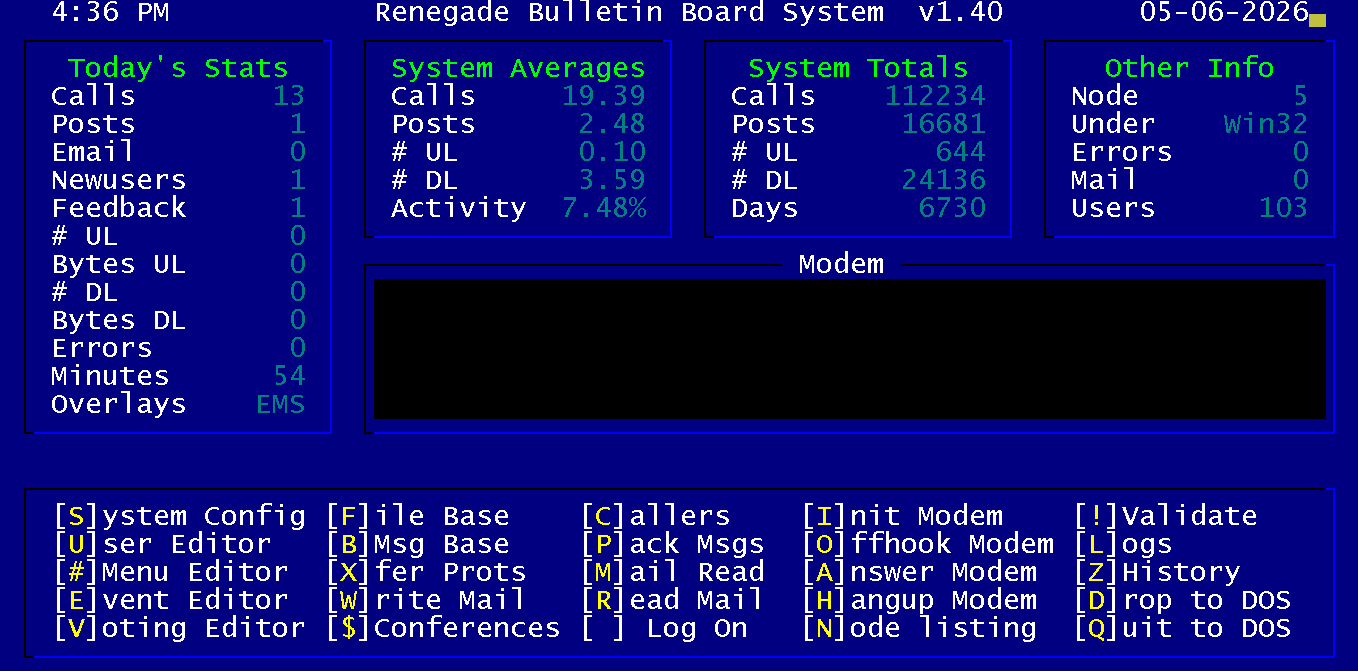
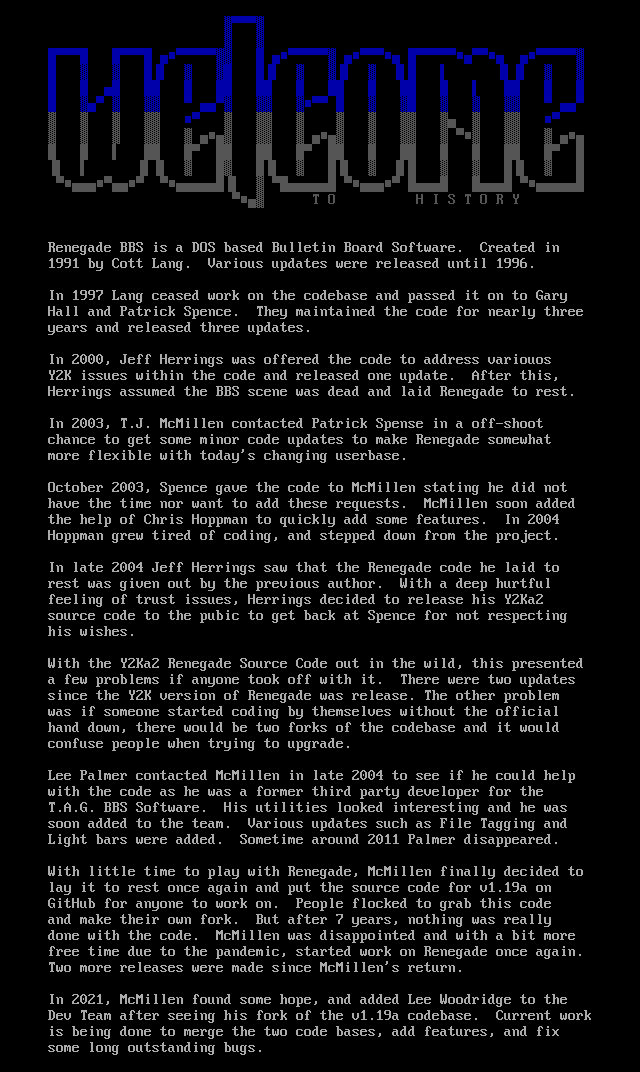
 ────────────────────────────────────────────────────────────────
 ────────────────────────────────────────────────────────────────